
Before you begin
Ask a new technician to register as Tech first.
Add a technician
Use this when someone joins the team.
1
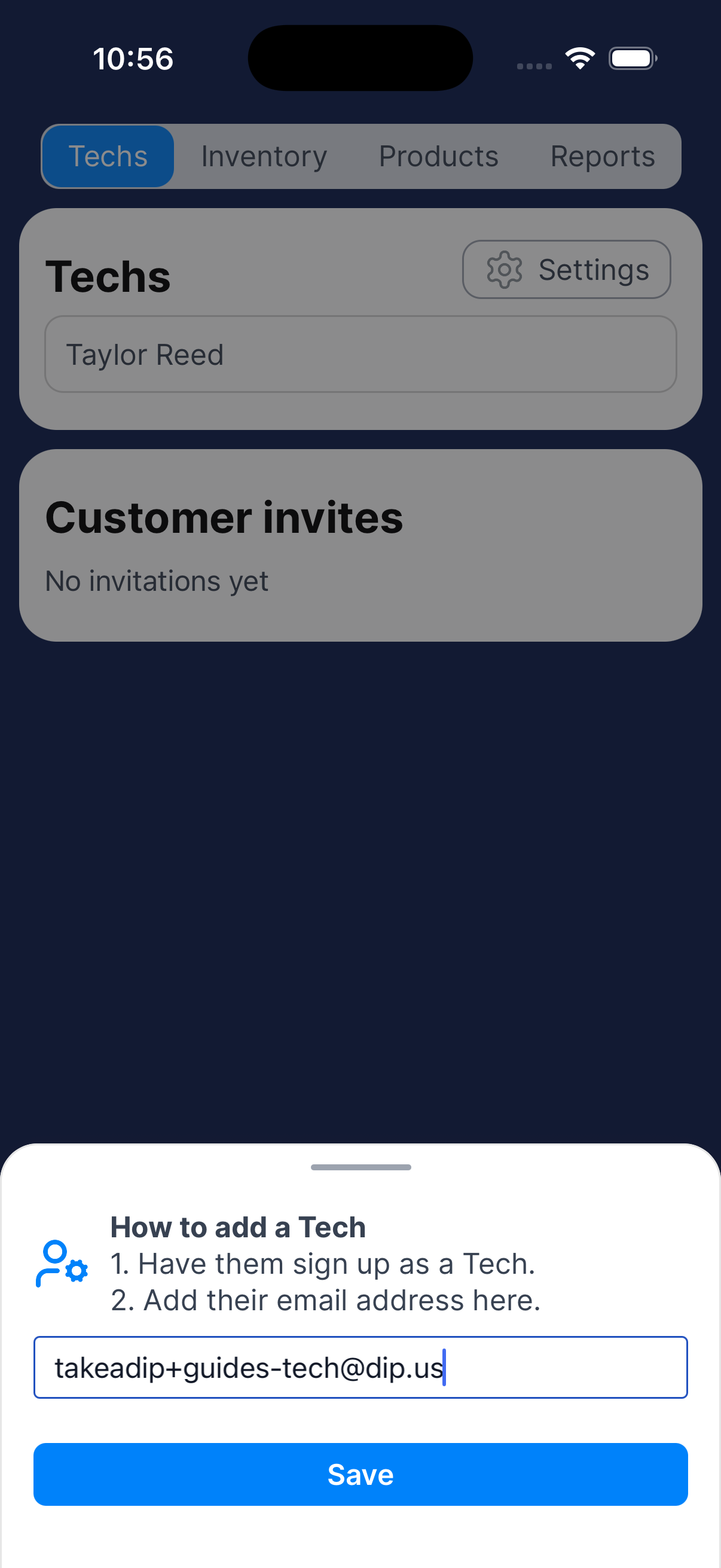
Add their registered email
Go to Business → Techs → Add tech. Enter the email they used to sign up and tap Save.
2
Assign work and check access
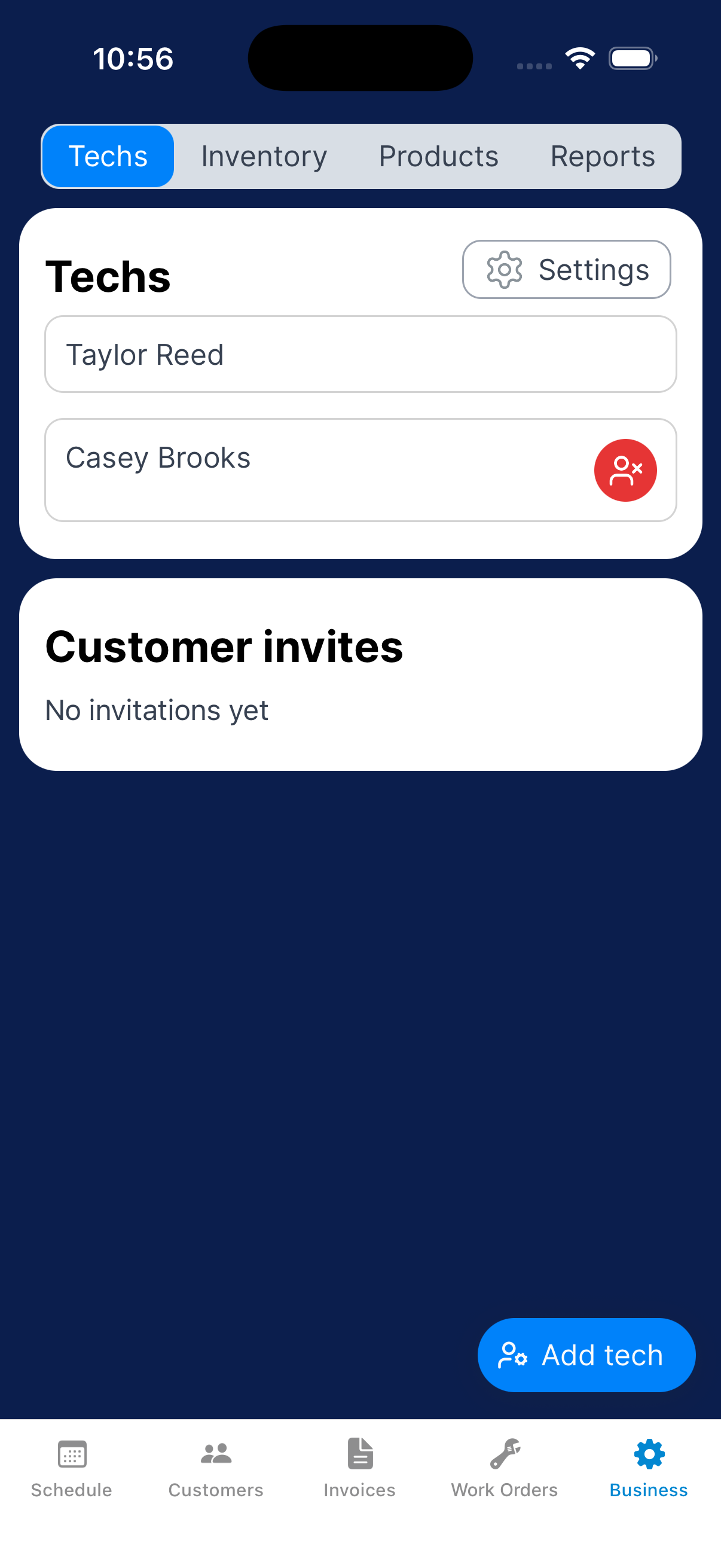
Check that the technician appears in the list. Assign customers in Service settings or assign work orders to them.
Have them check Schedule on the assigned day.
Remove a technician
Move their work to someone else before you remove them.
1
Arrange coverage, then remove the technician
Review their customer service and work-order assignments and update them for the person taking over. In Business → Techs, use the red remove-person button and review the confirmation.
Check the affected schedules afterward.