
A charge you won’t bill again can go straight on the invoice. Products is a different list. It tracks the chemicals on your trucks.
Technicians need the Modify price list permission to change the price list. Saving from a job report also needs View rates and prices.
Save a repeat charge
Save repeat items such as filter cleaning to avoid retyping them.
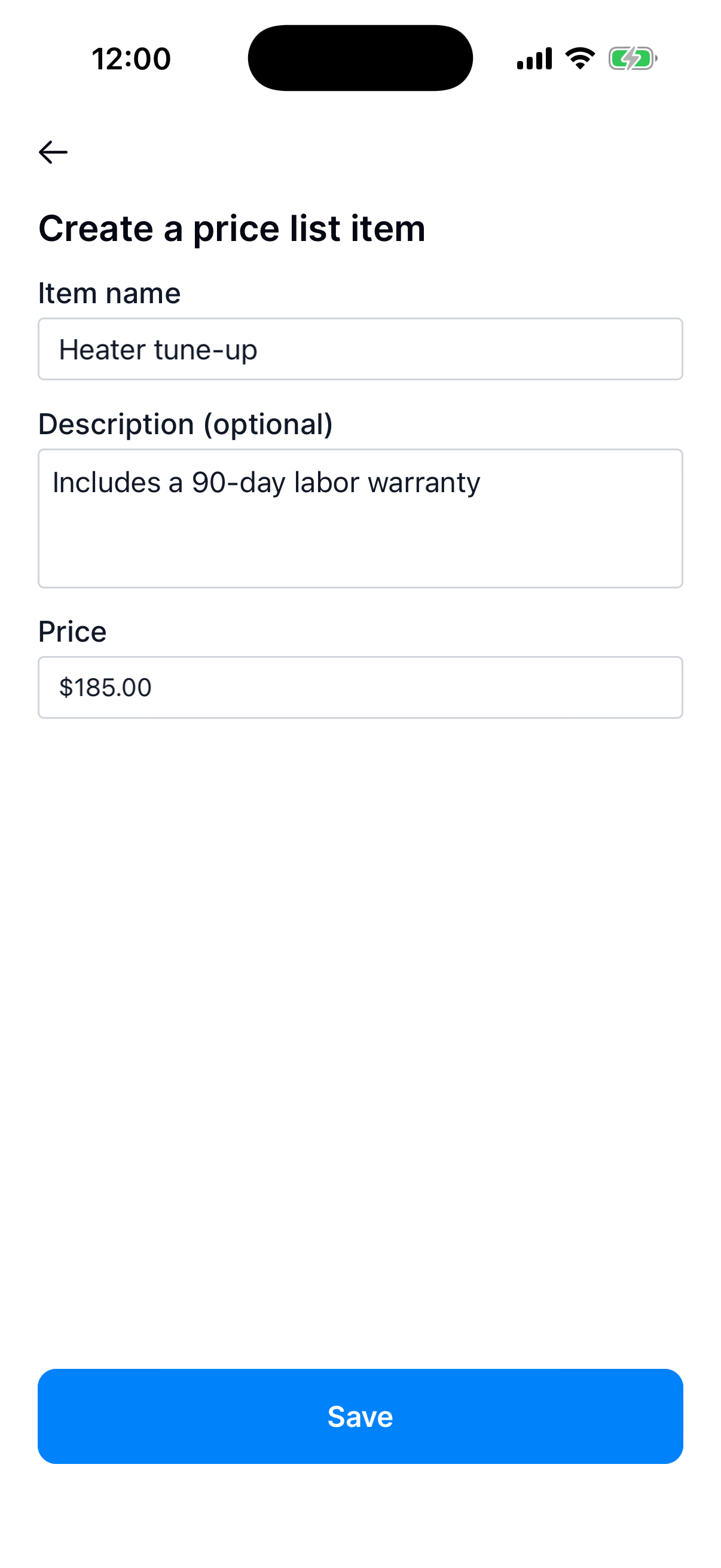
Create the price list item
Go to Business → Price list → Add to price list. Enter the item name and price. Add a description if the customer needs details, such as a warranty.
Tap Save.
Use it on an invoice
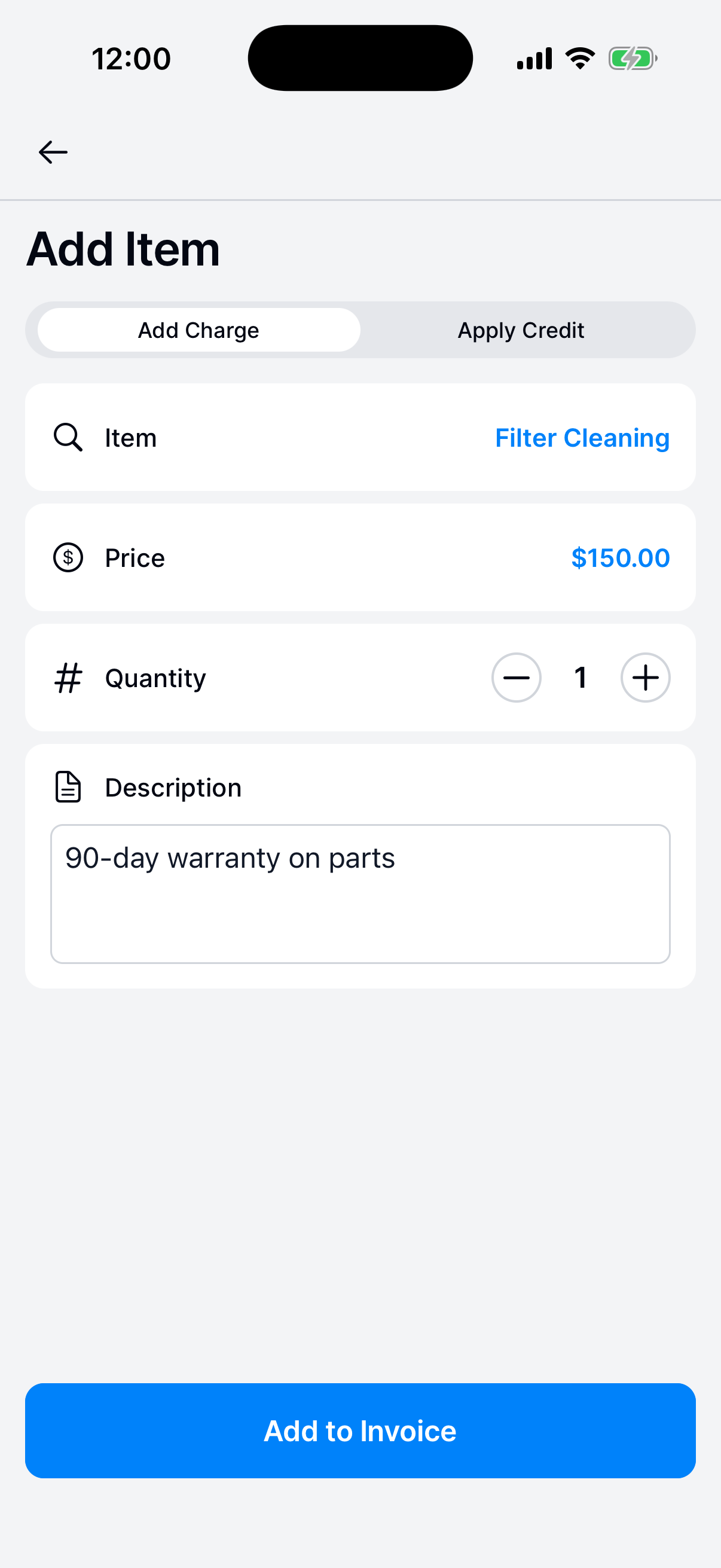
In Add Item on an invoice, tap Item and choose the saved item under From your price list. The price fills in from your price list and the quantity starts at 1. Change either one for this invoice, then tap Add to Invoice.
Save a new charge as you bill it
Save a charge to the price list while you add it to an invoice or a job report.
Turn on Save to price list
On an invoice, tap Add Item, then Item. Type the new name and tap Use. Enter the price, turn on Save to price list, and tap Add to Invoice. See Create and send a one-shot invoice.
On a job report, add it with New Item, turn on Save to price list, and tap Save Charge. See Complete and submit a pool-service visit.
Save to price list shows only for a new charge. It starts off every time.
Edit an item
Change a saved item’s name, description, or price.
Change the item
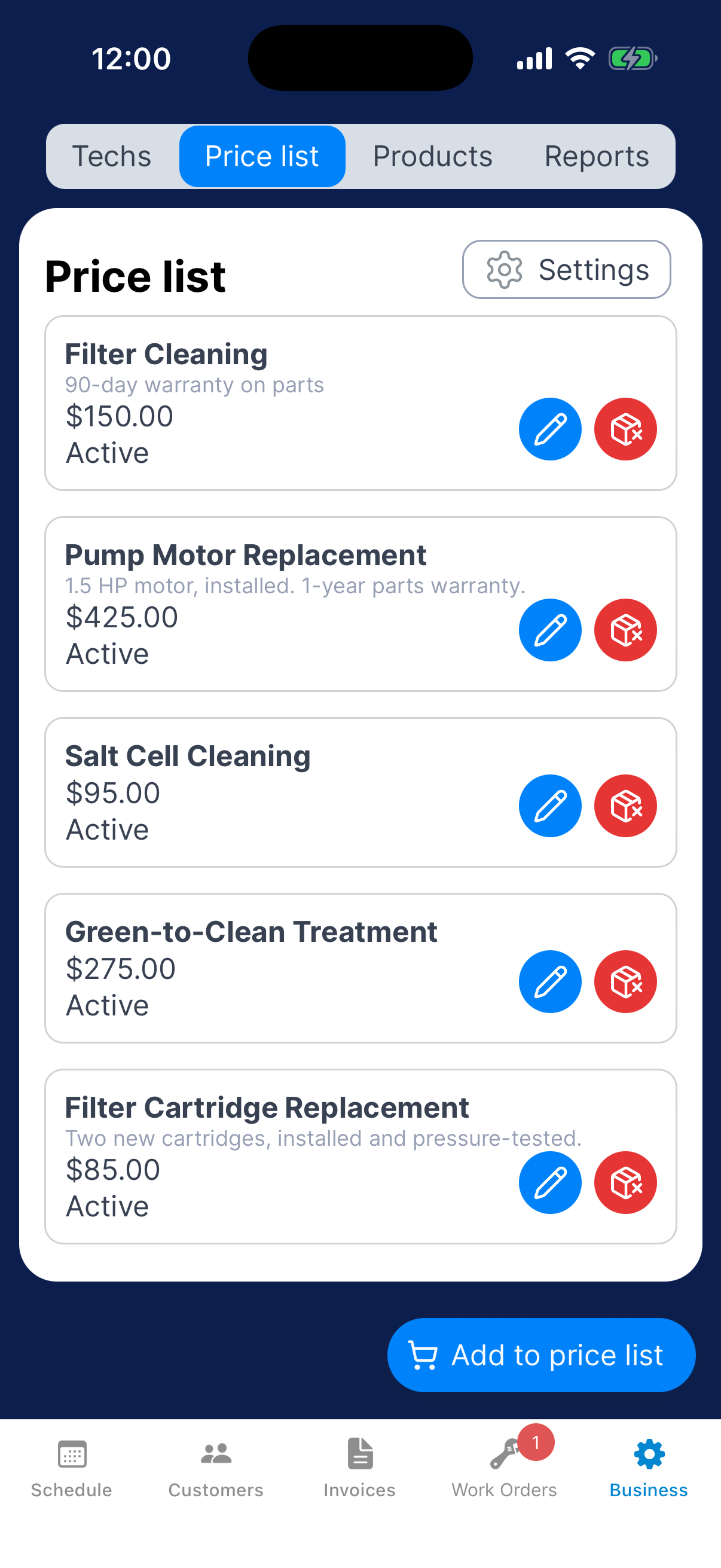
Go to Business → Price list and tap the pencil on the item. Make your changes and tap Save.
Remove an item
Dip asks before it deletes the item. You can’t undo it.
Delete the item
Go to Business → Price list and tap the red remove button on the item.
In Confirm delete item, tap Delete, or Cancel to keep it.