
Open the correct customer’s visit. Enter what you saw and did today.
Record the visit and submit the report
Follow these steps when you’re finishing the visit now.
Open the correct visit
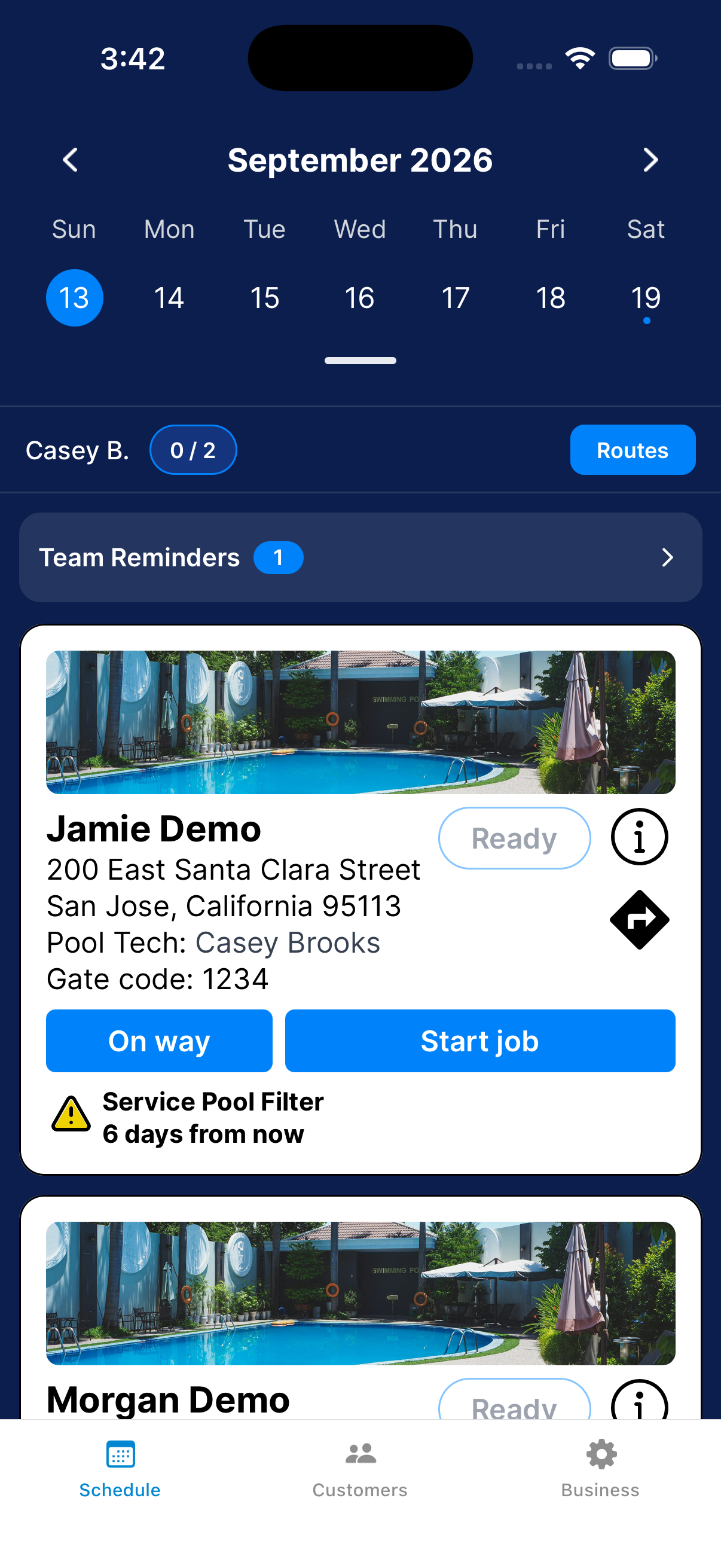
On Schedule, check the customer and date. Tap Start job, or Continue job for an existing report.
Read the property notes and task reminders before you start.
Record readings and products
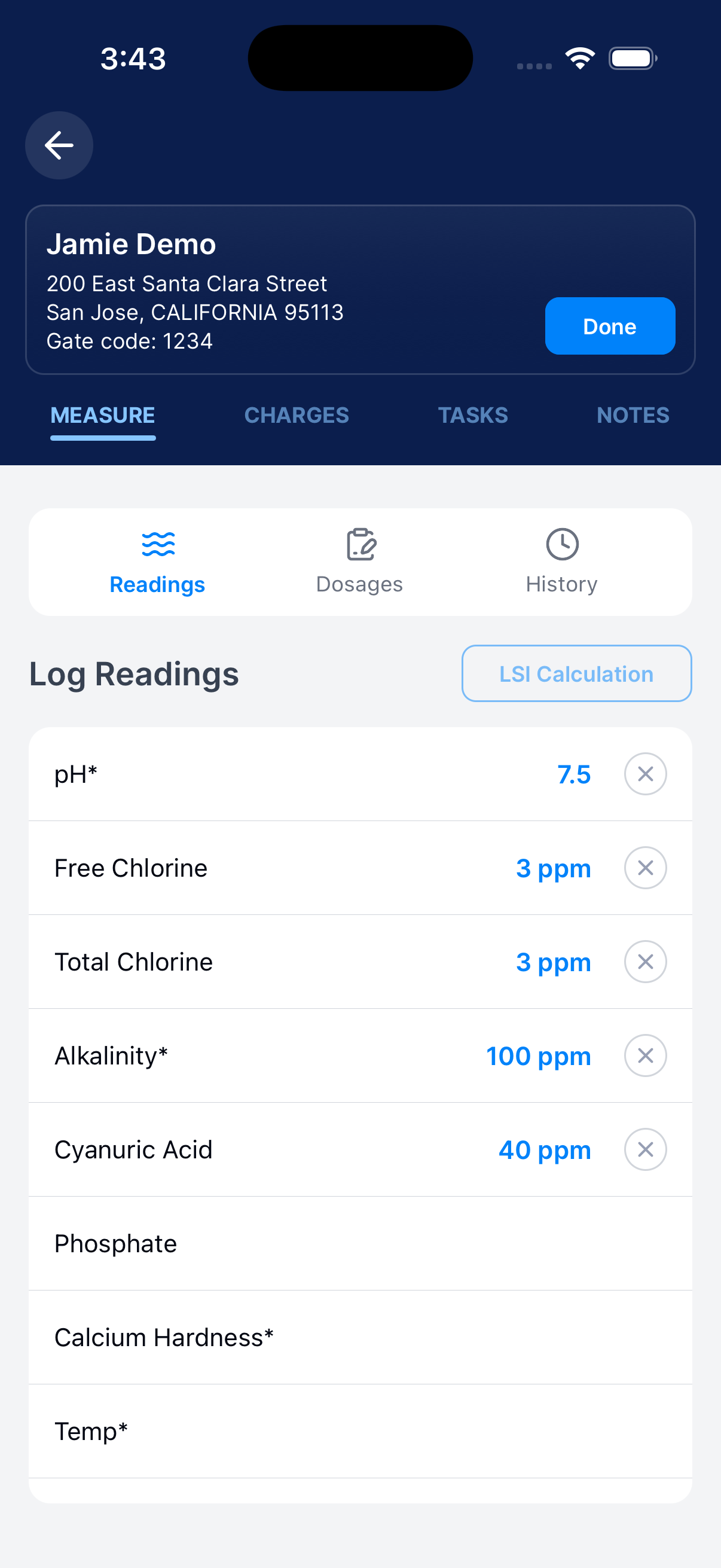
Under Measure → Readings, enter today’s values and check the units. Under Dosages, choose the chemicals you used from your truck list and enter the amounts.
Gray readings are from past visits. See Record readings, dosages, and LSI inputs for help.
Add charges when needed
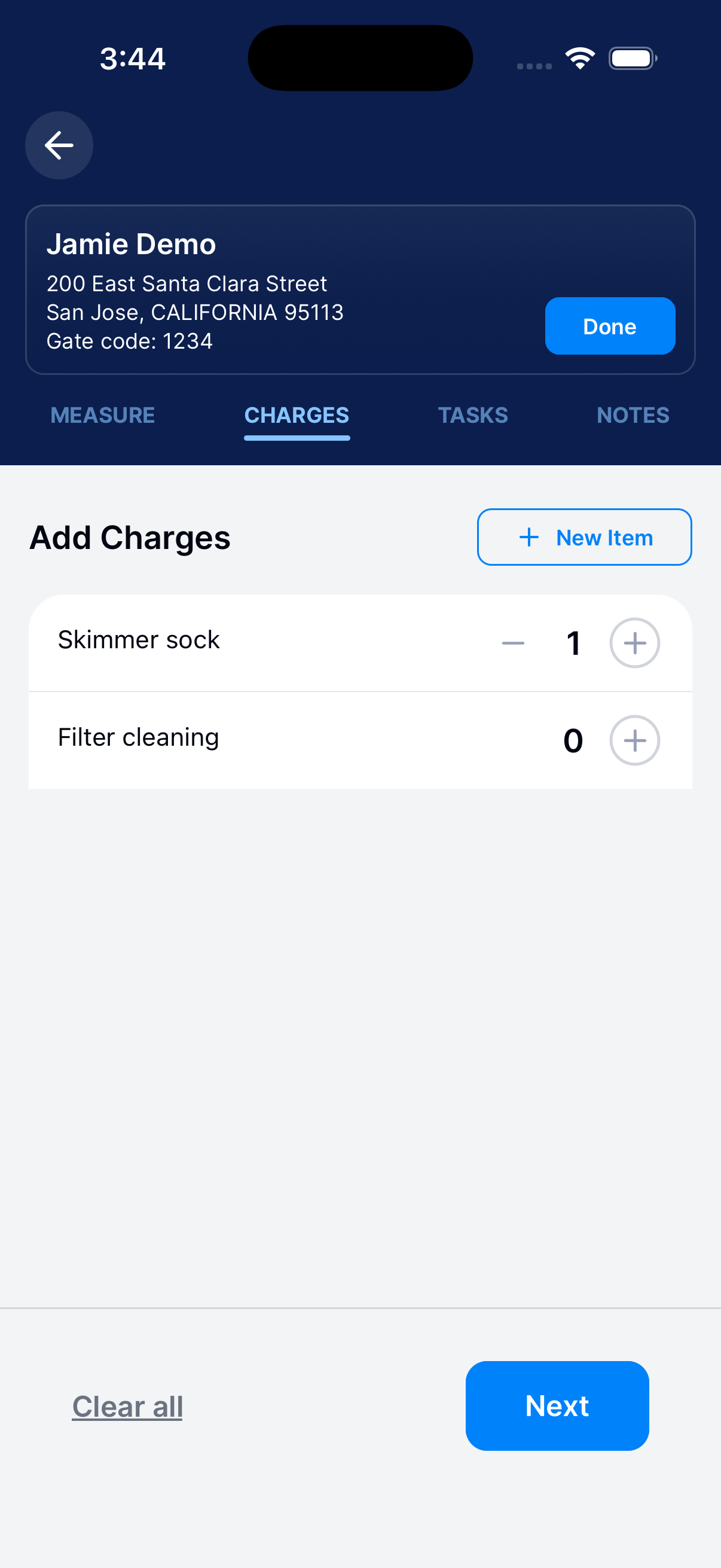
Open Charges. Use + to add an existing item.
Use New Item for a description and price. Follow your business’s billing rules and check the quantity.
Mark completed work
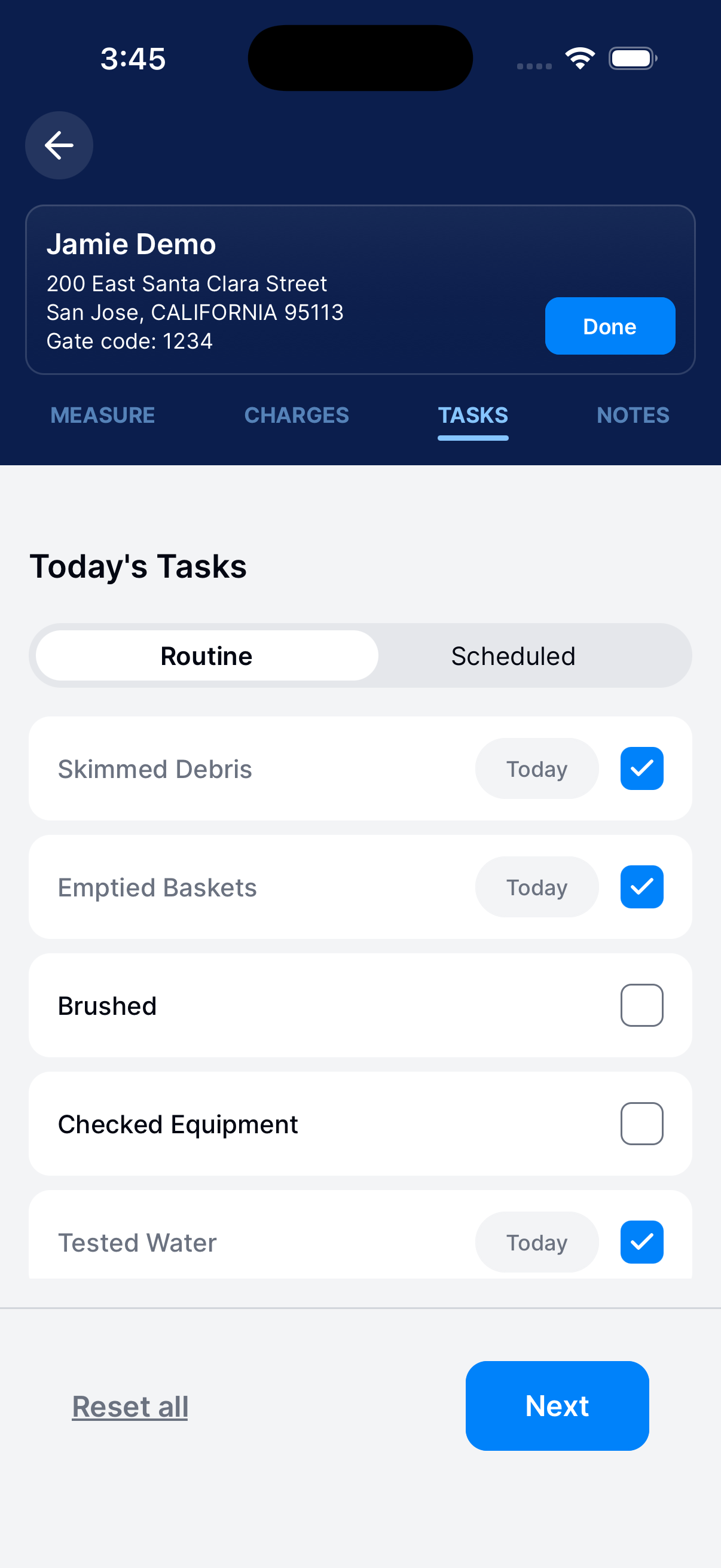
Under Tasks → Routine, check the work you completed. Leave unfinished work unchecked.
Under Scheduled, mark completed maintenance and set the next date when asked.
Add notes and photos
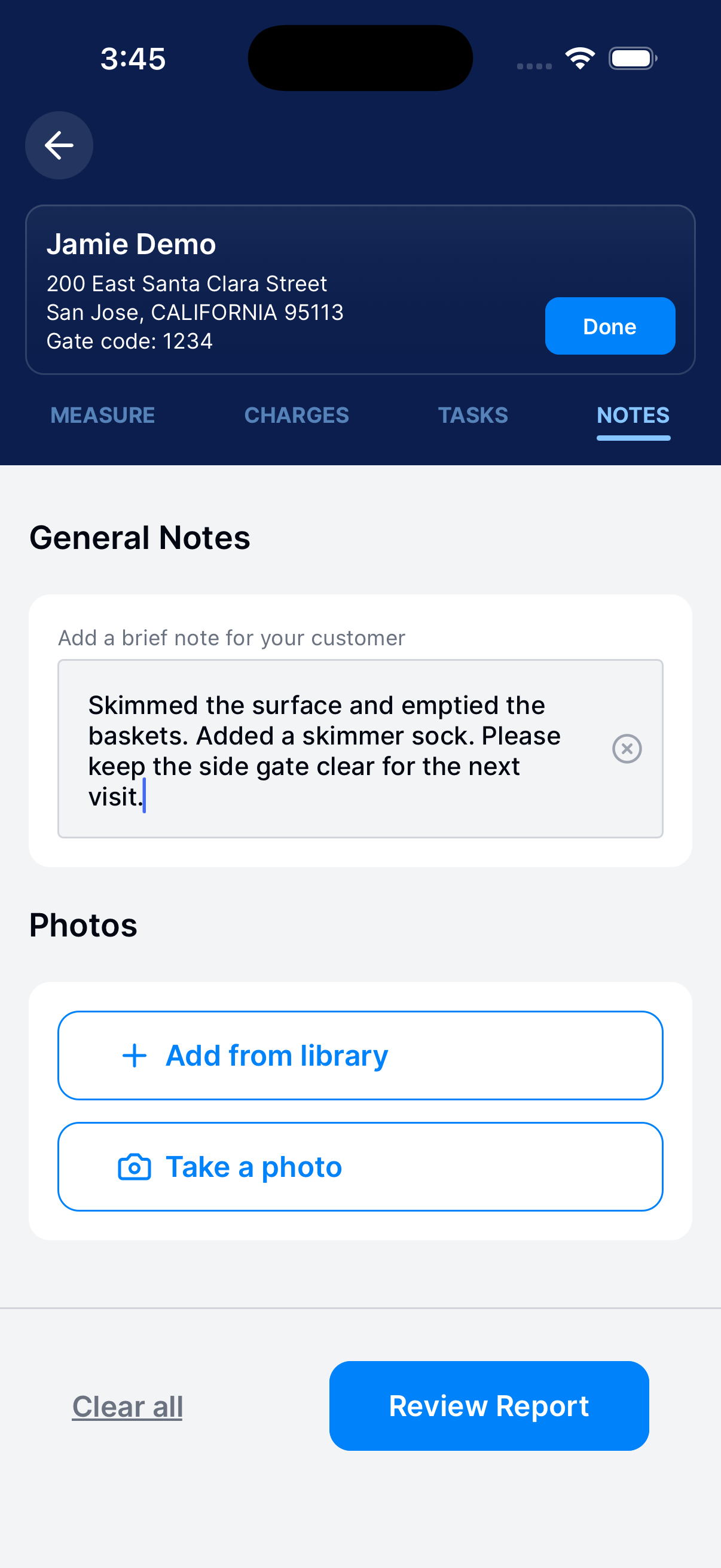
Under Notes → General Notes, describe the work and anything the customer needs to know. Use Take a photo or Add from library if allowed.
Check the photos before continuing.
Check the customer report
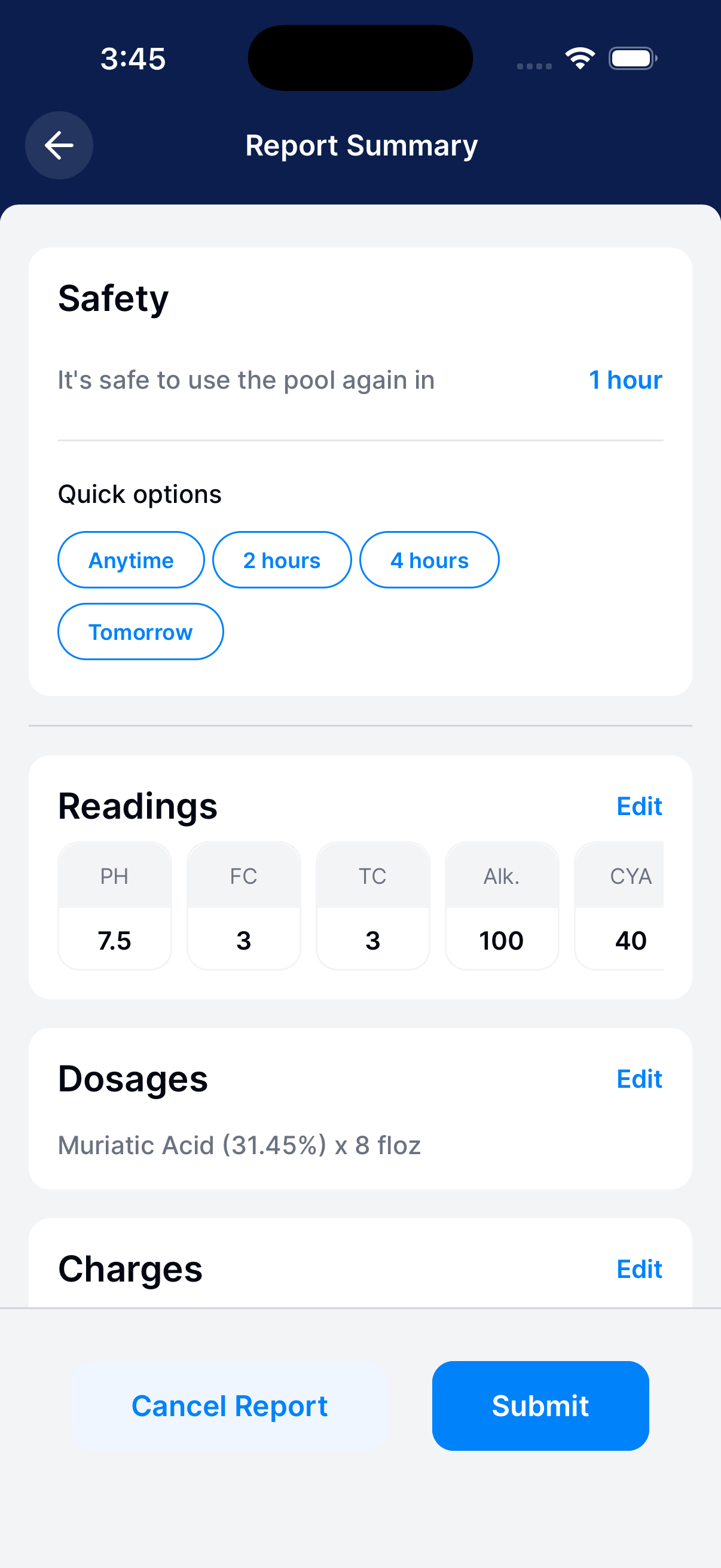
Tap Done or Review Report. Check the readings, dosages, charges, tasks, notes, and photos.
Use Edit to fix errors. Under Safety, choose the pool-use time for the work you did.
Do not copy the screenshot’s example.
Scroll through the whole summary. The values and pool-use time in the screenshot are examples.
Submit and check the upload
Tap Submit and confirm when the report is ready. Keep Dip open while it uploads.
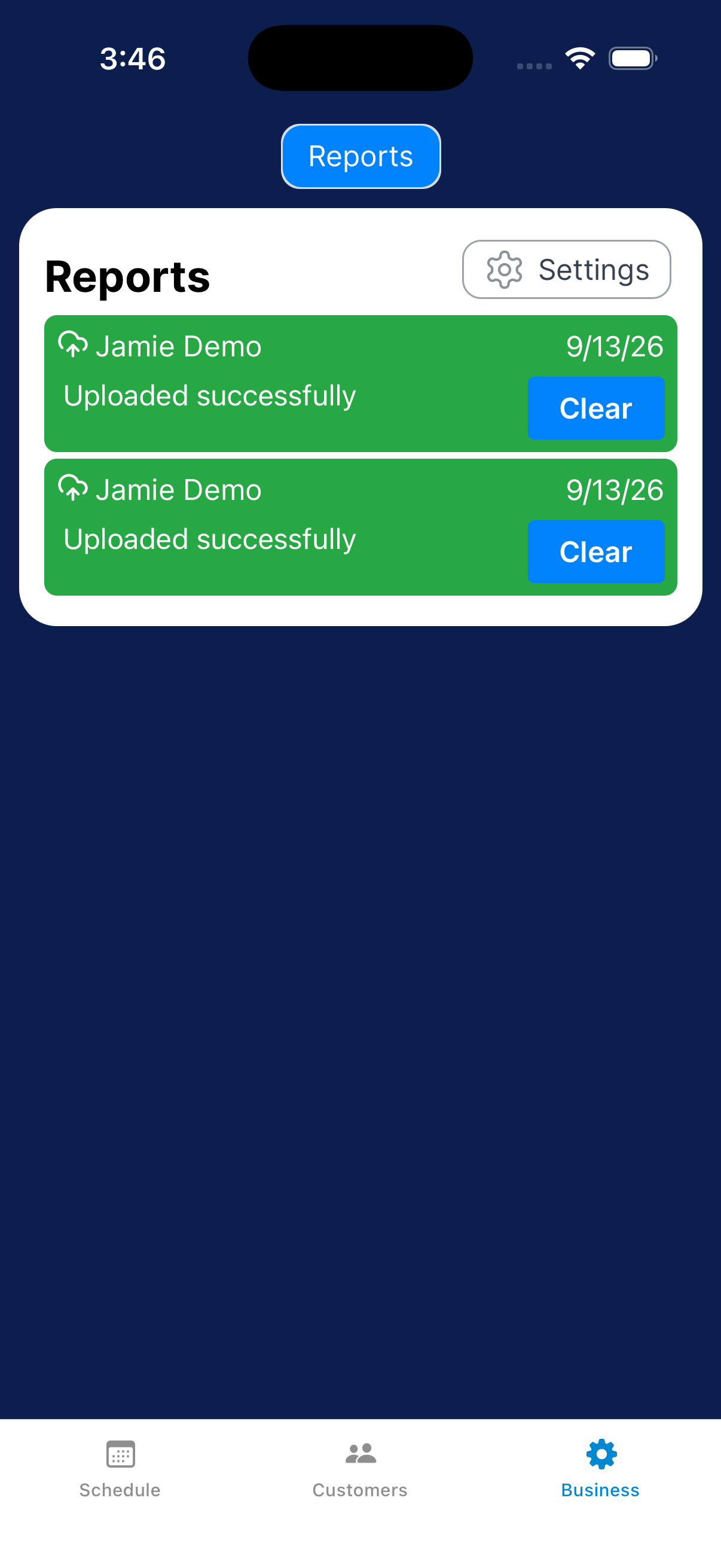
Go to Business → Reports and check the status.
Pause or cancel an unfinished report
Use one of these when you’re not submitting the report now.
Pause when you plan to return
Tap the back arrow to return to Schedule. Tap Continue job when you’re ready to come back.
You don’t need to submit before leaving.
Cancel an unfinished report
Open the job and tap Done, then Cancel Report. Read the prompt.
Tap OK to cancel or Cancel to keep the report. Check Schedule afterward.
Need a hand?
Why can’t a technician add photos from the library?
The operator controls this under Business → Settings → Enable technician camera roll upload. Review that setting when the team needs to use existing photos.