
Have the customer, amount, item, and due date ready. You can send an invoice without Finix. To collect payments through Dip, complete Finix onboarding first. See Set up and review monthly billing.
Create a new invoice
Start here for a new invoice.
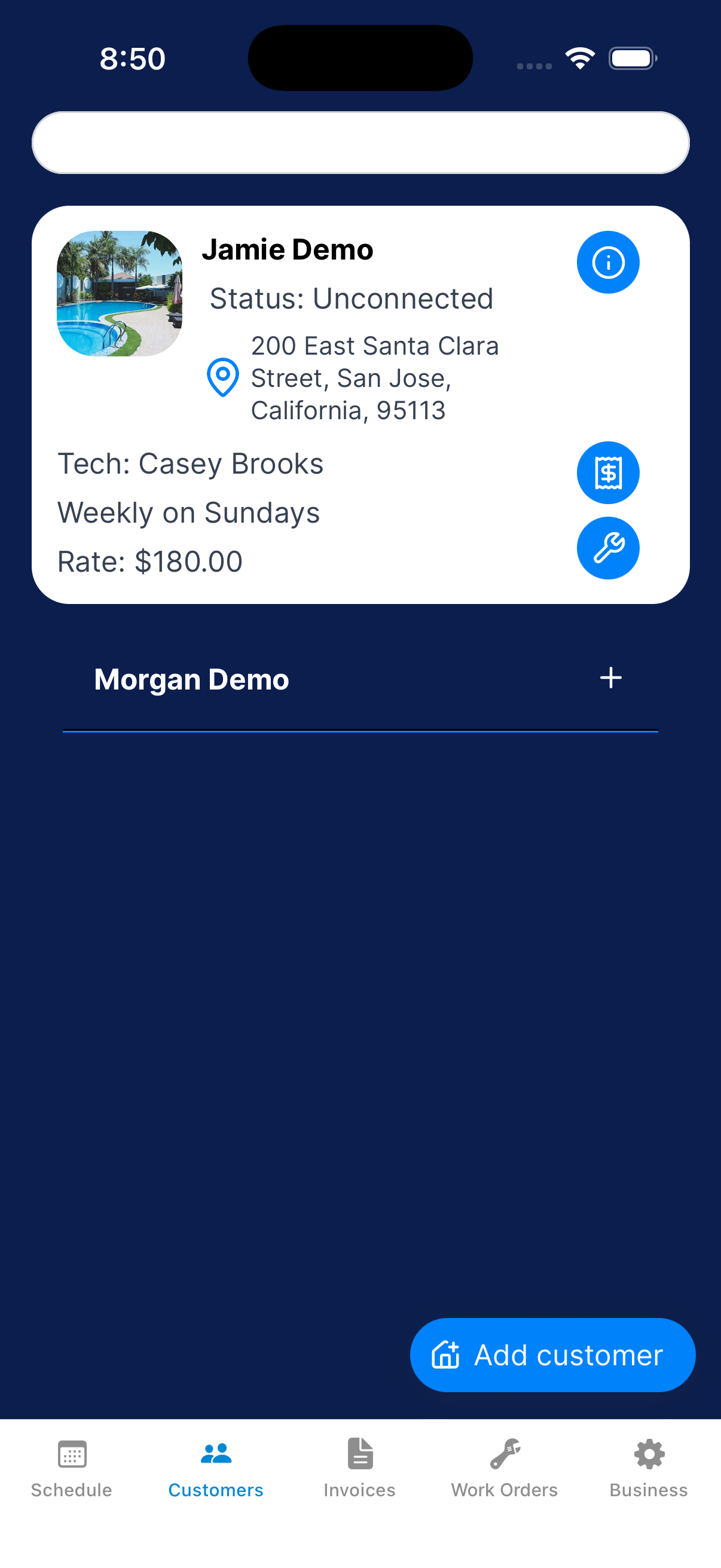
Choose your customer
Open Customers and tap the customer’s name. Tap One-Shot.
You can also go to Invoices → Create invoice and choose a customer.
Choose when payment is due
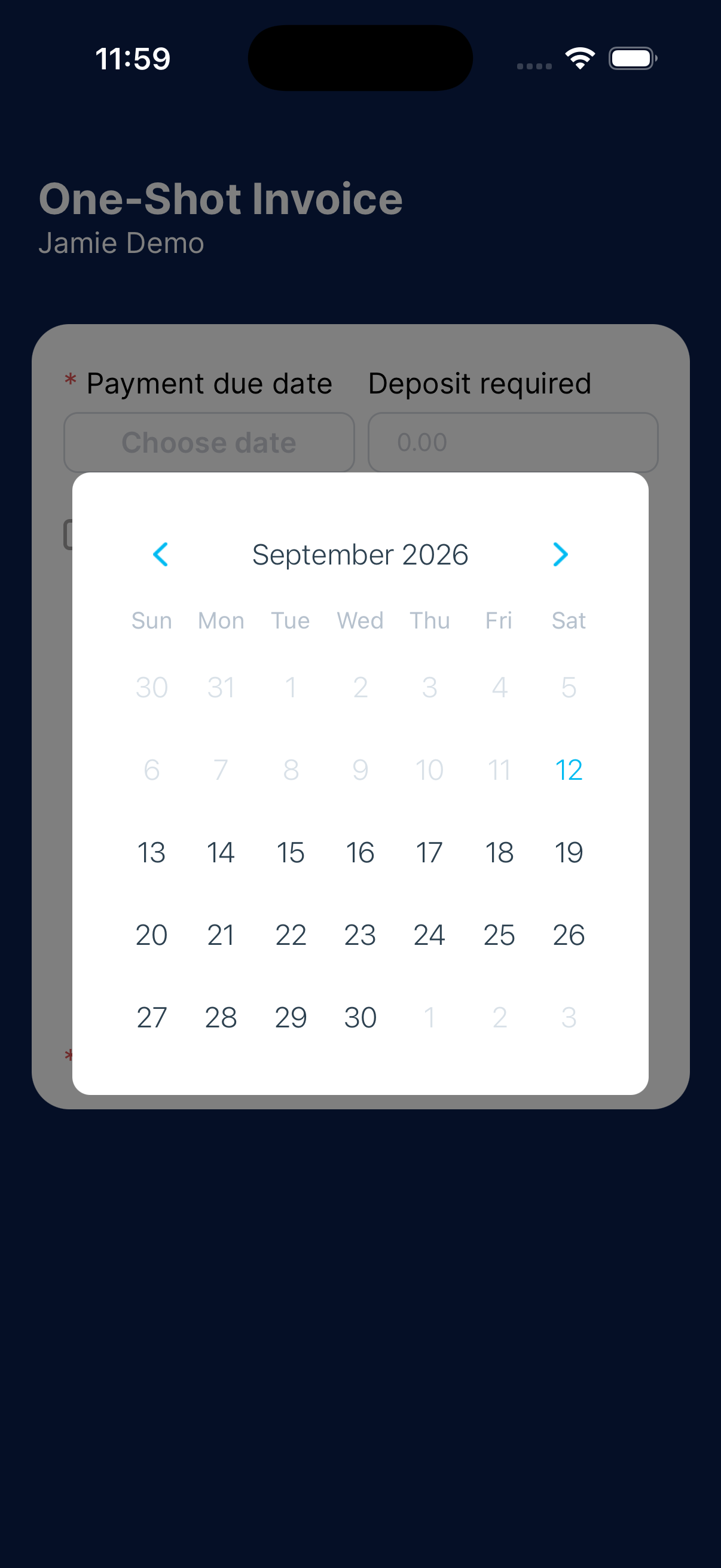
In One-Shot Invoice, tap the payment due date. Pick a date on the calendar.
Add what you’re charging for
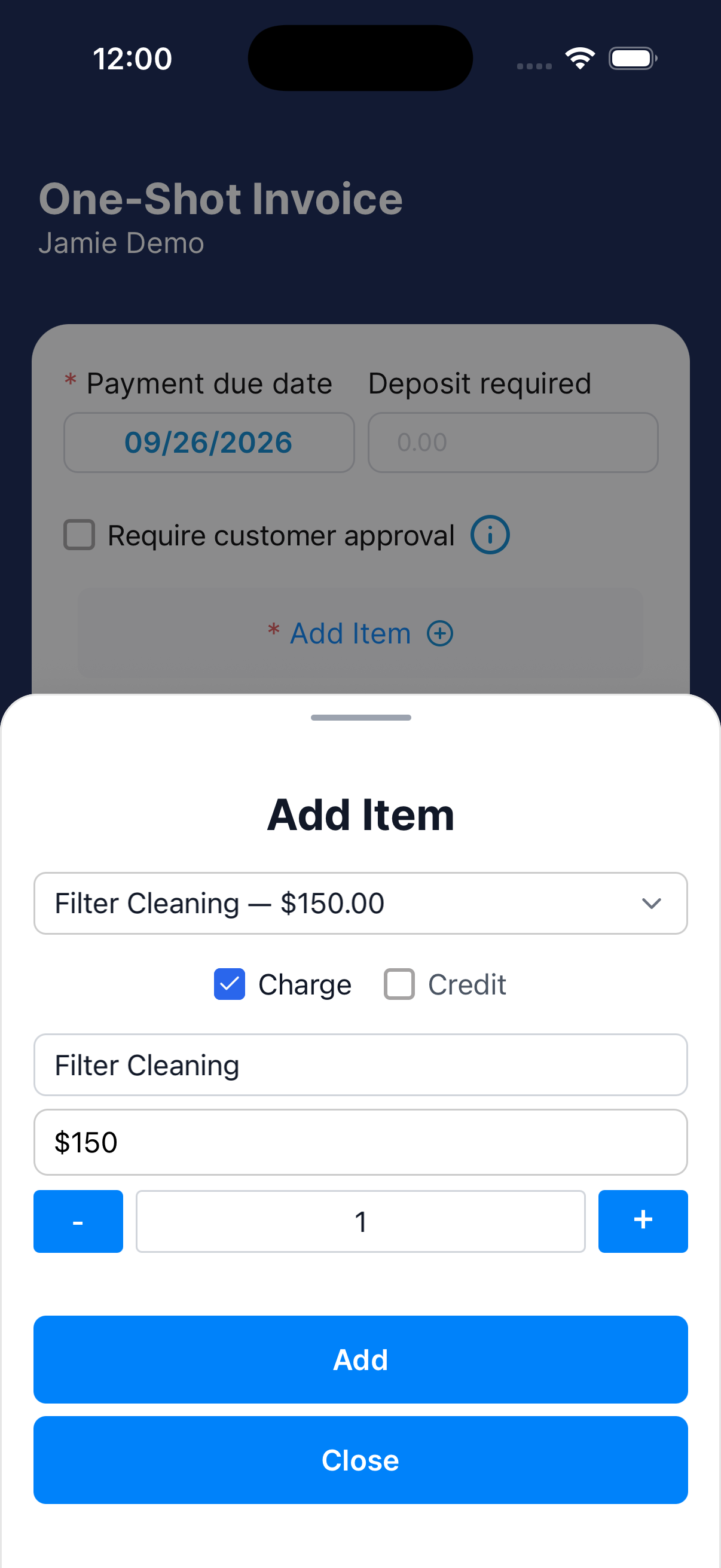
Tap Add Item. Choose an Inventory item, or enter a description and price.
Choose Charge for money owed or Credit to lower the balance. Set the quantity.
Tap Add, then Close. Repeat for each item.
Use an inventory item for repeat charges. Check the price and quantity each time.
Check the items and total
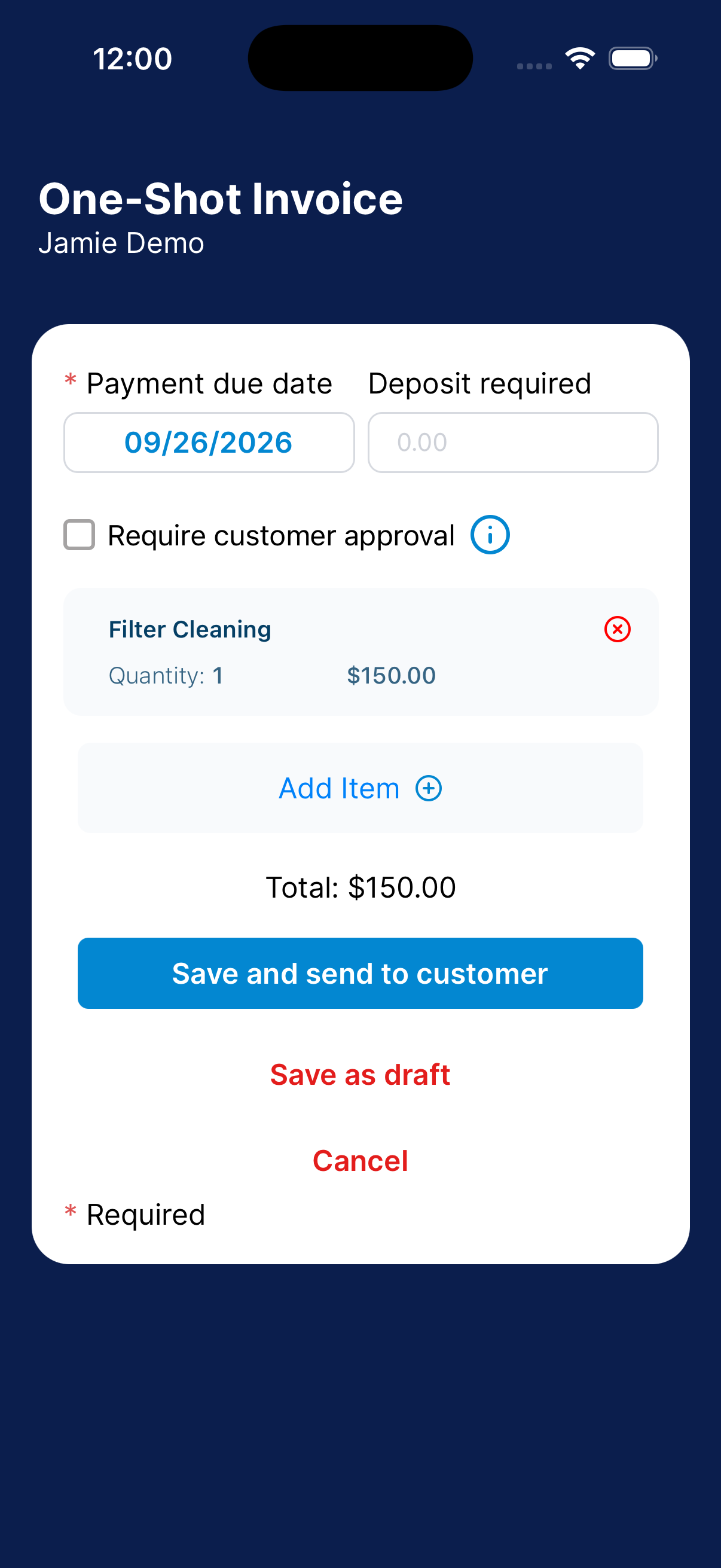
Check each item’s description, price, and quantity, including credits. Remove any wrong item and add it again.
Check the total.
Set a deposit or request approval
Enter a deposit if needed. A positive deposit requires customer approval.
You can also turn on Require customer approval without a deposit.
Leave the deposit at zero and approval off when you need neither.
Review and send
Check the customer, due date, items, and total. Tap Save and send to customer.
Open the invoice after sending and check the due date. If it changed, ask your manager before telling the customer the due date.
Not ready to send? Tap Save as draft to finish later.
Resume a draft
Open a draft instead of creating a second invoice.
Open Drafts
Tap Invoices → Drafts. Use search to find the customer.
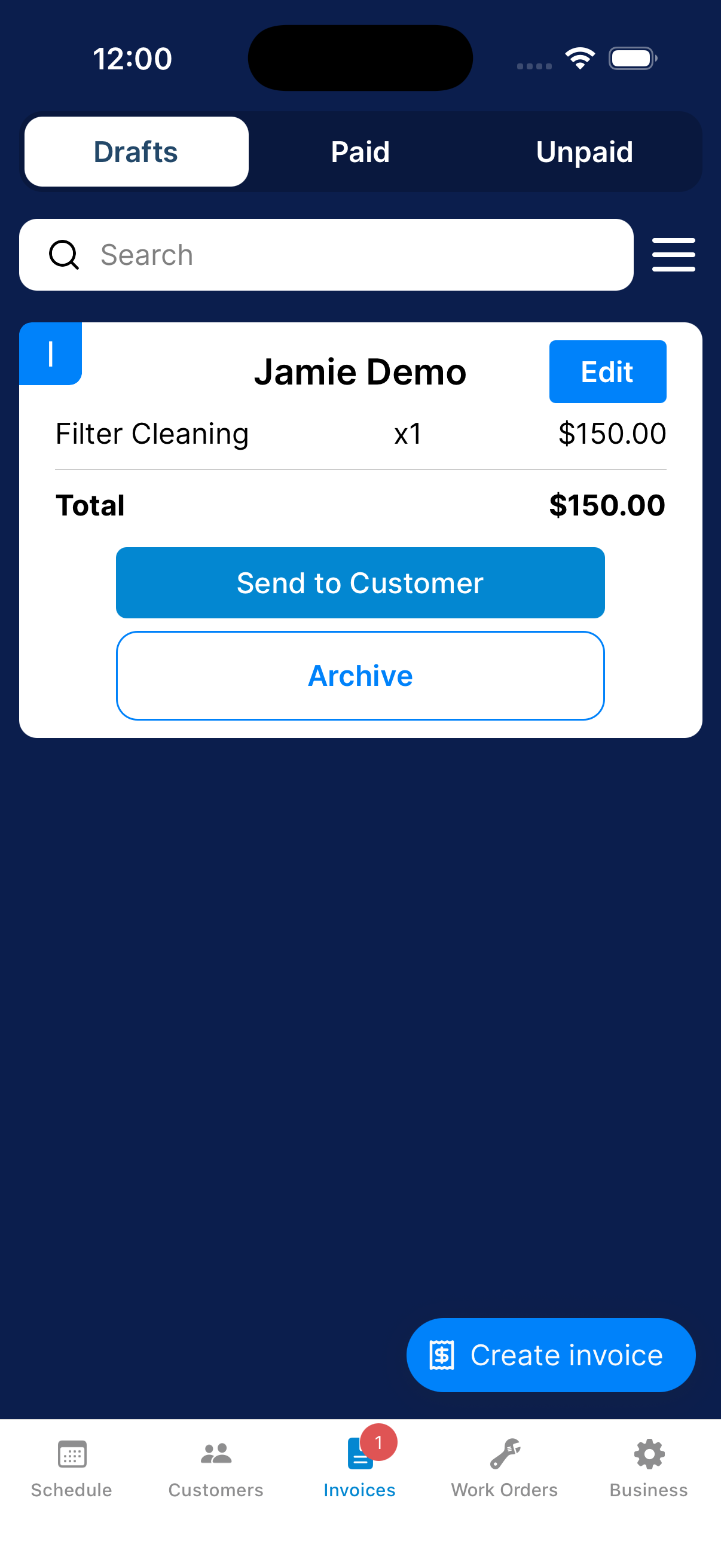
Show draft invoices
Open the filters and select Draft Invoices. Upcoming Monthly Maintenance is a separate option.
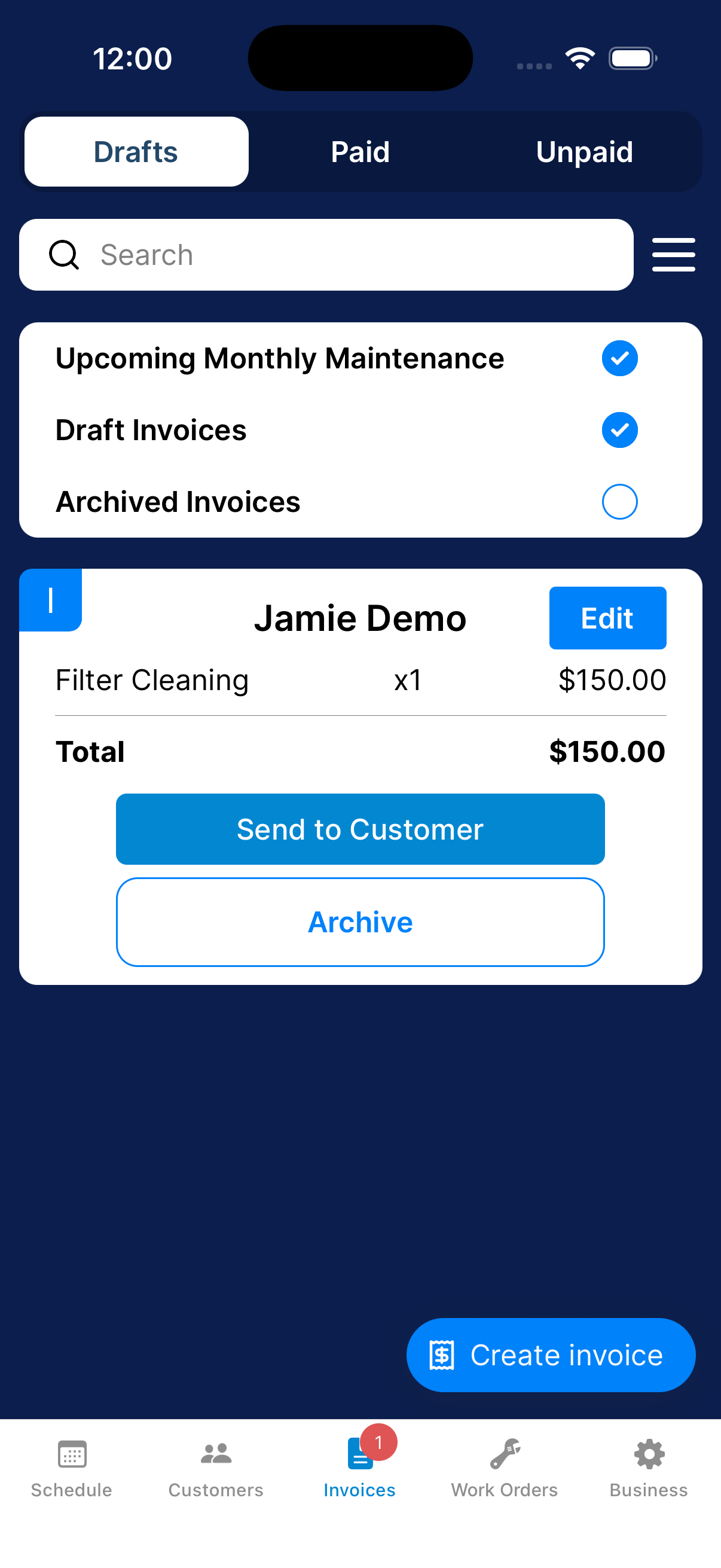
Review the draft
Open the draft’s edit control. Check the recipient, due date, deposit, approval setting, and items.
Save or send
Save your edits as a draft or use the send action when the invoice is ready for the customer.
What happens next?
After sending, find the invoice under Invoices. If you saved a draft, find it under Drafts.
Need a hand?
Why can’t I send the invoice?
Check that you’ve chosen a customer, set the payment due date, and added the invoice items. Review the required fields on the form.
Why am I seeing monthly maintenance in Drafts?
Drafts can include upcoming maintenance. Open the filters and check Draft Invoices and Upcoming Monthly Maintenance to choose what appears.