
Have the amount, how they paid, and when you got it. For a check, have the check number too.
Open the unpaid invoice
Go to Invoices → Unpaid and open the customer’s invoice. This works for Monthly, One-Shot, and Work Order invoices.
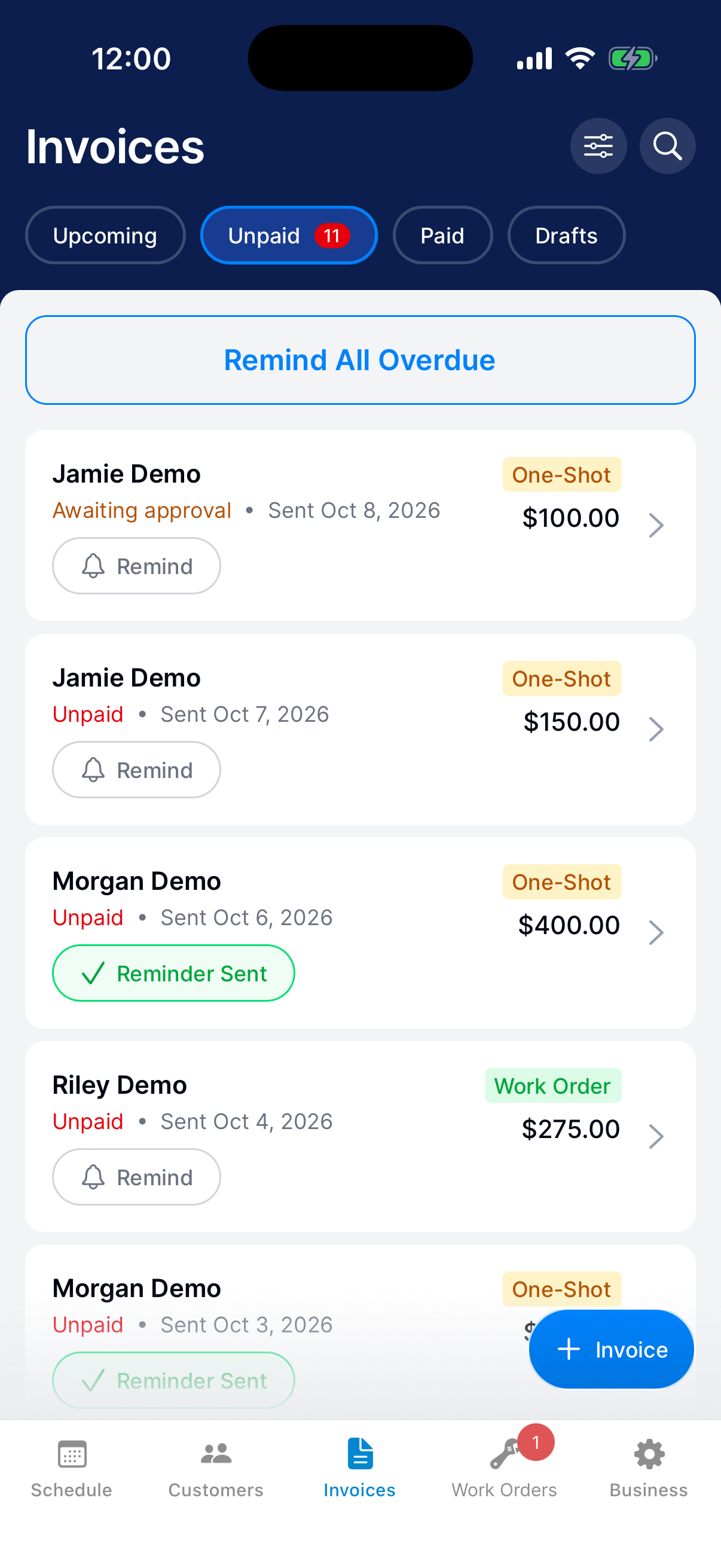
Choose Log Manual Payment
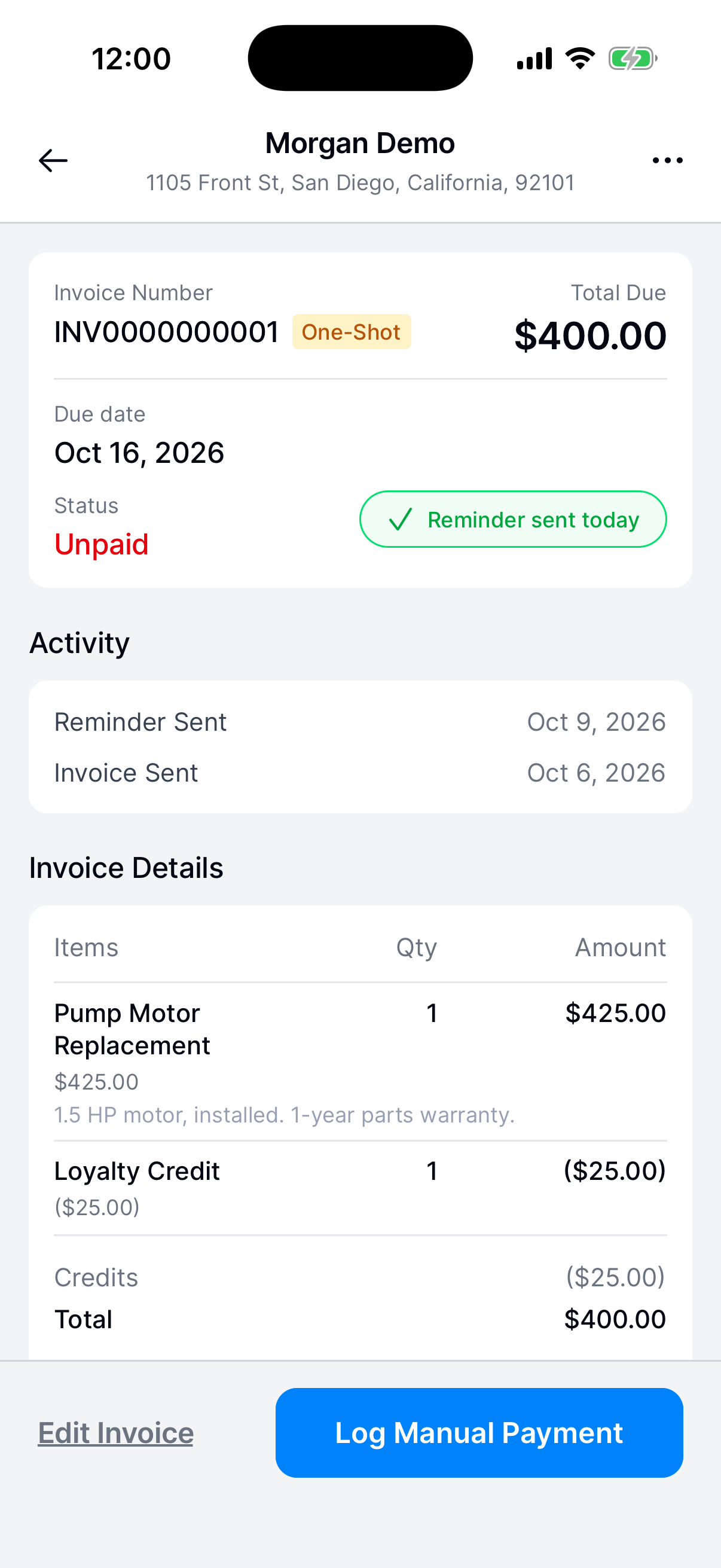
Tap Log Manual Payment at the bottom of the invoice.
It doesn’t show on drafts, canceled invoices, or invoices that are paid in full. On an estimate waiting for approval, the button says Approve for Customer. See Approve an estimate for your customer.
Enter the payment
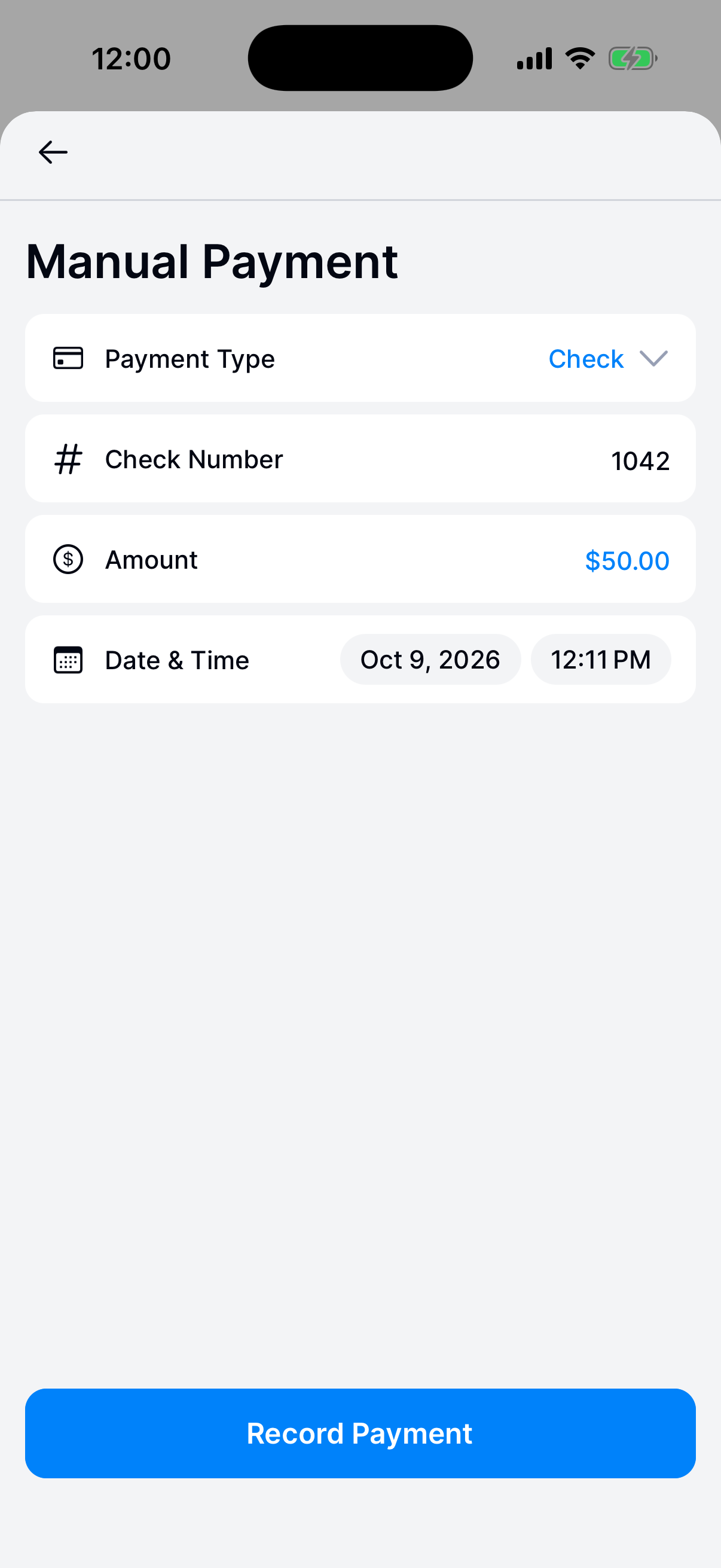
Tap Payment Type and choose Cash, Check, Venmo, Zelle, or Other. For a check, enter the Check Number. It’s optional.
Enter the Amount you received. It can’t be more than what’s left to pay.
Set the received date and time
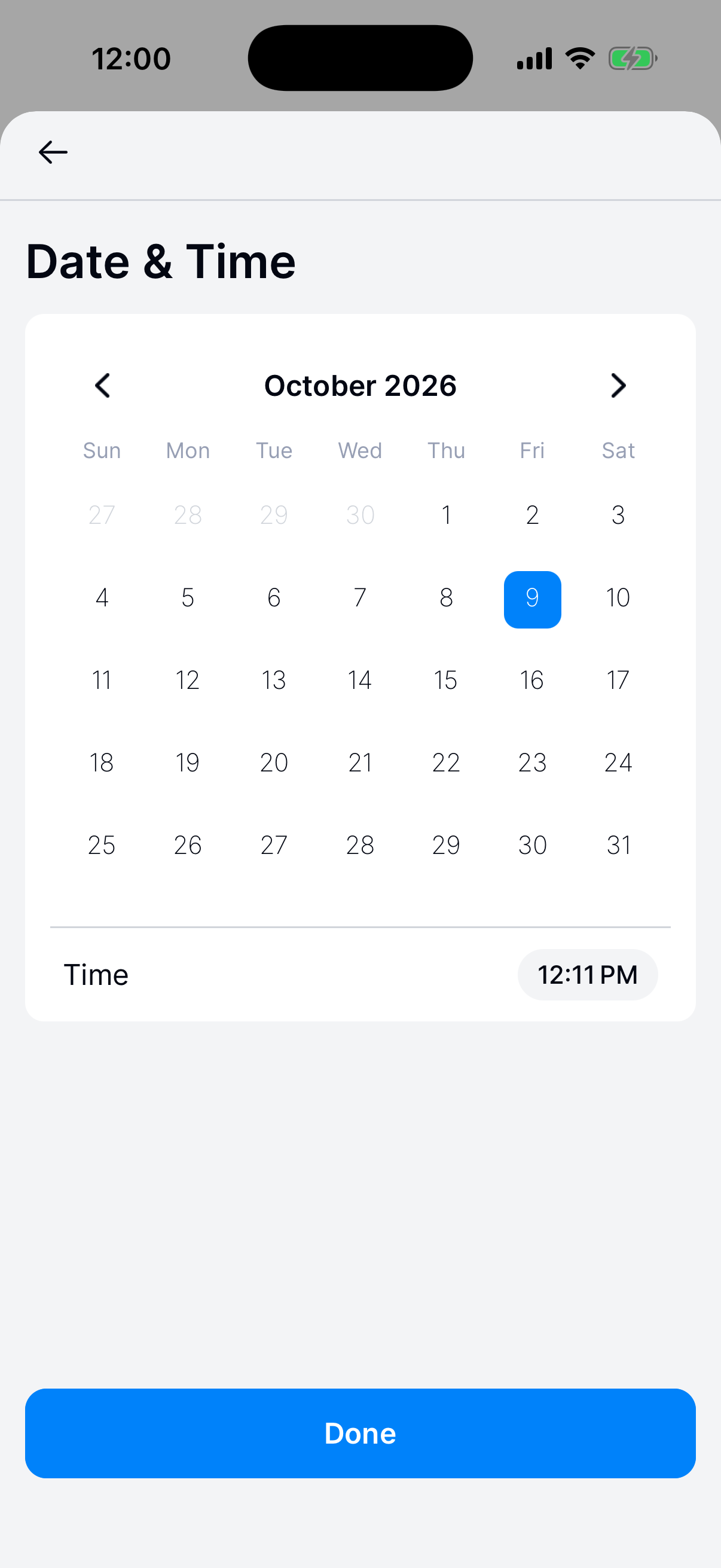
Tap Date & Time. Select the date and time the money was received, then tap Done.
Submit and check the balance
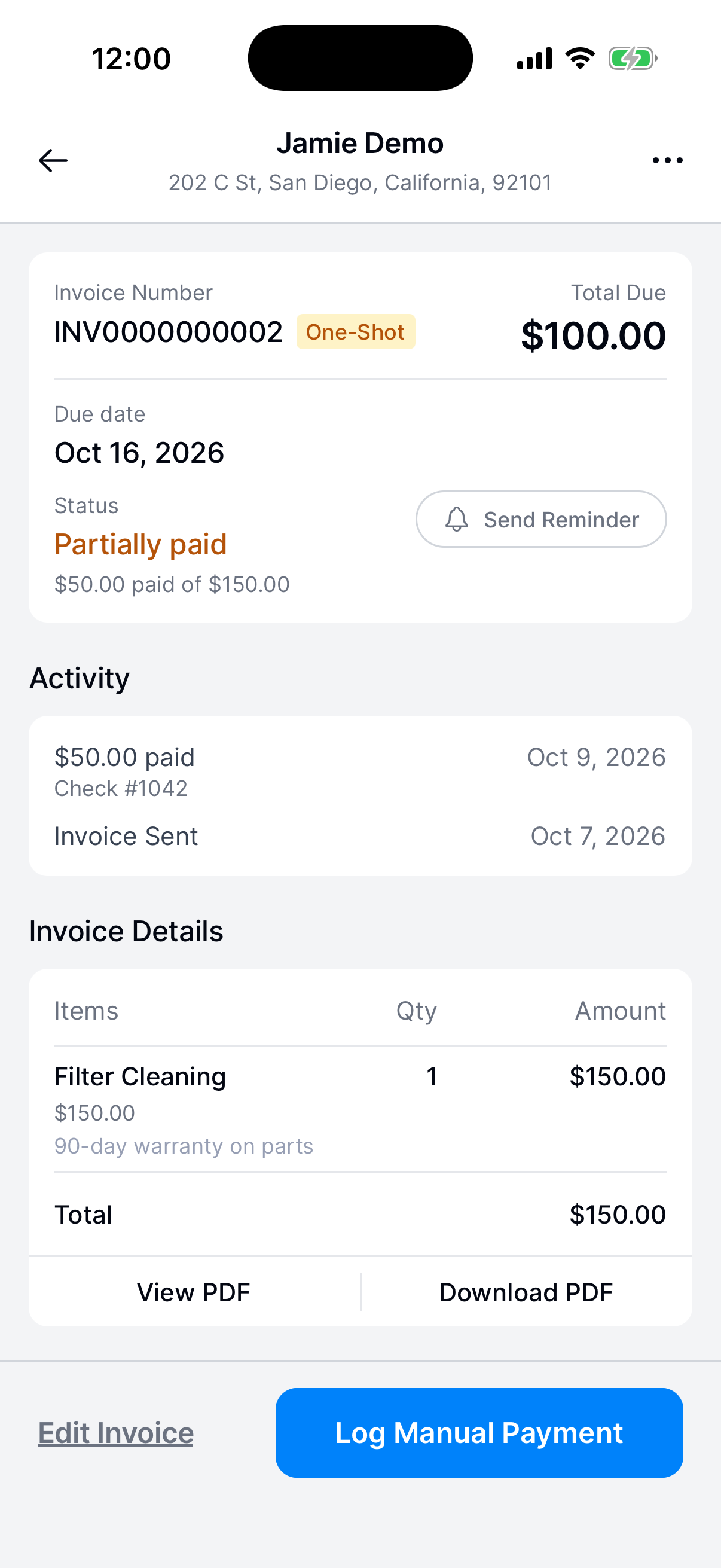
Tap Record Payment. It stays gray until you’ve set the type, amount, and date. Dip takes you back to the invoice, where Total Due and Status show the new balance.
A $50 payment on a $150 invoice leaves $100 due, and the status shows Partially paid. The payment shows under Activity as $50.00 paid, with the method under it, such as Check #1042.
When the balance reaches $0.00, the invoice shows Paid and moves to the Paid tab.
What happens next?
Dip adds the payment to the invoice and sends the customer a receipt. It doesn’t take any money from them.