
You need the operator account or the Admin role to change these settings. You can send invoices before you connect your bank account. Customers can pay you in Dip once you do.
Set the monthly billing rules
Open Business Settings
Go to Business → Settings. Add your Venmo username or Zelle information if you use them.
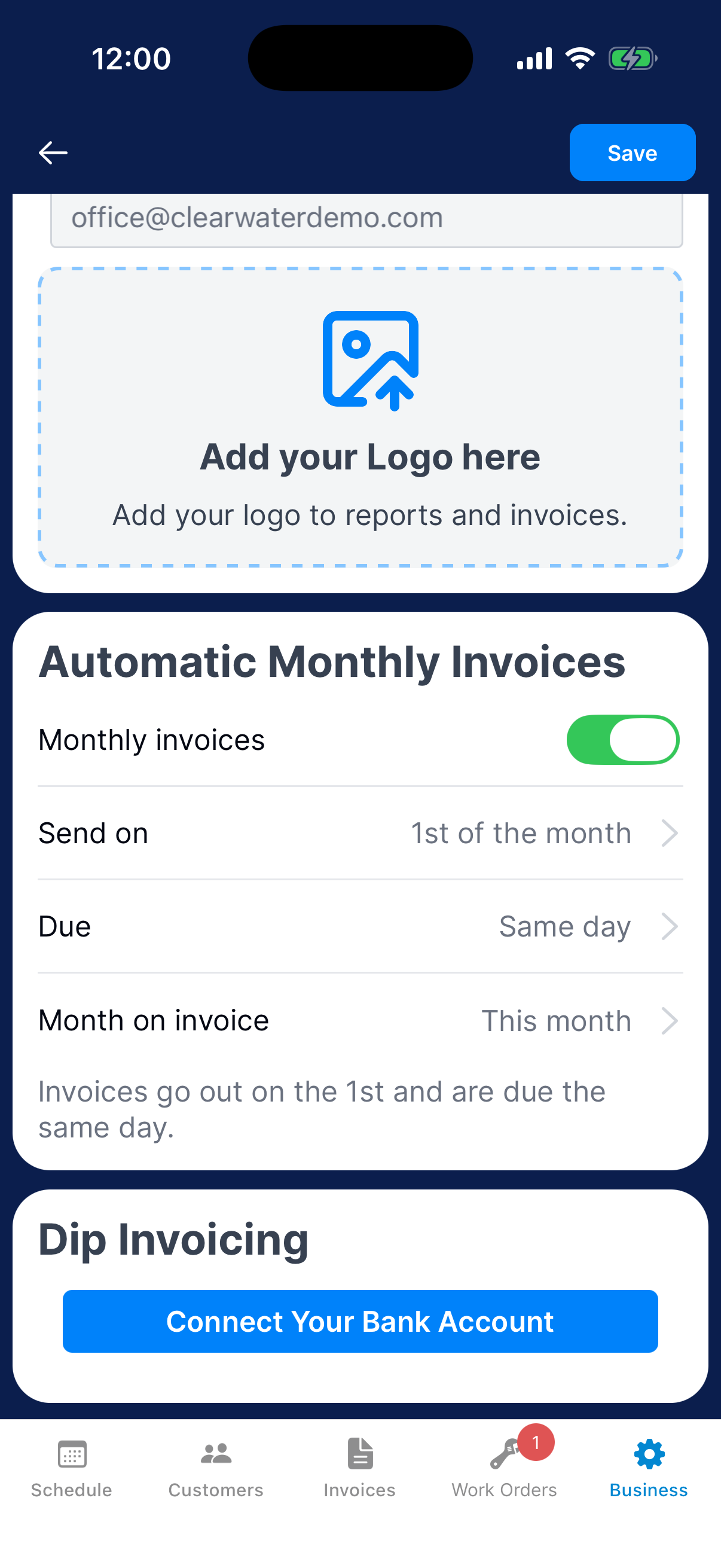
Scroll to Automatic Monthly Invoices.
Only an Admin can change these settings. A technician with Manage invoicing doesn’t see them.
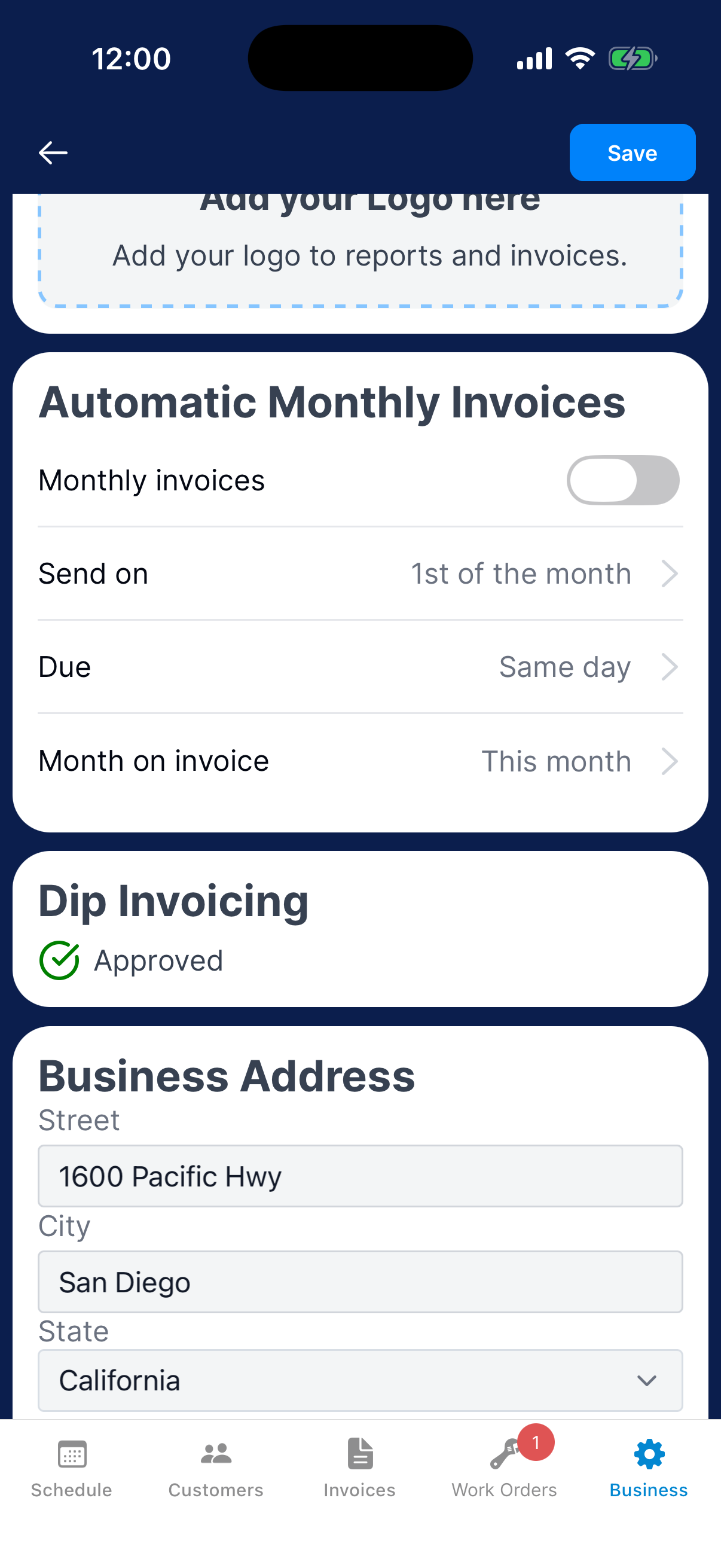
Turn on monthly invoices
Turn on Monthly invoices and tap Confirm. From then on, Dip sends each customer’s monthly invoice on its own every month.
You can change the other rows whether monthly invoices are on or off.
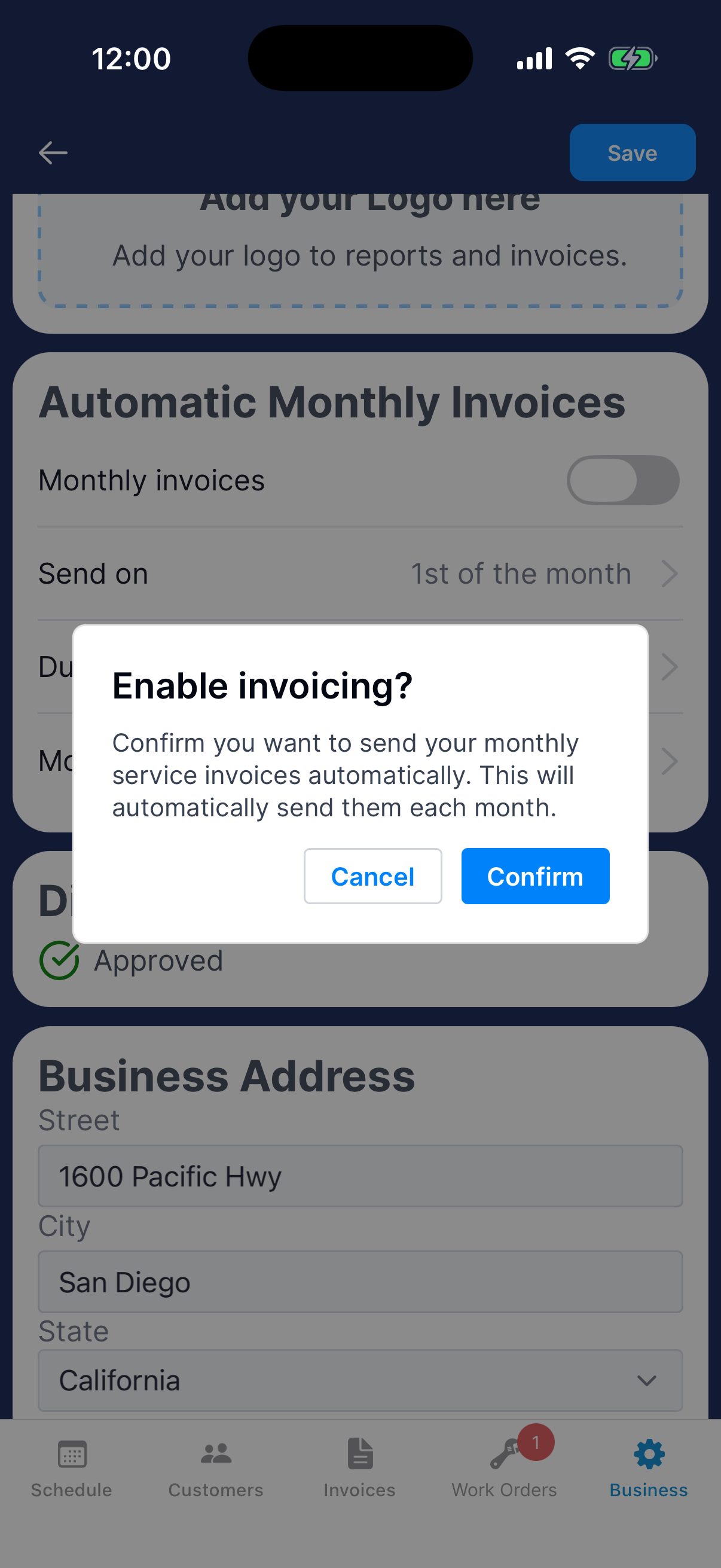
Choose when invoices go out and are due
Tap Send on and choose a day from the 1st through the 28th.
Tap Due and choose how many days after sending the customer has to pay. Same day makes the invoice due the day it goes out. Dip also uses this term to fill in the due date on new one-shot invoices and work orders. You can change the date on each one.
Tap Month on invoice to choose which month the monthly service line names. If invoices go out October 1, Last month shows “September’s Monthly Service”. Choose Don’t show for plain “Monthly Service”. The amount stays the same.
While monthly invoices are on, the line under the settings shows the day invoices go out and when they’re due.
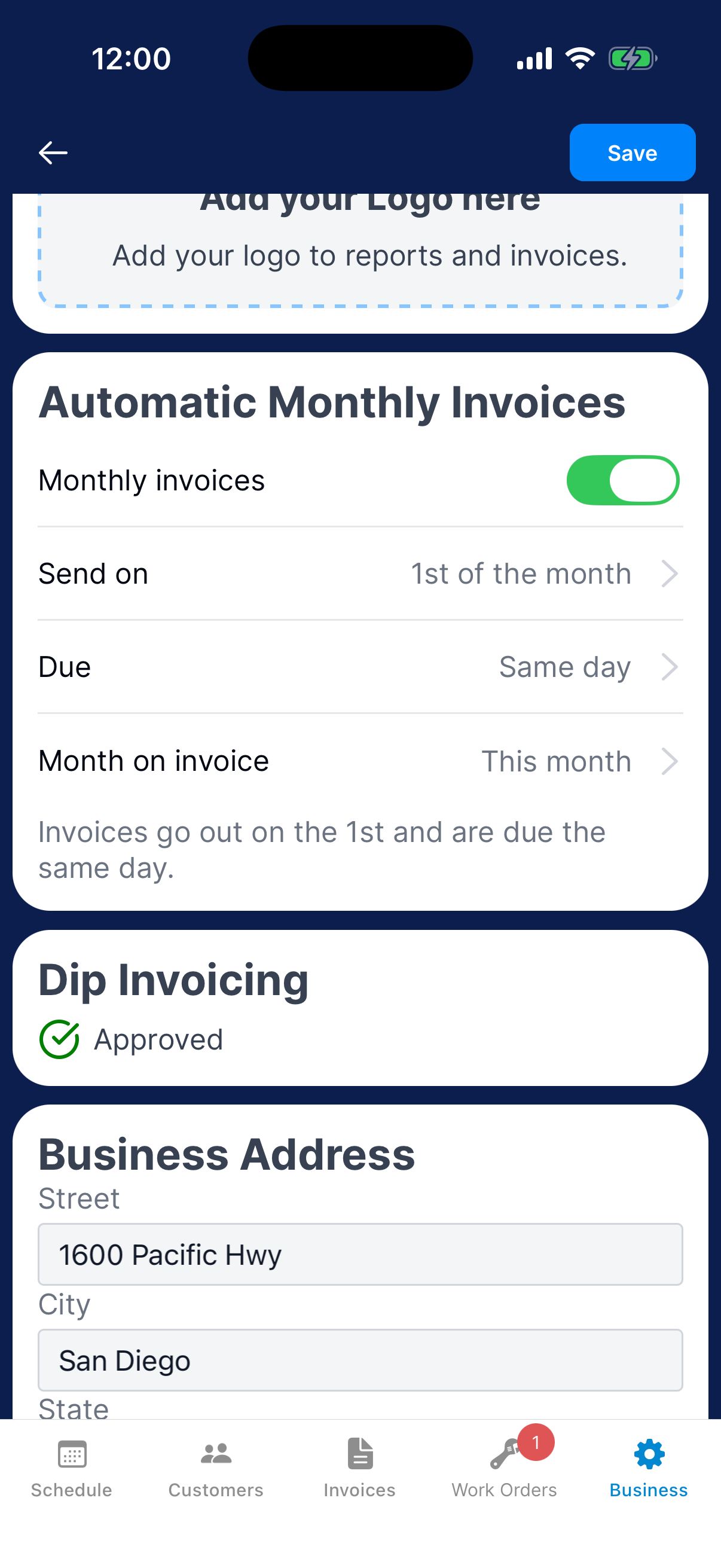
Save and check customers
Tap Save at the top right. If you leave first, your changes are lost.
Dip bills each customer their Monthly Service Fee, so look it over for every customer. Open the customer from Customers and find it under Service Details.
Review and adjust an upcoming invoice
Open upcoming invoices
Go to Invoices. Upcoming opens first. Each customer’s next monthly invoice shows Scheduled, the day it goes out, and its total.
If monthly invoices are off, each invoice shows Monthly invoices off. Turn on Enable monthly invoices at the top of the list to start sending them. This saves right away.
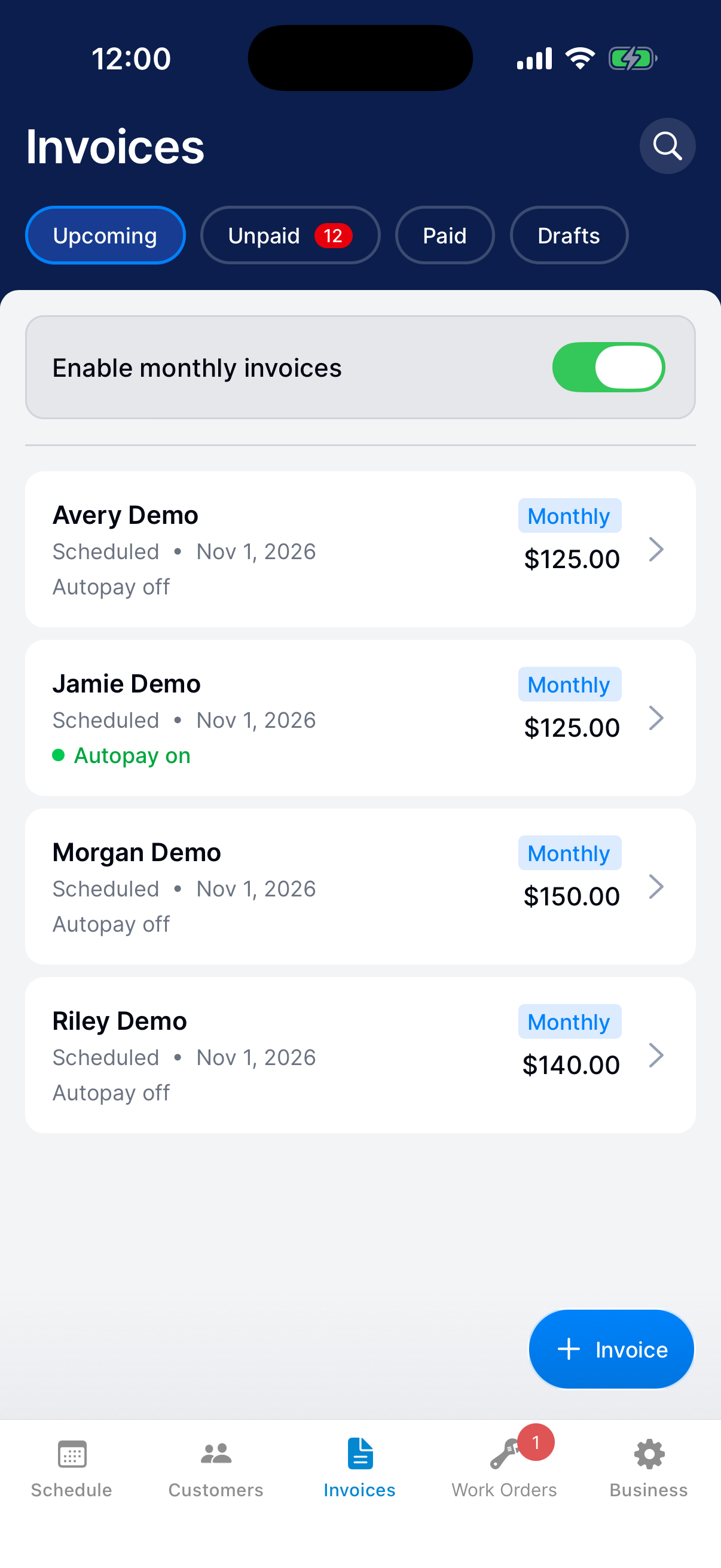
Open the invoice
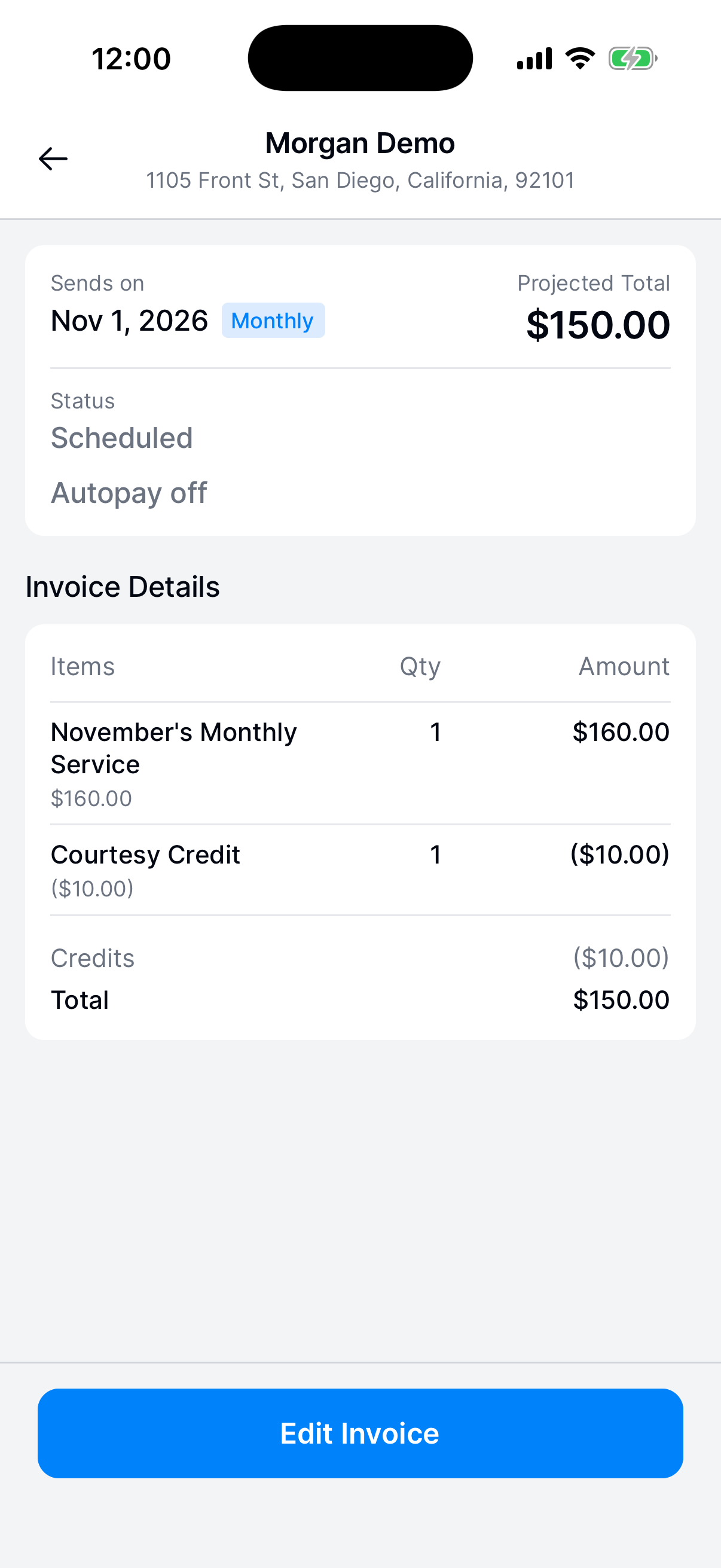
Tap the customer’s invoice. Sends on is the day it goes out, and Projected Total is what the customer will owe.
Tap Edit Invoice.
Adjust the items
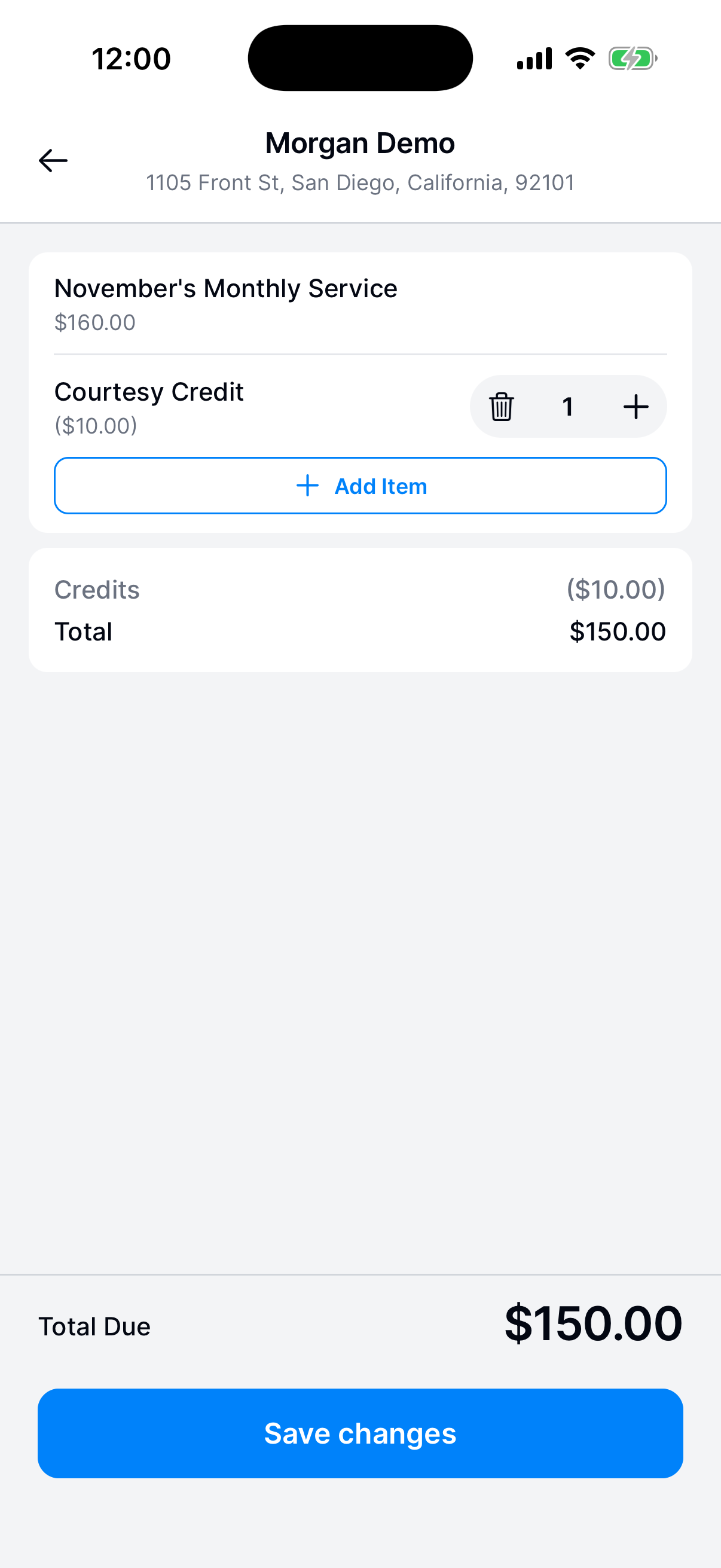
Tap Add Item. Choose Add Charge or Apply Credit, fill in the item, and tap Add to Invoice.
Use the plus and minus to change a quantity. At a quantity of 1, the trash can removes the item. Tap an item you added to change it. You can’t change the monthly service line here. Change the customer’s Monthly Service Fee instead.
Check Total Due, then tap Save changes. To leave without saving, tap the back arrow, then Discard.
A $10 credit lowers a $160 monthly service total to $150. The credit shows in a Credits row above the Total.
Connect your bank account to get paid in Dip
Dip’s card and bank payments go through a company called Finix, so the form you fill in comes from them. You can create and send invoices before you finish it. Customers can pay you in Dip once it’s approved.
Open the bank account form
Go to Business → Settings and find Dip Invoicing. Tap Connect Your Bank Account. If you started the form before, the button says Continue Onboarding.
Fill in the form and wait for approval
Have your business and bank details ready. Fill in the Finix form, then go back to Business Settings.
Under Dip Invoicing, the status says Approval Pending while Finix reviews it. Customers can pay you in Dip once it says Approved. If it says More Information Needed, contact Dip support.
Need a hand?
Do I need to connect my bank account before sending invoices?
No. You can create and send invoices without it. Customers can’t pay you in Dip until it’s connected. If a customer pays another way, use Record a payment received outside Dip to update the balance.
Why didn’t a customer get a monthly invoice?
Dip skips customers with no Monthly Service Fee or a fee of $0. It also skips a customer set to Inactive under Customer status. A customer who hasn’t joined Dip also needs an email address on their profile.
Can a technician turn on monthly invoices?
No. A technician with Manage invoicing can review and edit them. Only an Admin can turn on monthly invoices or change when they go out and are due.