
For regular changes, have the new technician, service days, and fee ready. To move one visit, have its current date and new date ready.
Change recurring service
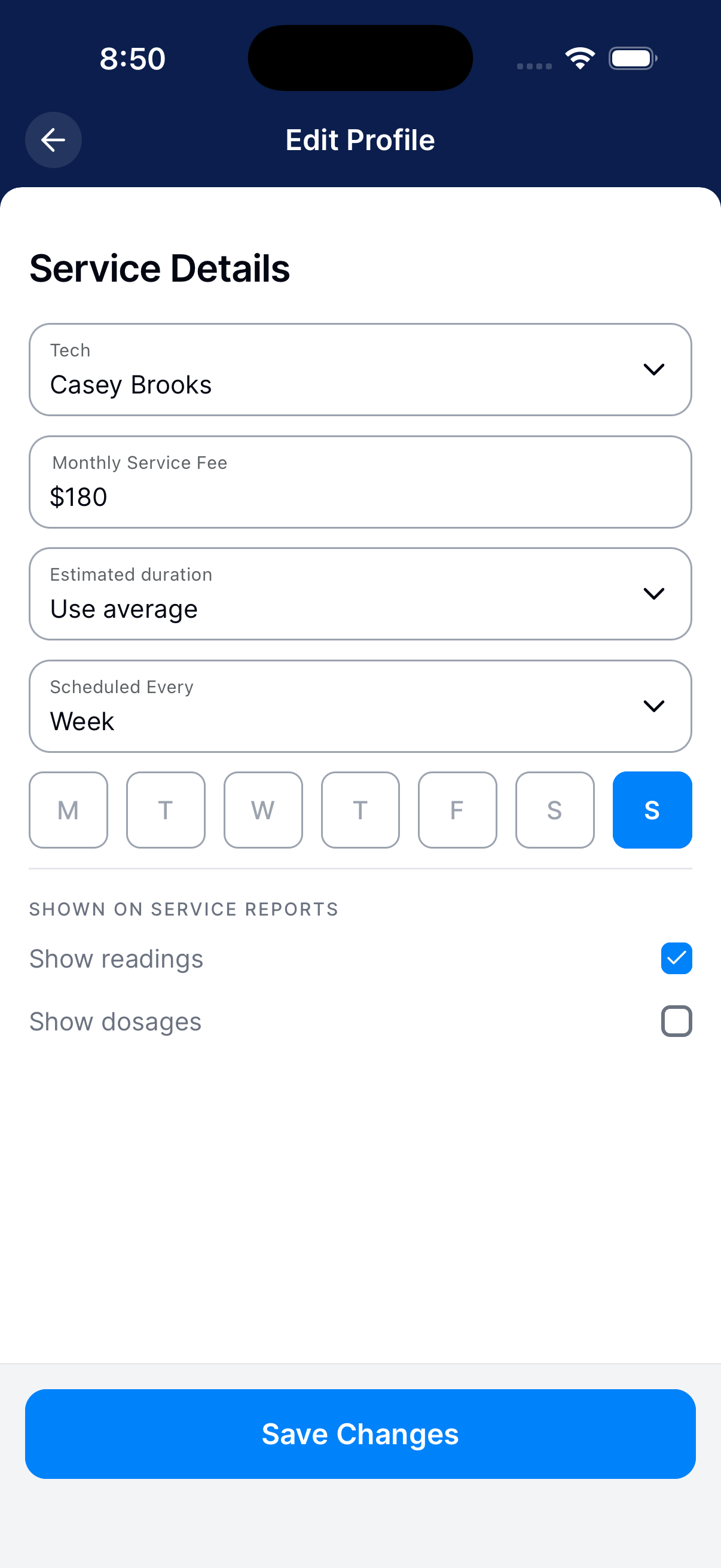
Use this to change the regular technician, frequency, days, visit length, or monthly fee.
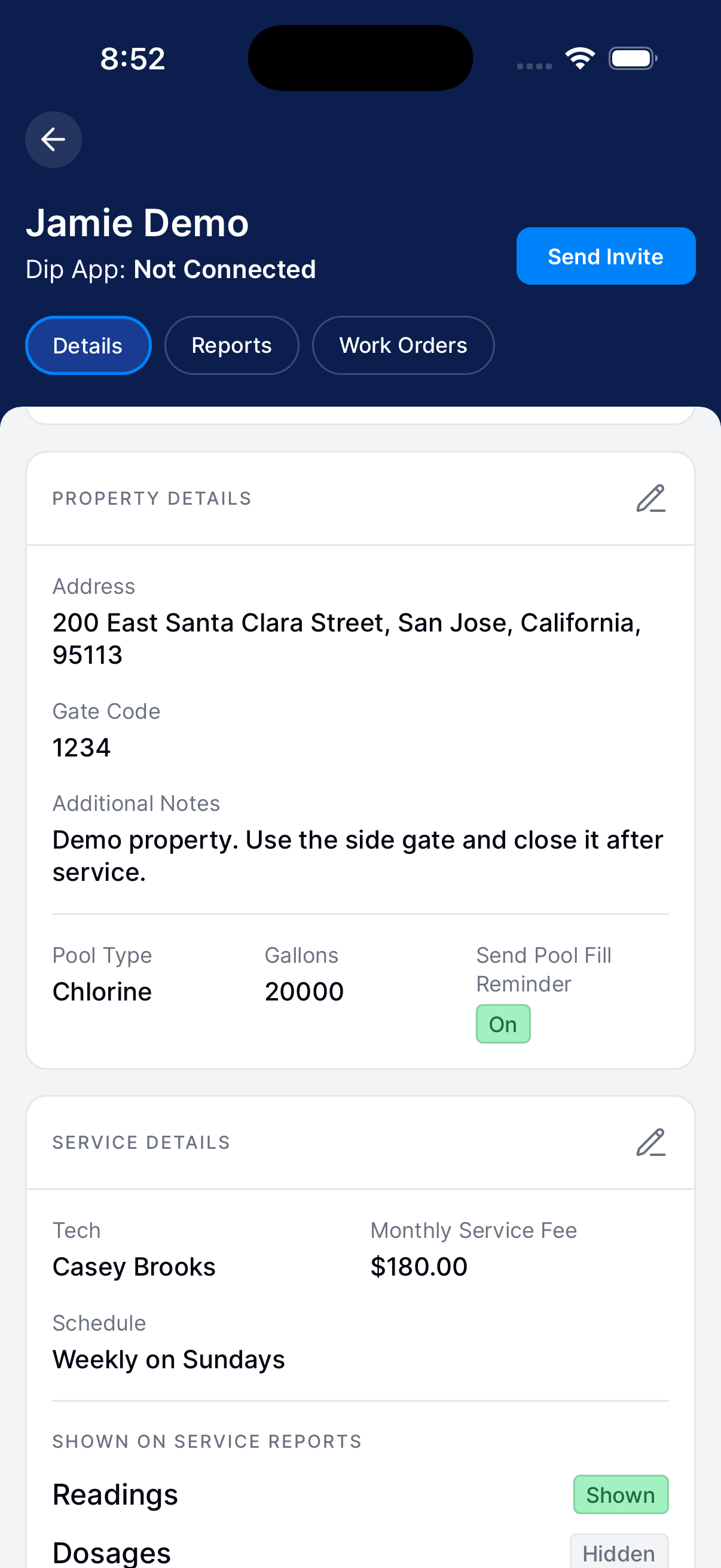
Open Service settings
Open the customer’s Info screen. Scroll to Service and tap the pencil.
Choose the schedule
Choose the technician and visit length. Choose the frequency and service days.
Check billing and report visibility
Enter the monthly fee. Choose whether customer reports show readings and dosages.
Save changes
Tap Save Changes. Check Schedule on the selected service days.
Move one visit
Use this for a one-time change. Technicians need permission to change the schedule.
Find the visit
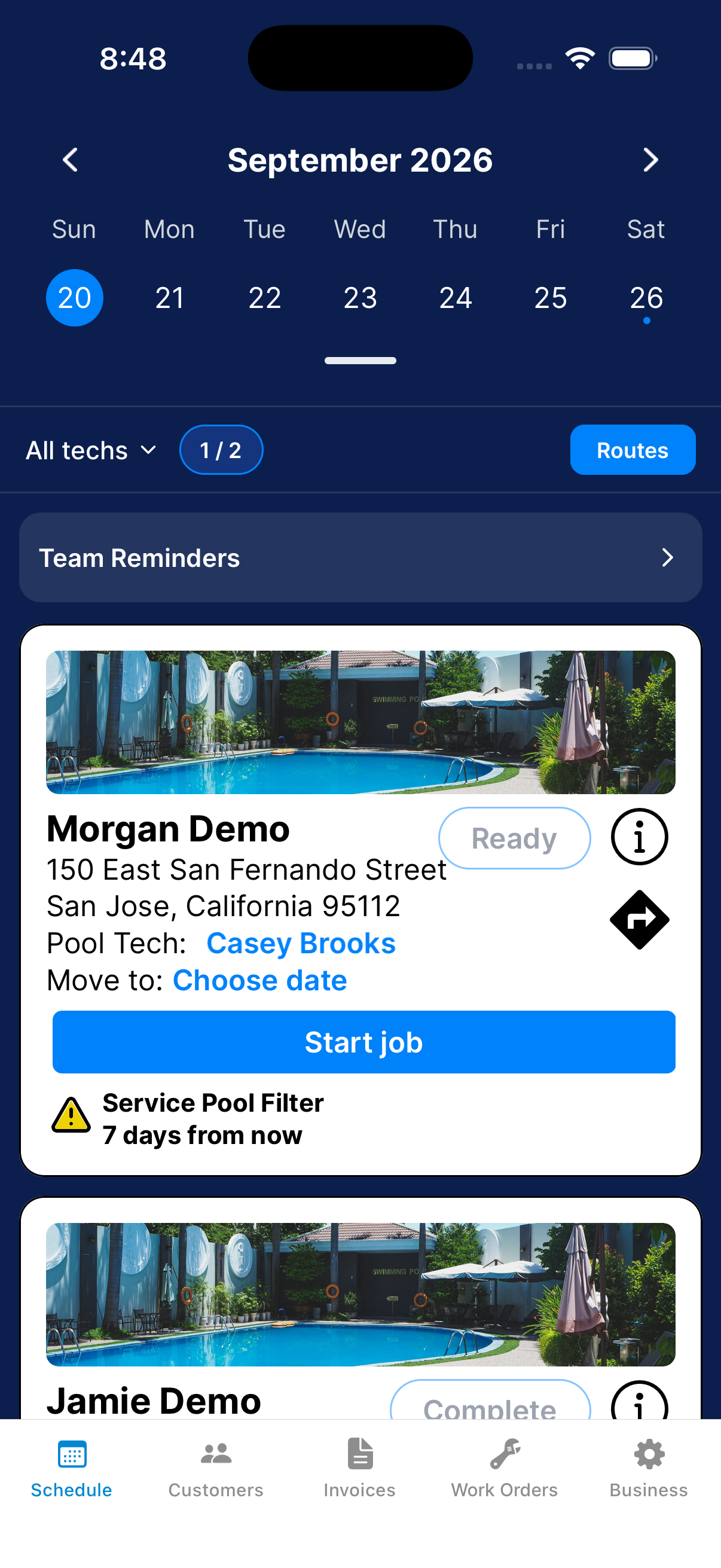
Open Schedule and select the original visit date. Find the customer’s card.
Choose the new date
Tap Choose date next to Move to. Pick the new date on the calendar.
For a recurring schedule change, edit the customer’s Service settings instead.
Check the new day
Open the destination date in Schedule and confirm the customer appears there.
What happens next?
For regular service, check the saved technician and service days. For a moved visit, check the new date. The regular schedule stays the same.