
The customer must already be in Customers.
Change contact details and email delivery
Use this when an address, recipient, or delivery preference has changed.
Find the record and edit Account
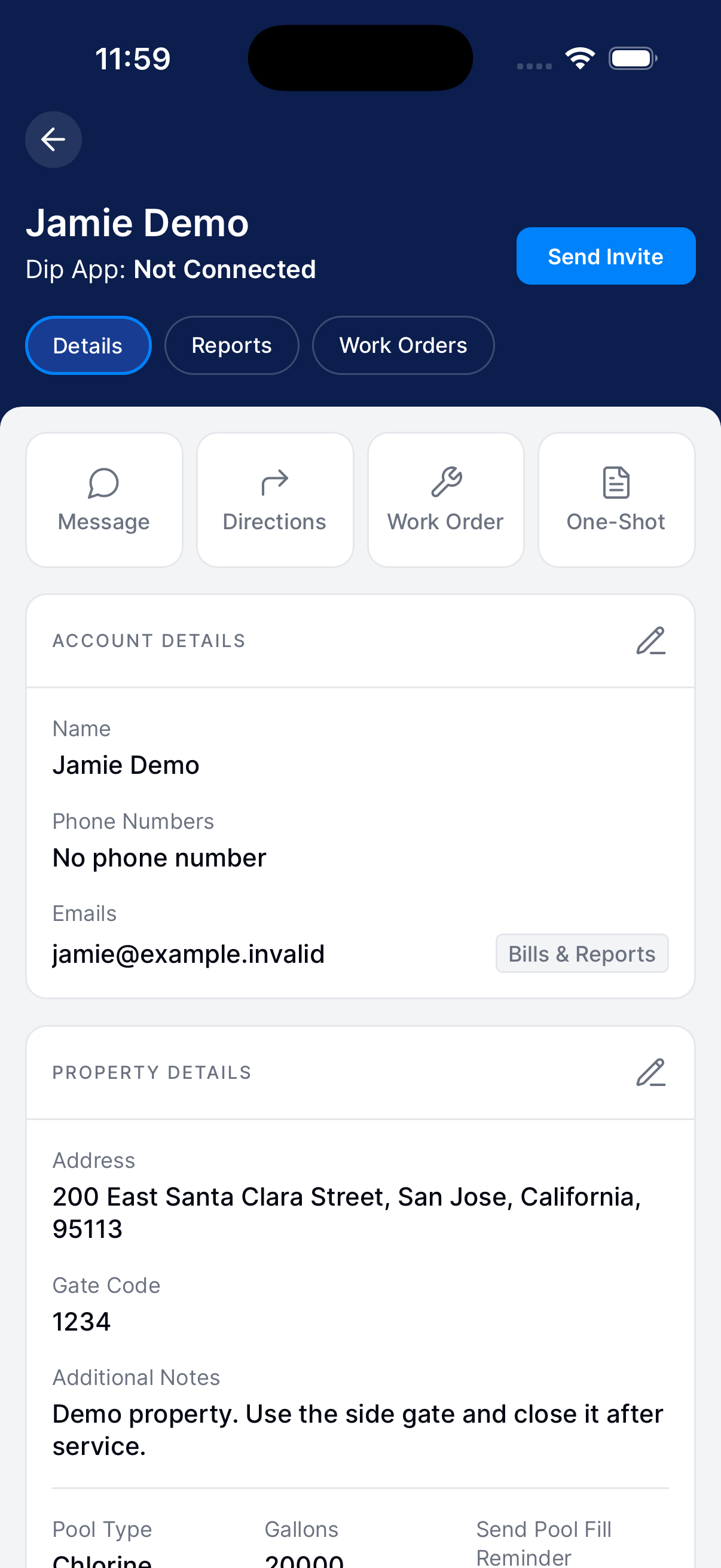
Open Customers, search for the customer, expand their row, and tap Info. On Details, tap the pencil next to Account.
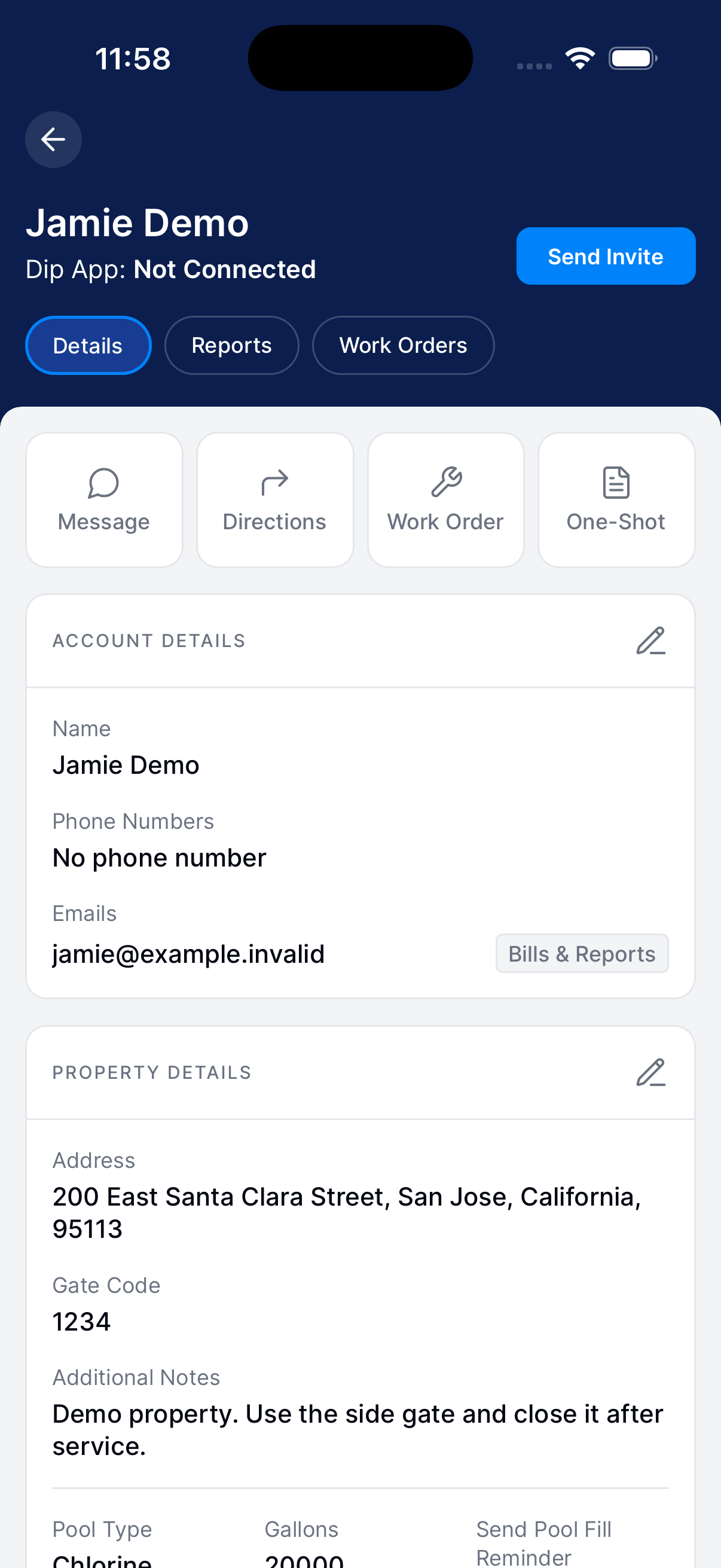
Choose who receives each kind of email
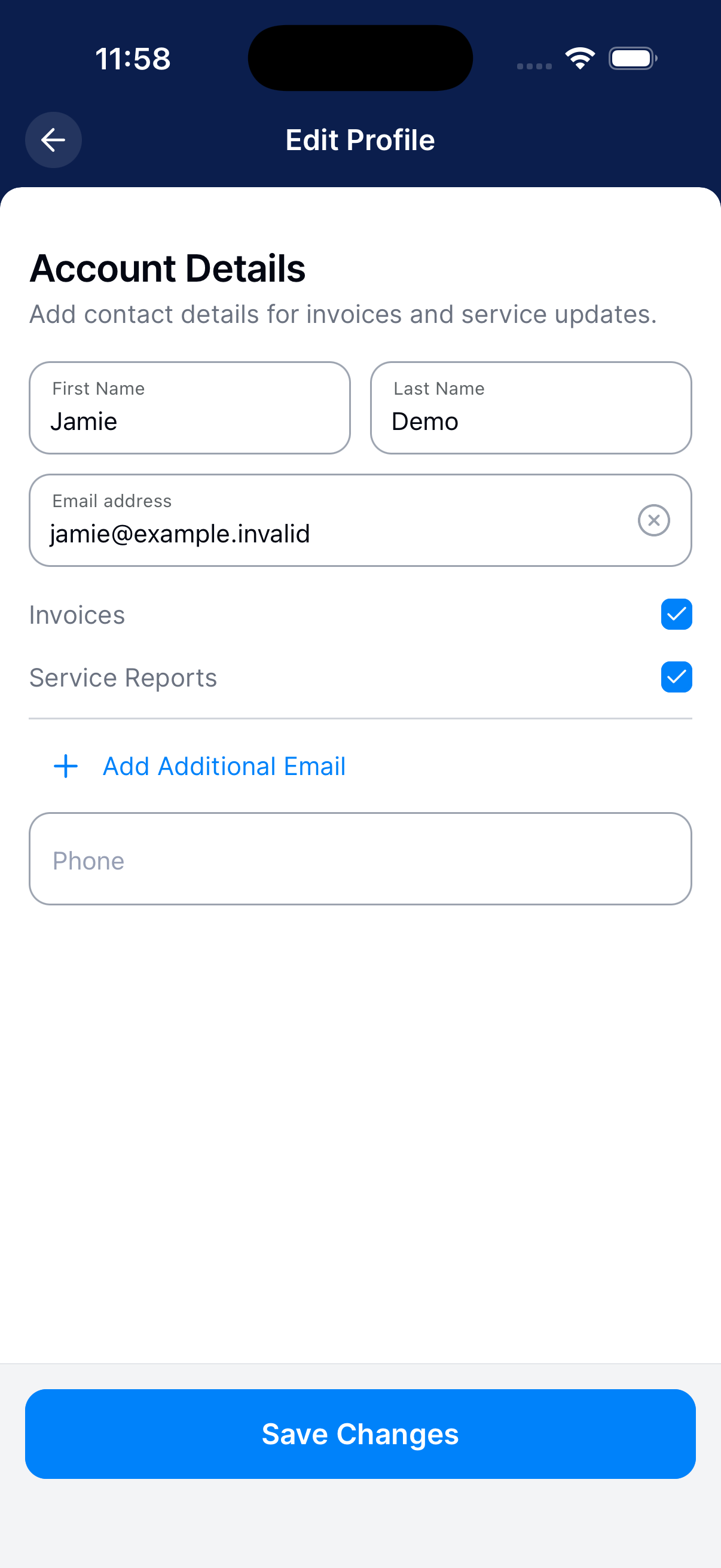
Update names, phone numbers, and email recipients. For each recipient, choose what they get: Invoices, Service Reports, or both.
Tap Save Changes and check the saved contacts.
Change property information
Update access instructions and pool details before the next visit.
Open Property
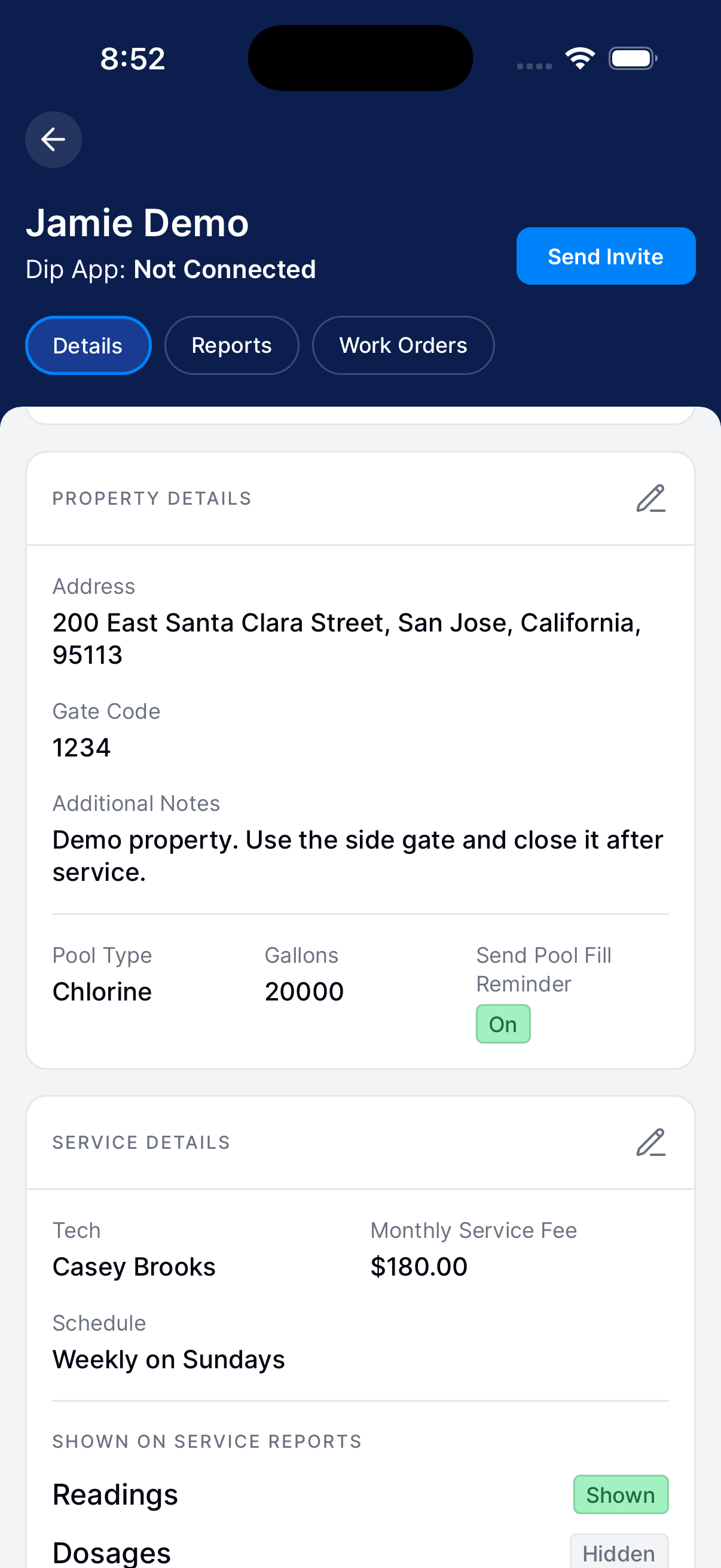
Open the customer’s Info screen. On Details, scroll to Property and tap its pencil.
Make your changes
Update the service address, gate code, additional notes, pool type, pool gallons, or pool-fill reminder setting.
Save and check
Tap Save Changes. Review the Property section to confirm the details.
Update cover and equipment photos
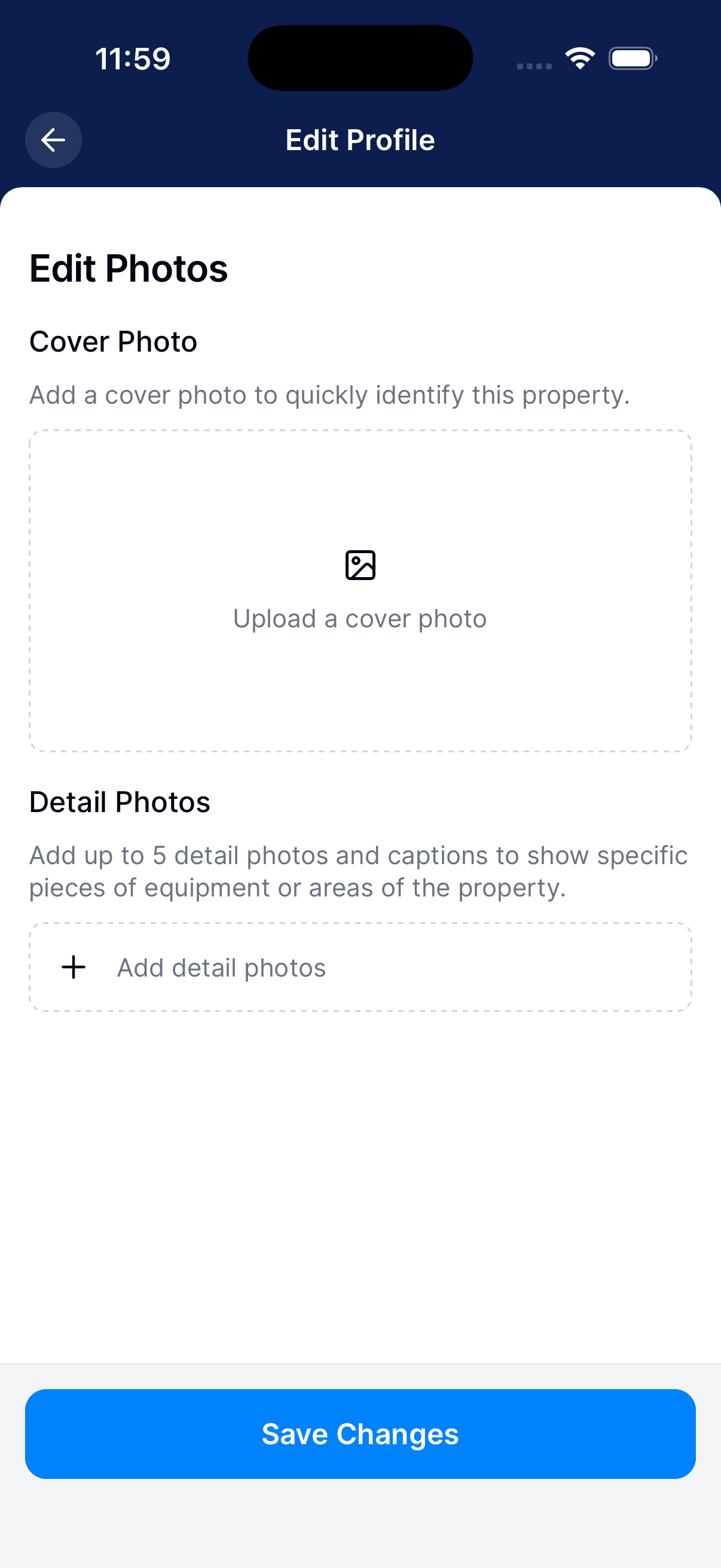
A cover image identifies the property. Detail photos and captions explain equipment or areas to check.
Open Photos
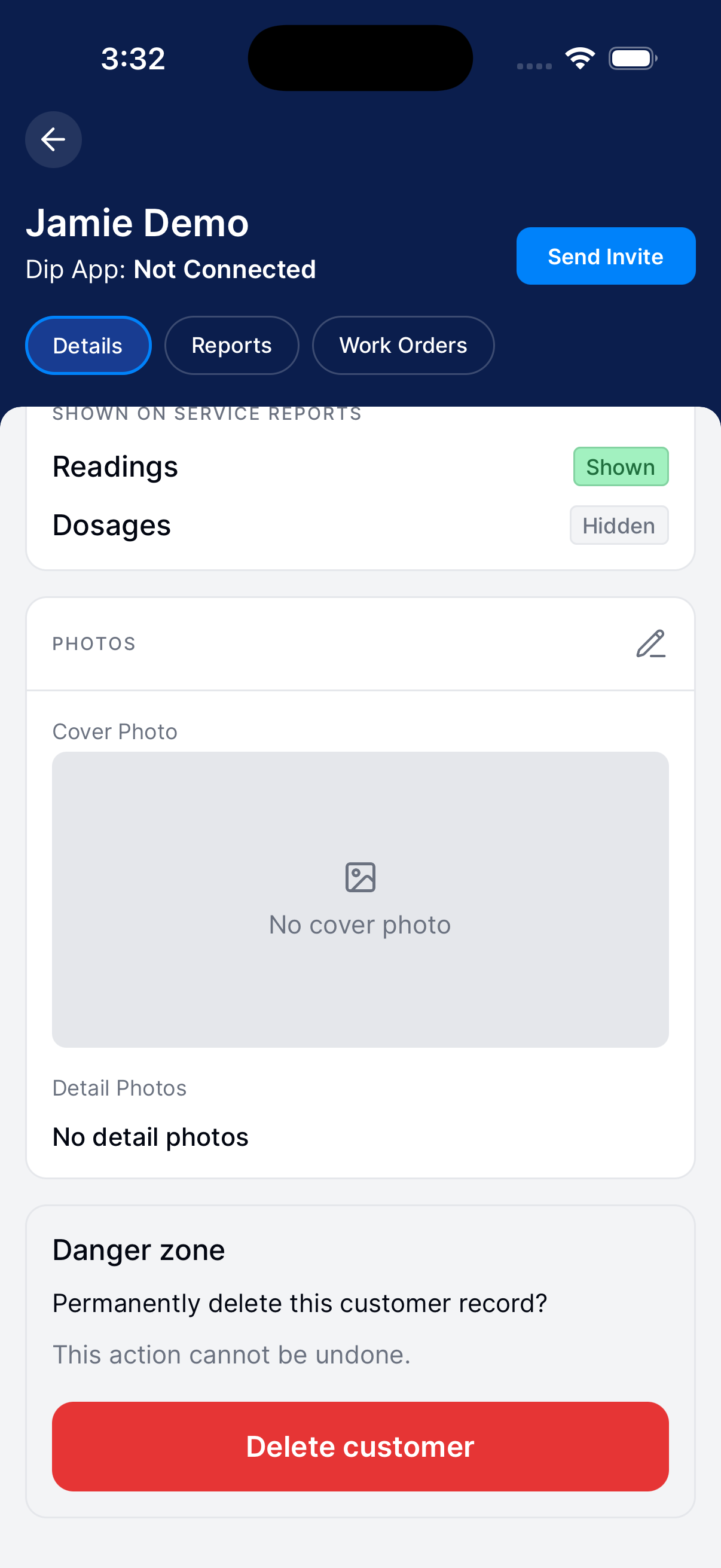
Open the customer’s Details, scroll to Photos, and tap its pencil.
Choose your images
Add or replace the cover photo. Add detail photos and captions to explain what your team should look for.
Save changes
Remove any images you no longer want, then tap Save Changes.
Invite an unconnected customer
Check their saved email before sending an invitation.
Check status, then invite if needed
On Details, check the connection status. If it already says Connected, another invite is unnecessary.
For an unconnected customer, tap Send Invite.
Check the invitation status
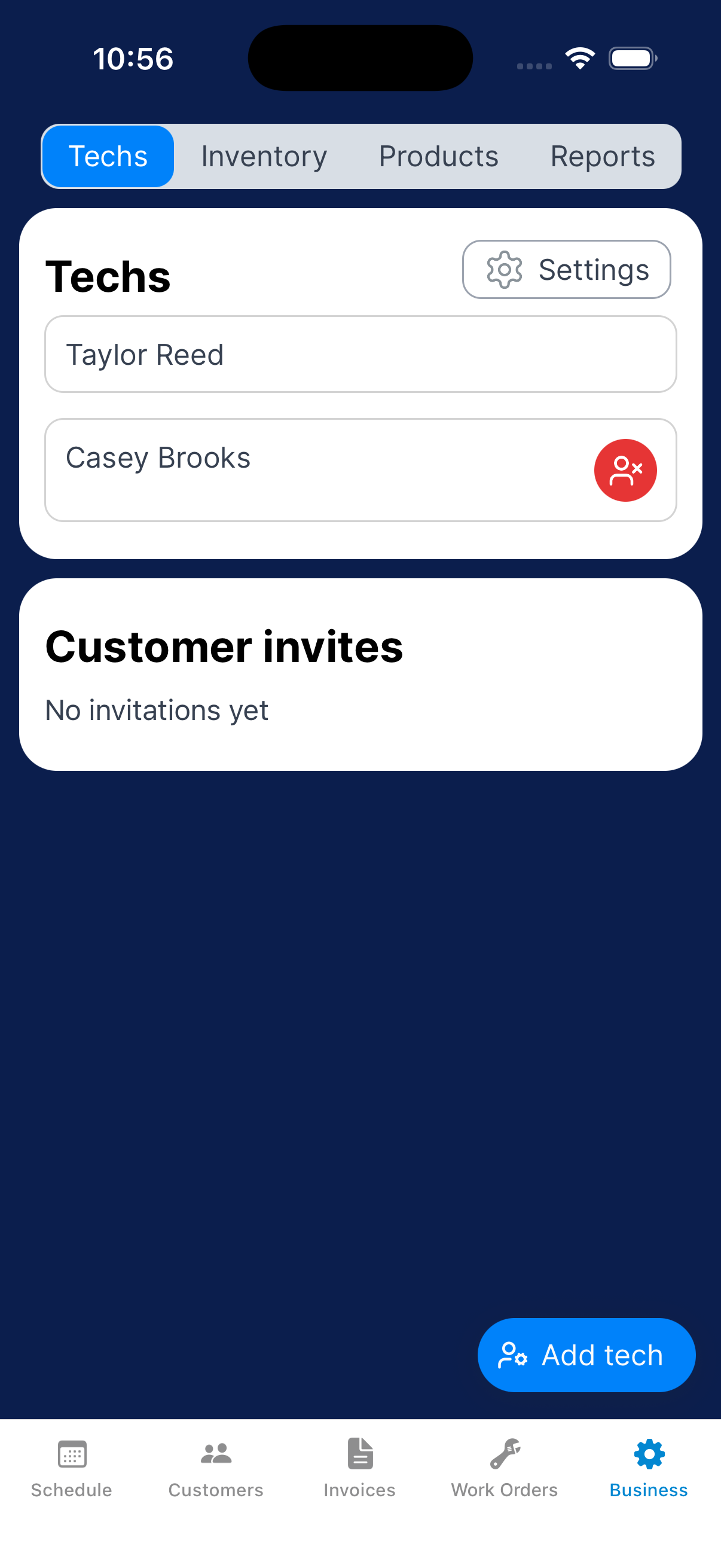
Open Business → Techs and find Customer invites. Check whether the invitation is Pending or Accepted.
Delete a customer record
Deleting a customer permanently removes the record.
Open the deletion confirmation
On the customer’s Details, scroll to Delete customer. Read the permanent-deletion message.
Confirm only for the intended customer, or choose Cancel.