
Before you begin
Have the customer’s contact details, address, pool details, and service schedule ready.
1
Open the customer form
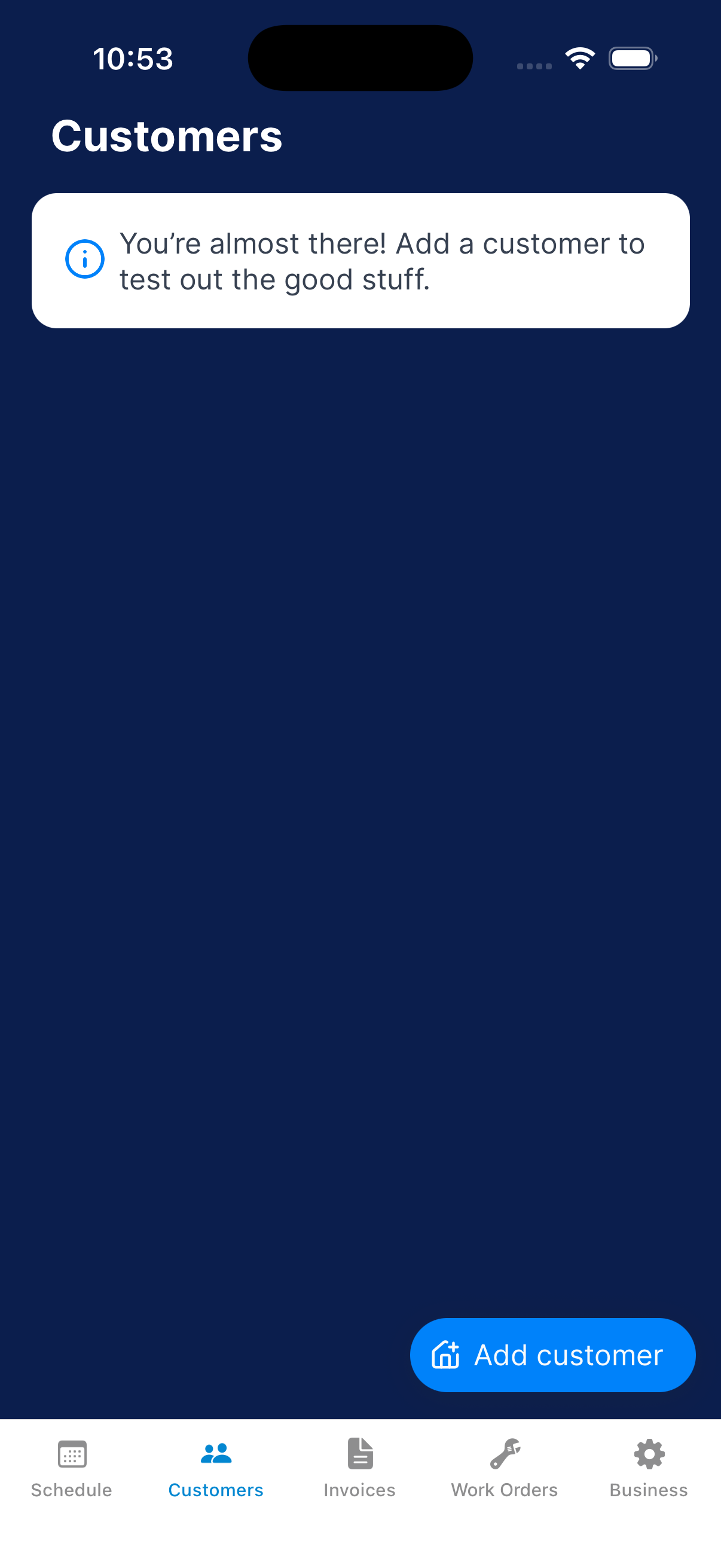
Tap Customers, then tap Add customer.
2
Complete Account
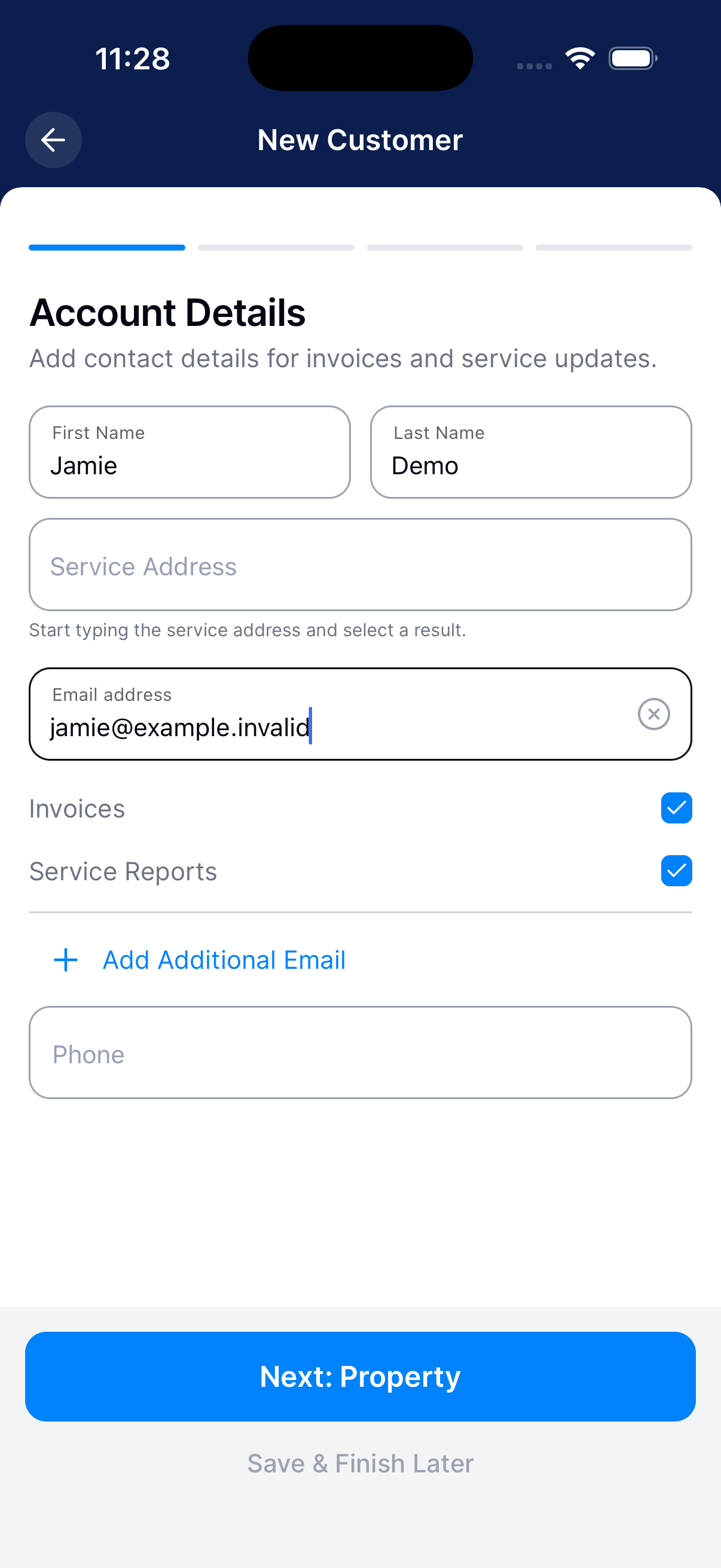
Enter the customer’s name, address, email, and phone. Choose which email each recipient gets: Invoices, Service Reports, or both.
Tap Next: Property.
3
Complete Property
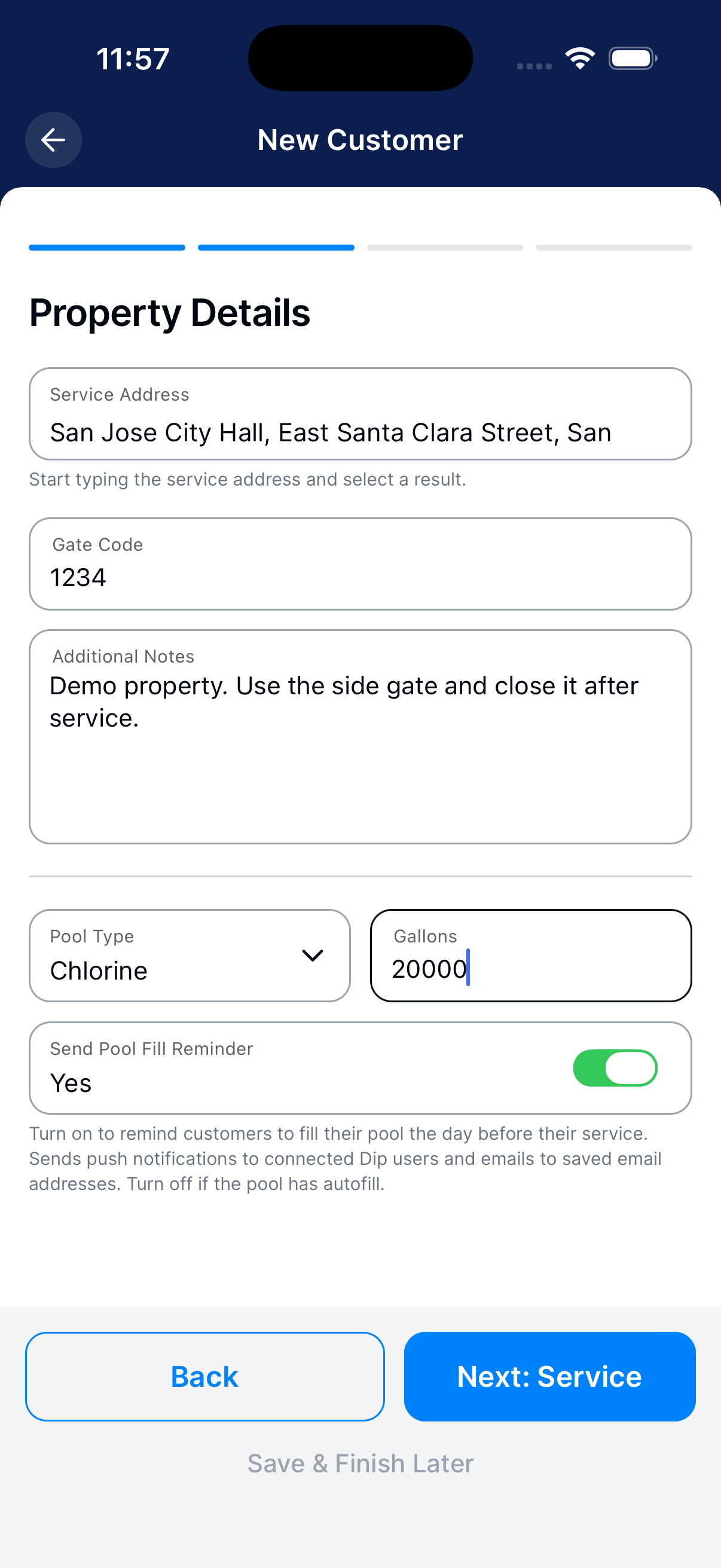
Enter the service address, gate code, notes, pool type, and pool size. Choose whether to send a pool-fill reminder.
Tap Next: Service.
4
Complete Service
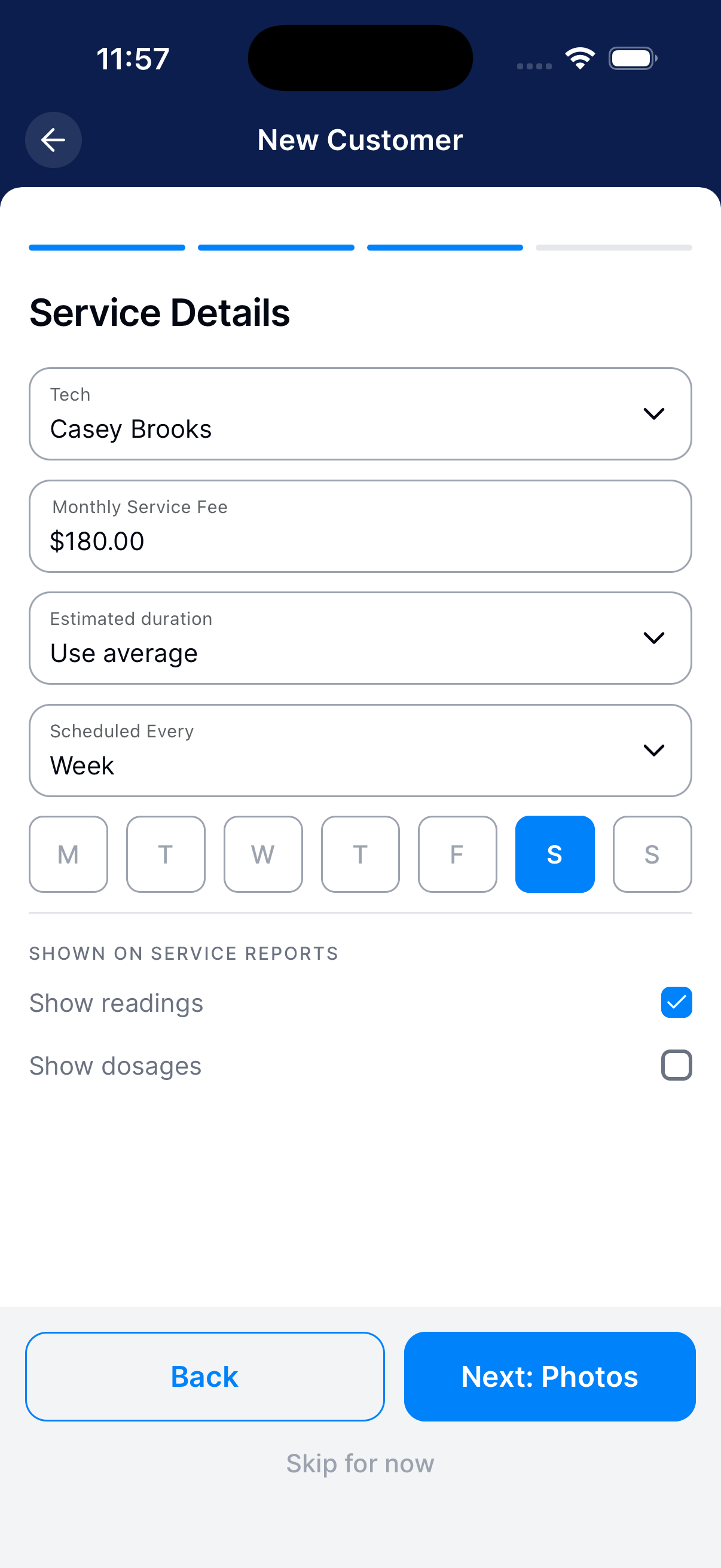
Choose the technician, monthly fee, visit length, frequency, and service days. Choose whether customer reports show readings and dosages.
Tap Next: Photos.
5
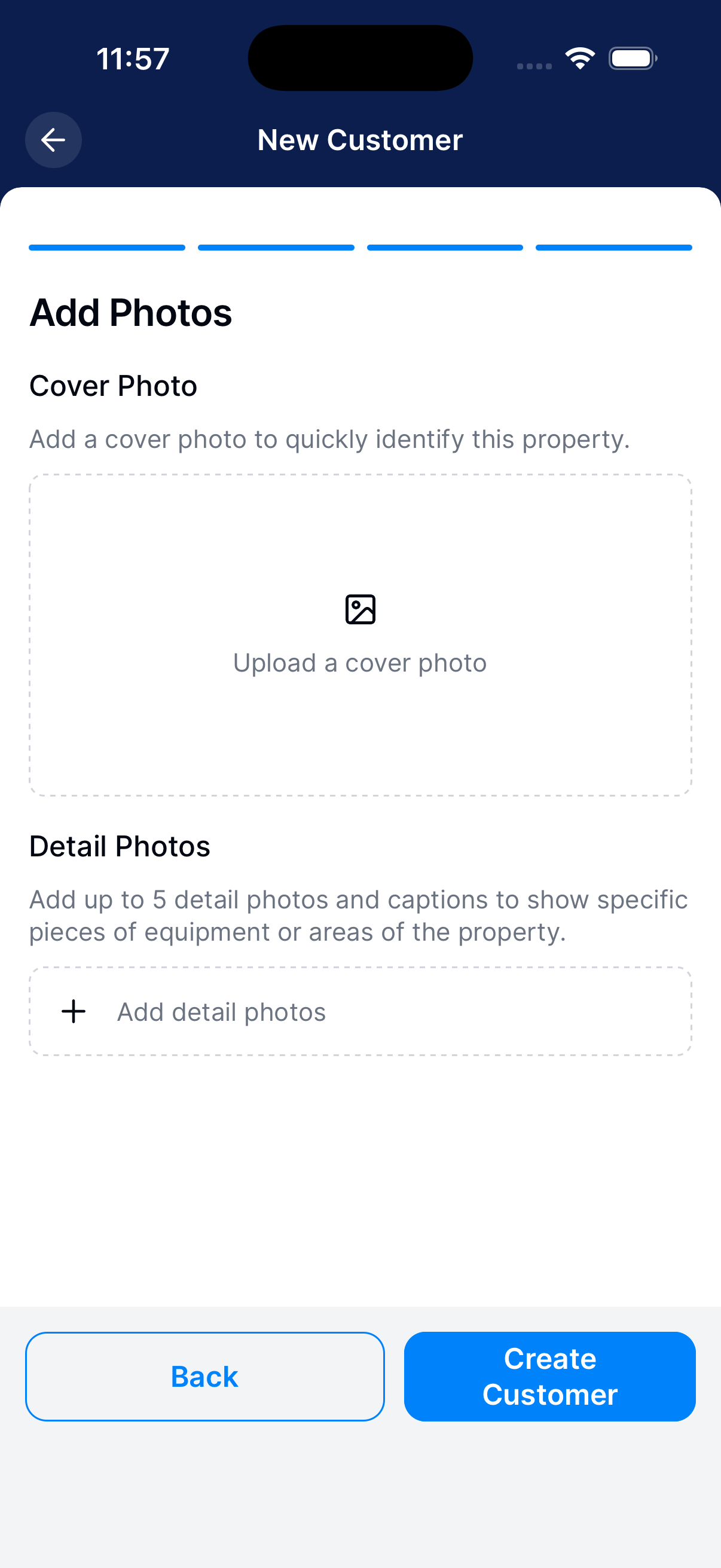
Add photos and create
Add a cover photo and any detail photos. Check the information, then tap Create Customer.
What happens next?
Find the customer under Customers. If you set service days, they will show up on the Schedule.