
Have the technician, service date, job details, and price ready. You can send an invoice without Finix. To collect payment through Dip, complete Finix onboarding first. See Set up and review monthly billing.
Create a work order
Start here for a repair or other job outside regular service.
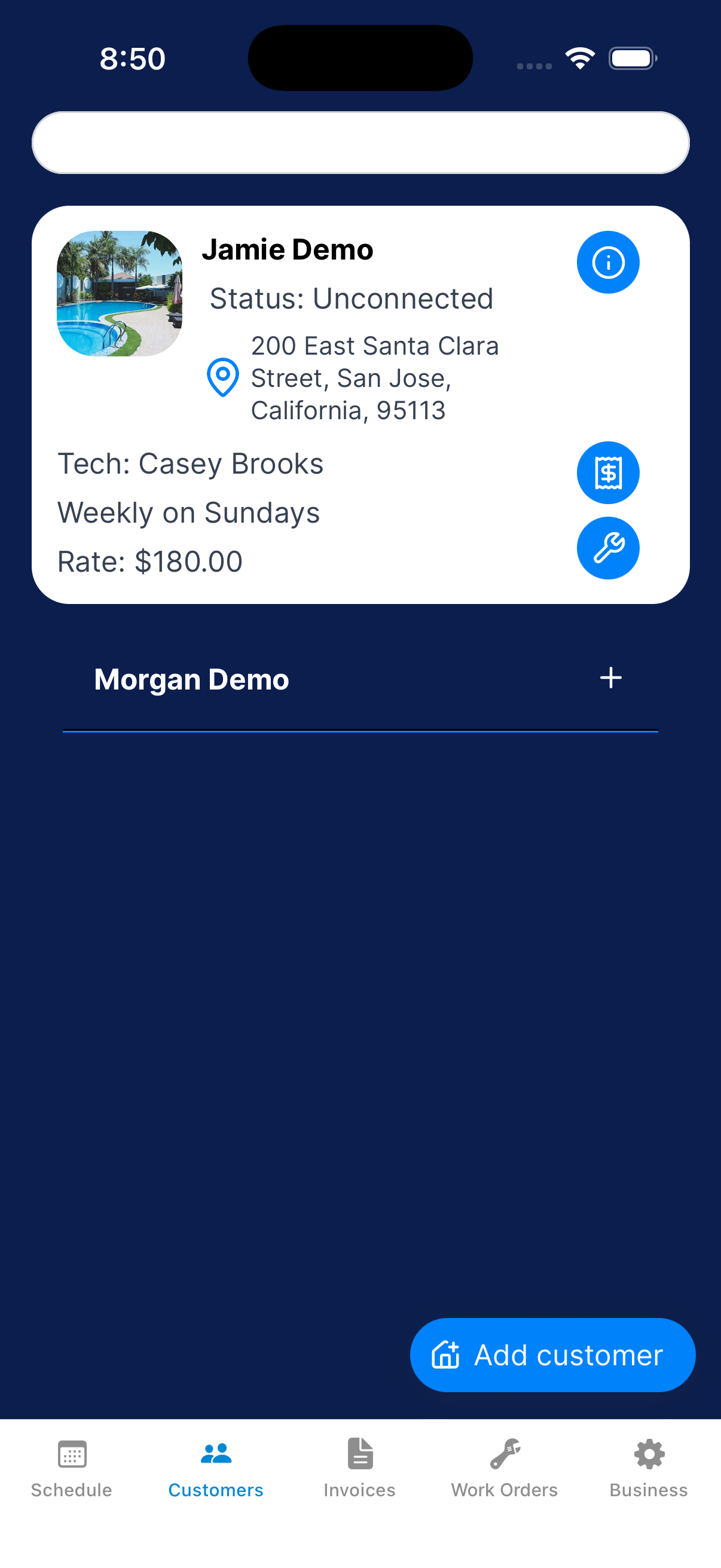
Choose the customer
Open Customers, expand the customer, and tap Work Order.
Describe the work
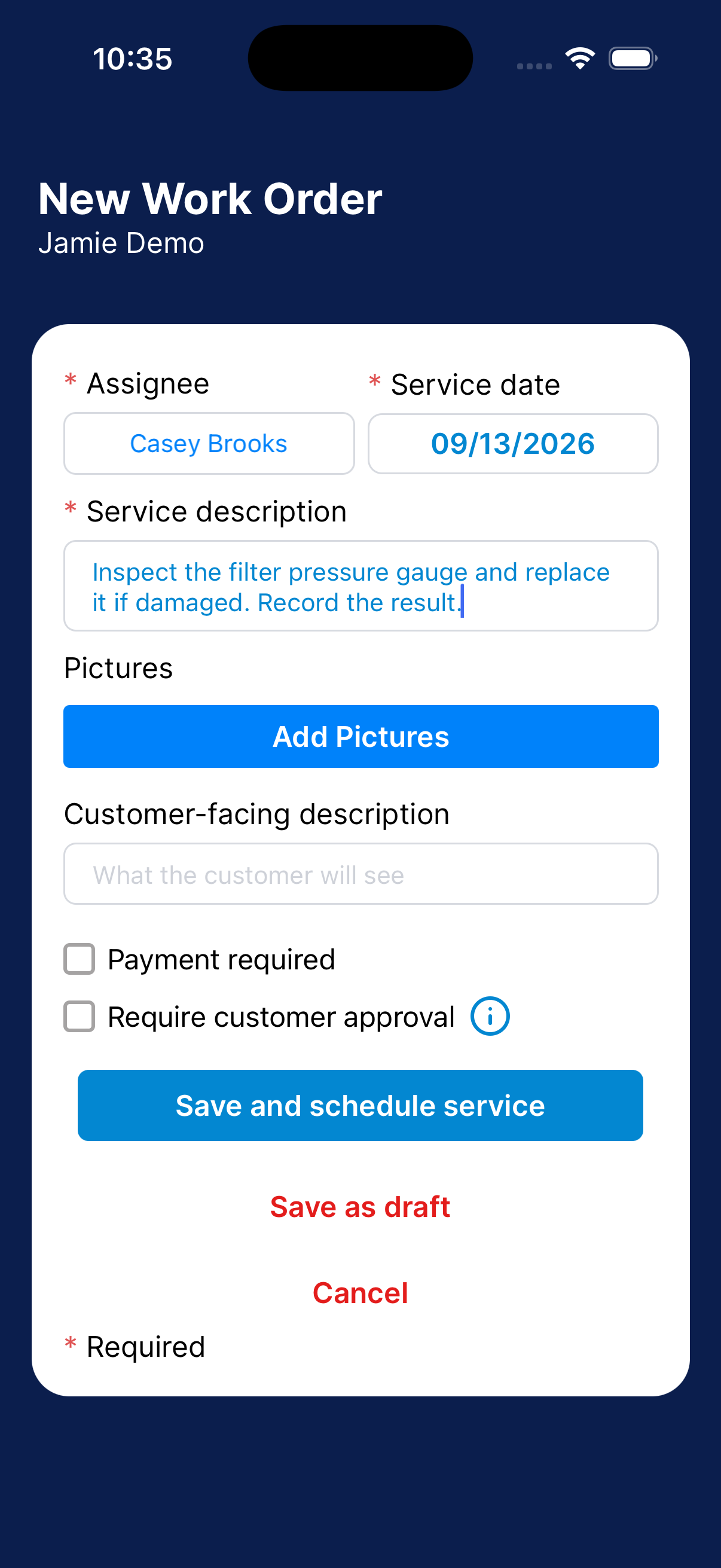
Choose the Assignee and Service date. Enter the Service description for the team.
Add pictures if they help.
Add the customer’s description
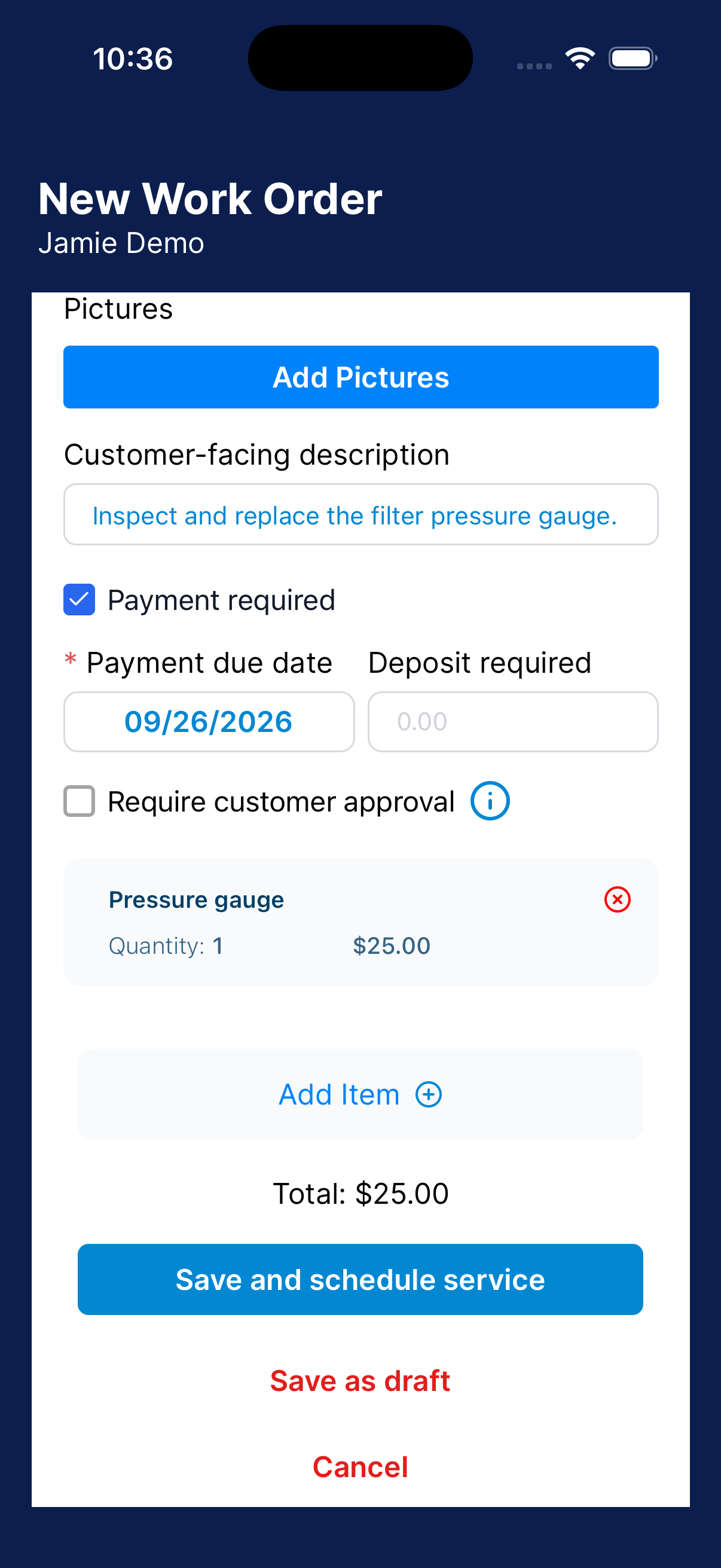
Use Customer-facing description for the customer’s instructions.
Set payment and approval
Turn on Payment required if the job is billable. Add the items, due date, and deposit.
Turn on Require customer approval when needed.
Schedule, send, or save a draft
Check the form. Use Save and schedule service when no approval is needed.
If approval is needed, send it to the customer. Use Save as draft to finish later.
Finish a saved work order
Open a saved job and finish it instead of creating another one.
Show drafts
Open Work Orders and use the filters to show Draft.
Review the work order
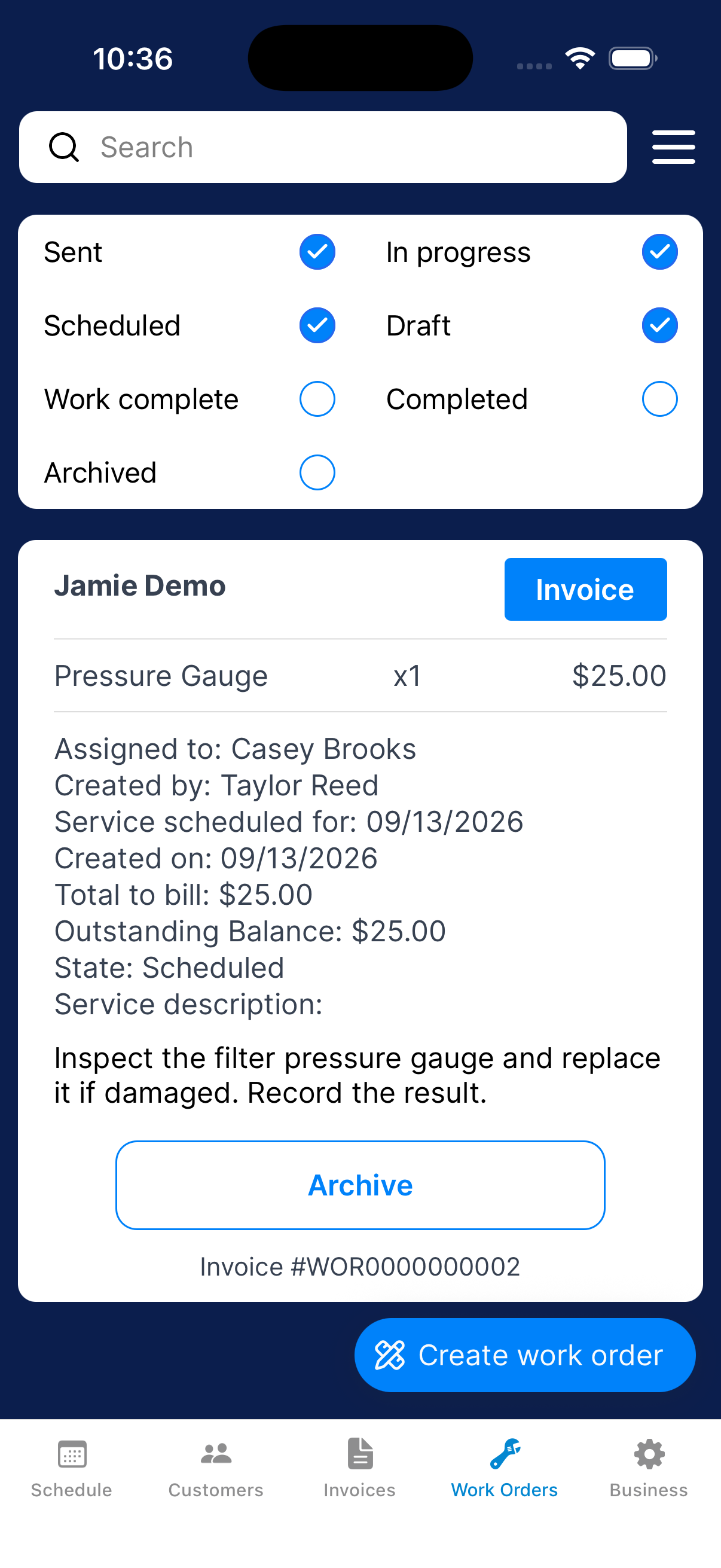
Find the customer’s card. Review the service instructions, customer-facing description, images, assignee, service date, and payment requirements.
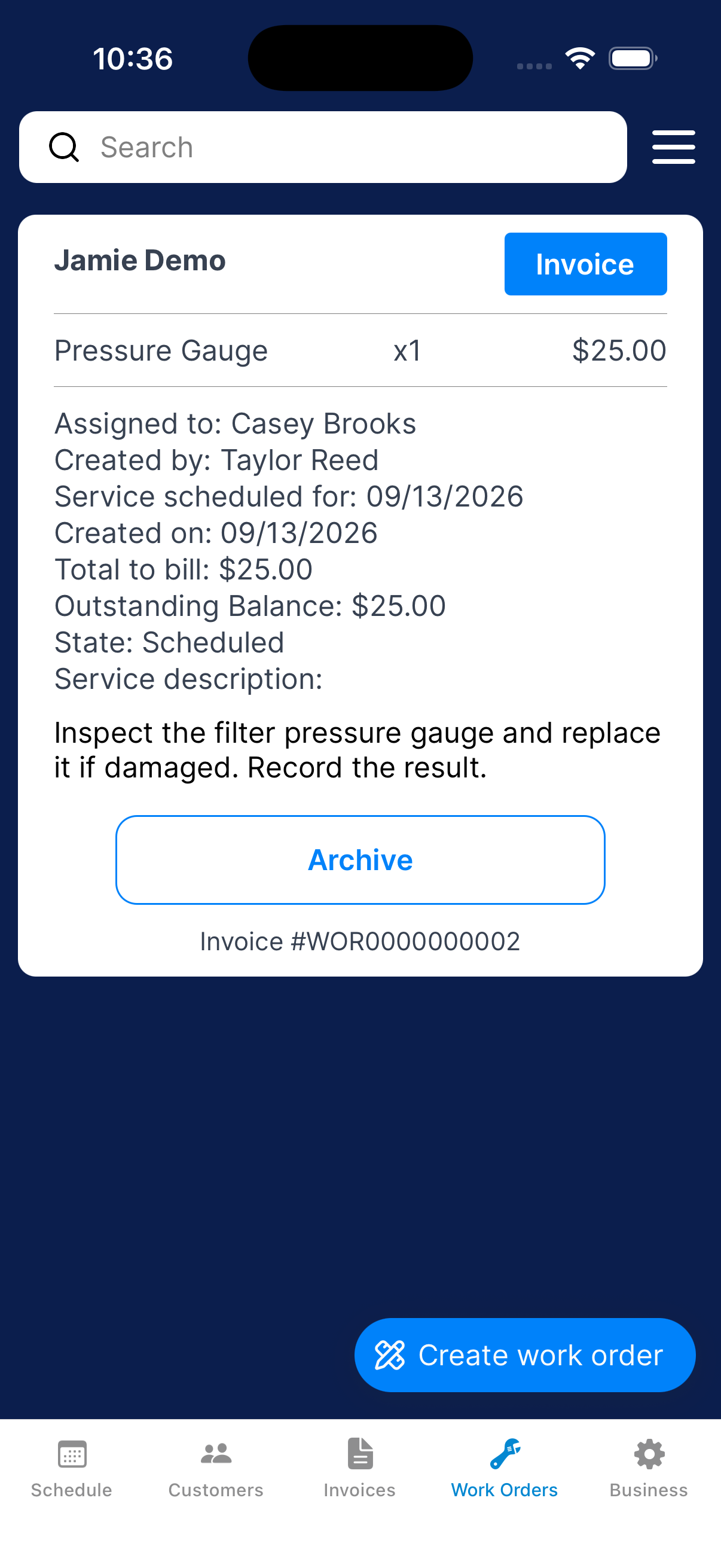
Edit what’s missing
Open the edit control, fill any missing information, and save the changes.
Send or schedule
Use Send to customer when customer approval is required. Use Schedule service when approval is skipped.
Change the technician
Use this when another technician needs to do the job.
Open the service day
Go to Schedule and choose the work order’s scheduled date.
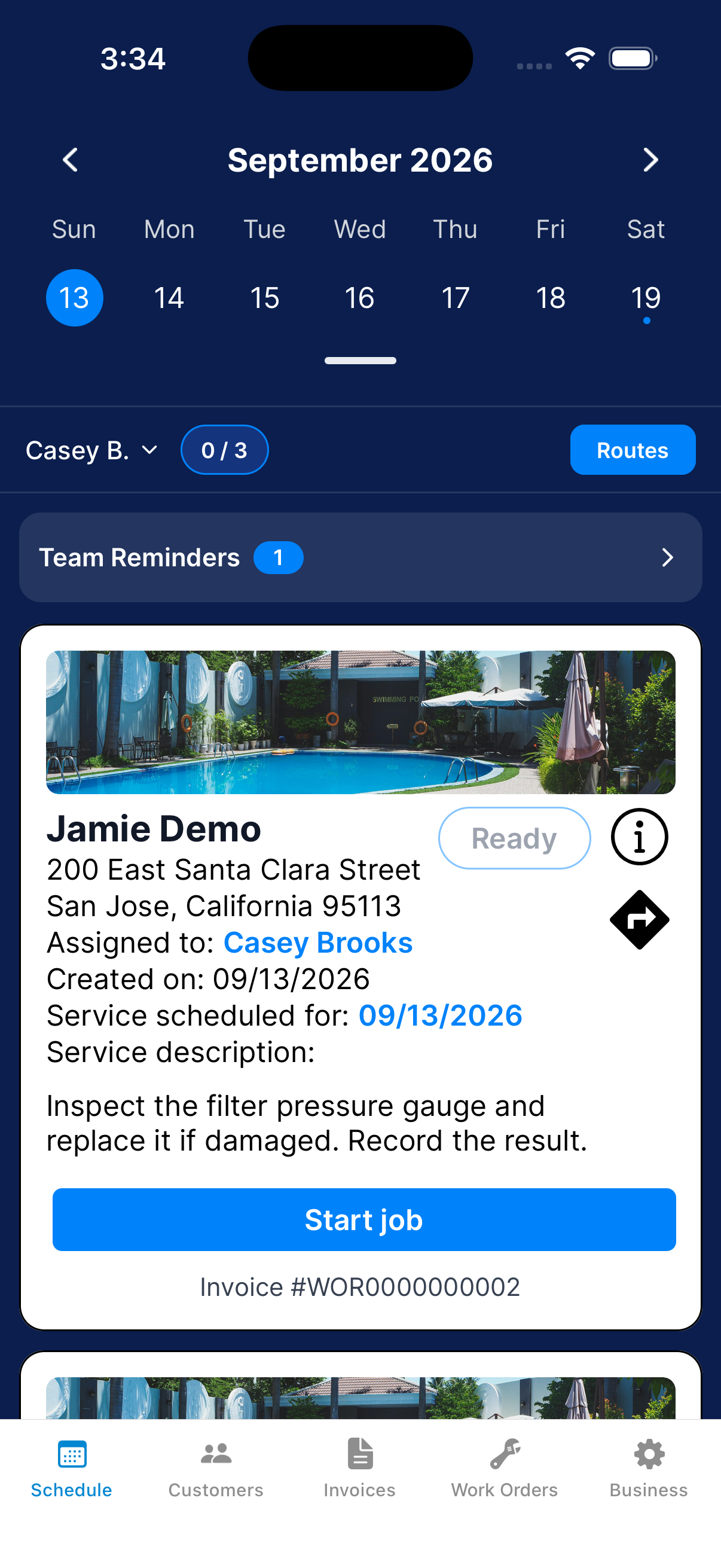
Find the work order
Find the work-order card. Tap the assignee selector.
Choose the technician
Choose the technician. Check the card and their schedule.
Check status or archive a job
Use the filters to find a job. Archive only the job you mean to archive.
Choose the statuses
Open the filter menu. Select the statuses you want, such as Draft, Sent, Scheduled, In progress, Work complete, Completed, or Archived.
Review a work order
Find its customer and review the work-order card. Open the available report or invoice action for more detail.
Take a work order off the active list
Use Archive on a work order you want out of the active list. Read and confirm the prompt.
Restore an archived work order
Include Archived in the filters. Use Unarchive on the work order and confirm the restore action.
What happens next?
A saved draft still needs to be sent or scheduled. For scheduled work, find the job in Schedule on the service date.