
The work order must be assigned to you, or your account must have access.
Do the assigned work
Check the customer and instructions before you start.
Find the work order
Open Schedule on the job’s service date and find the work-order card. Review the service description and images before starting.
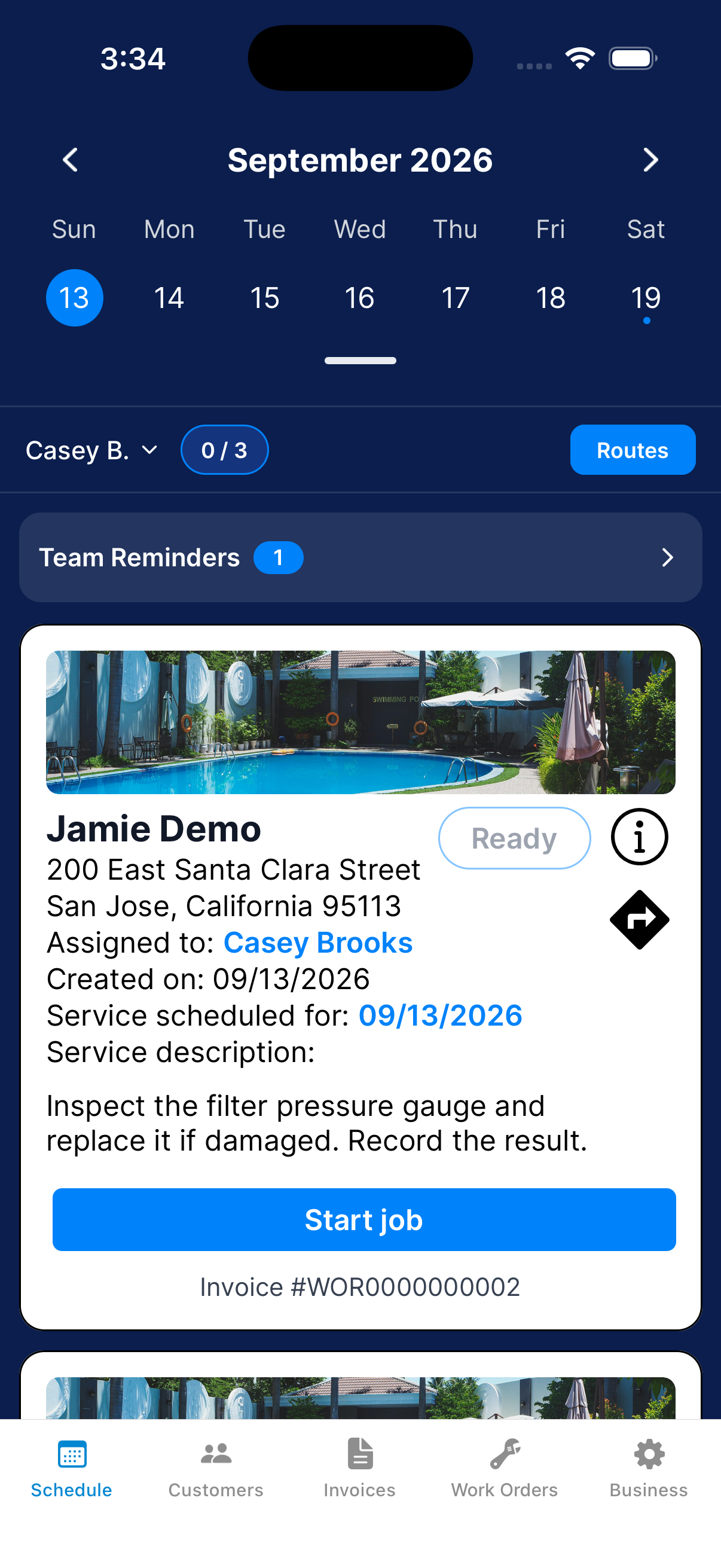
Start the work
Tap the work-order start action to open its report.
Record the result
In Notes, describe the work you completed. The business and customer can see these notes.
Add Report Images.
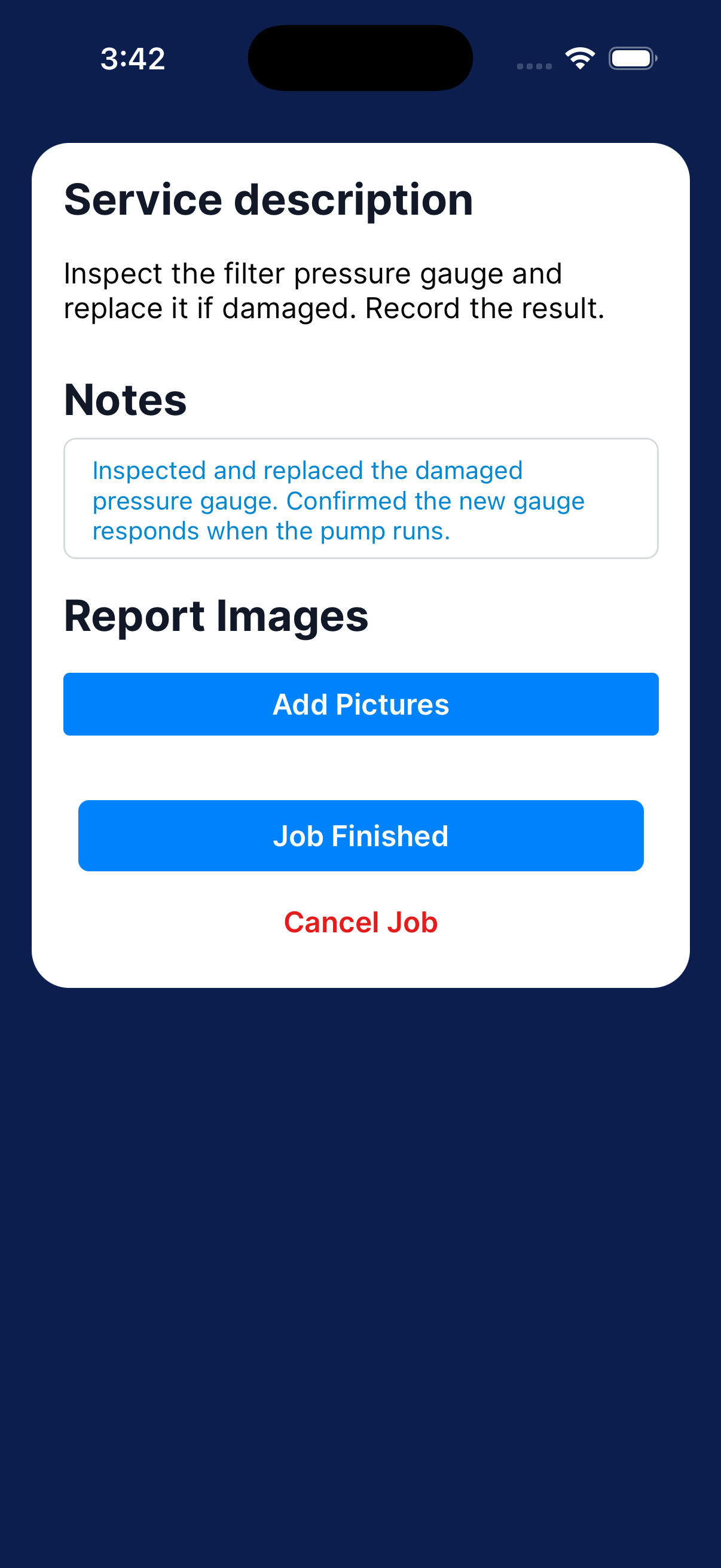
Finish the job
Tap Job Finished and confirm when the work and report are complete. Keep the app open while the report uploads.
Check delivery
Open Business → Reports to check the work-order report’s upload status.
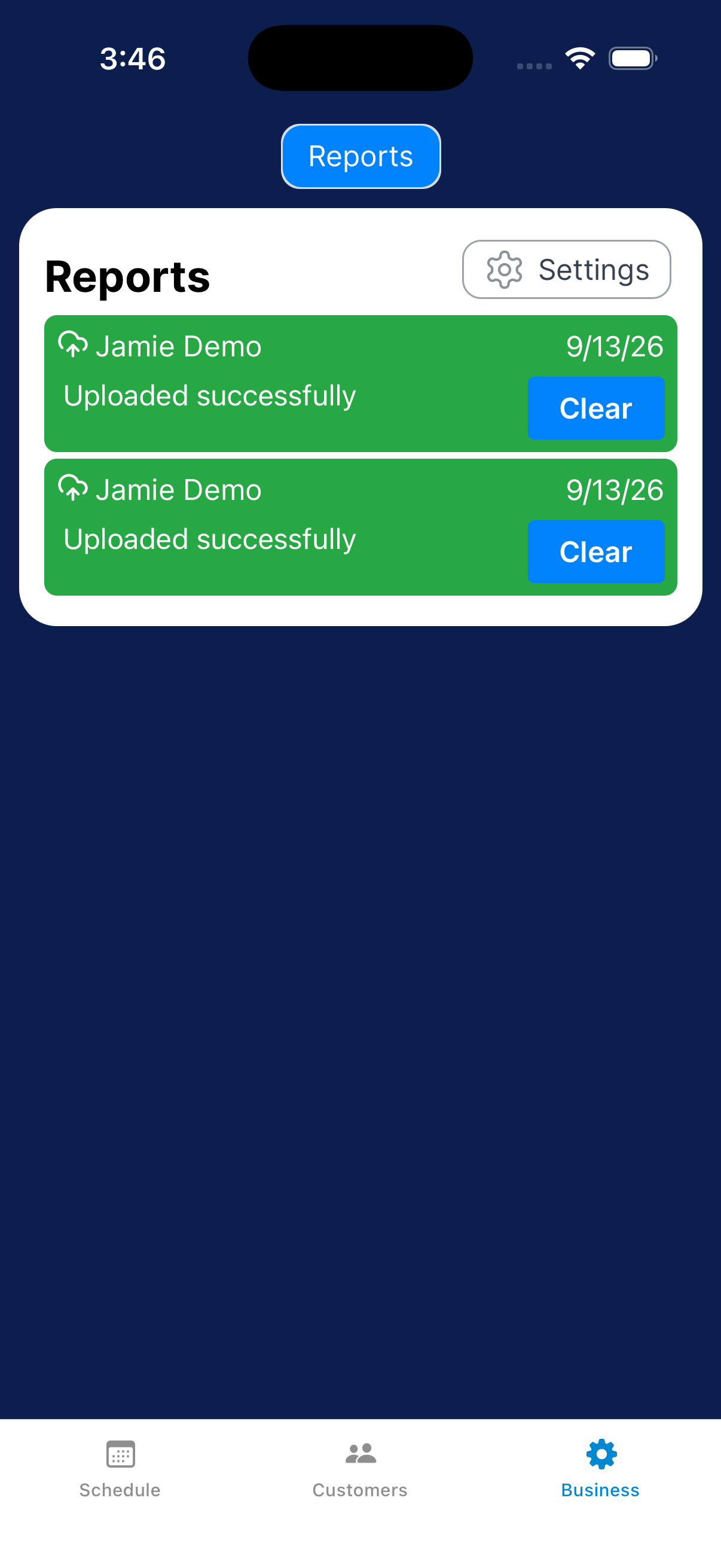
Cancel an active work-order report
Cancel the report if you’re abandoning the job. This does not archive the work order. Talk with your manager about rescheduling.
Open the work-order report
From the work order’s scheduled visit, open its in-progress report.
Choose Cancel Job
Tap Cancel Job at the bottom. Read the confirmation.
Confirm or return
Tap OK to cancel the active job, or Cancel to keep working. Check Schedule afterward.
What happens next?
After you finish, check the report’s upload status. If you cancel, check Schedule and talk with your manager about the next visit.