
Sign in with the account your manager connected to the business. Load the current schedule while connected before traveling.
Check the day and the property
Do this before you leave. Operators and technicians see different schedule controls.
Choose the service day
Open Schedule and check the date. Operators can choose All techs or one technician.
Technicians see their assigned jobs. If a stop is missing, check the date and ask your manager to check the assignment.
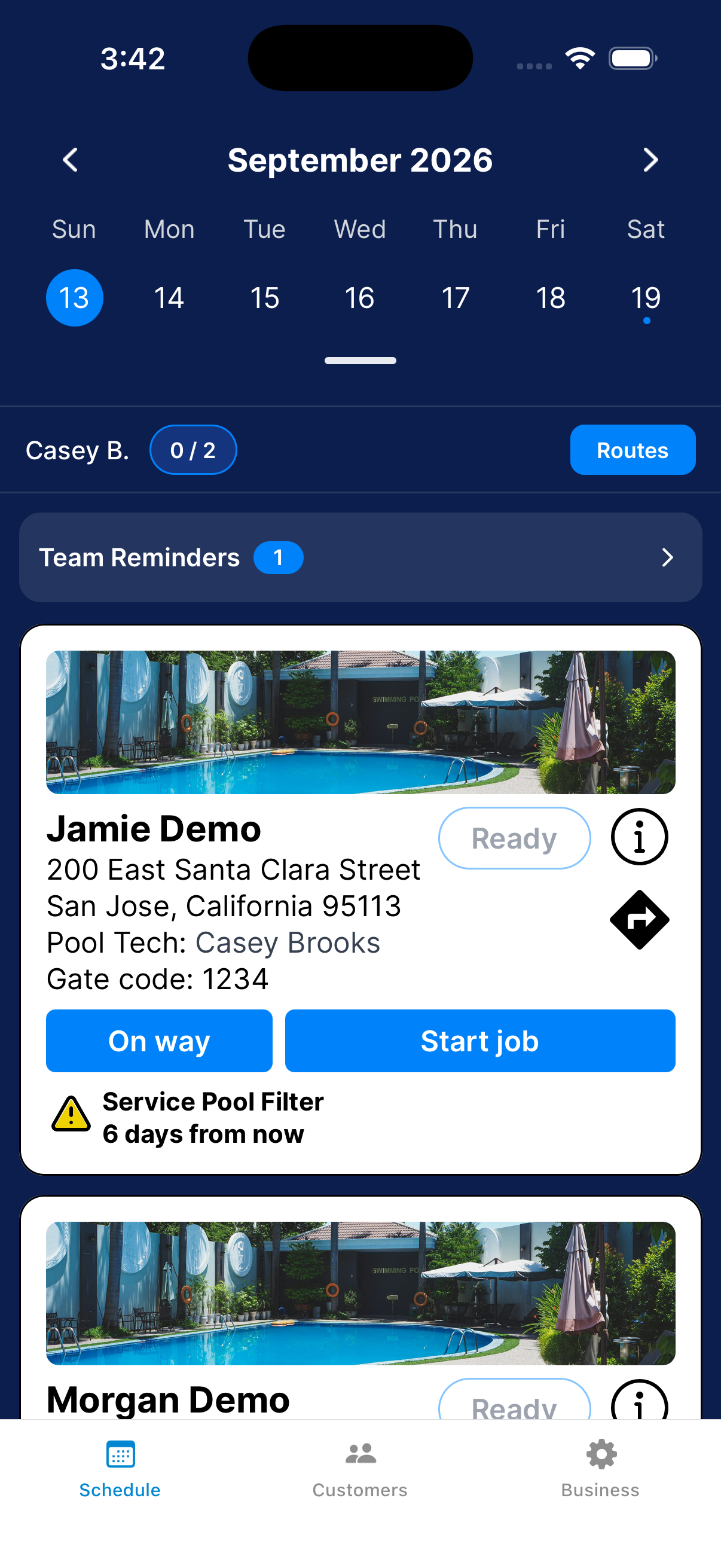
Read the visit card and property instructions
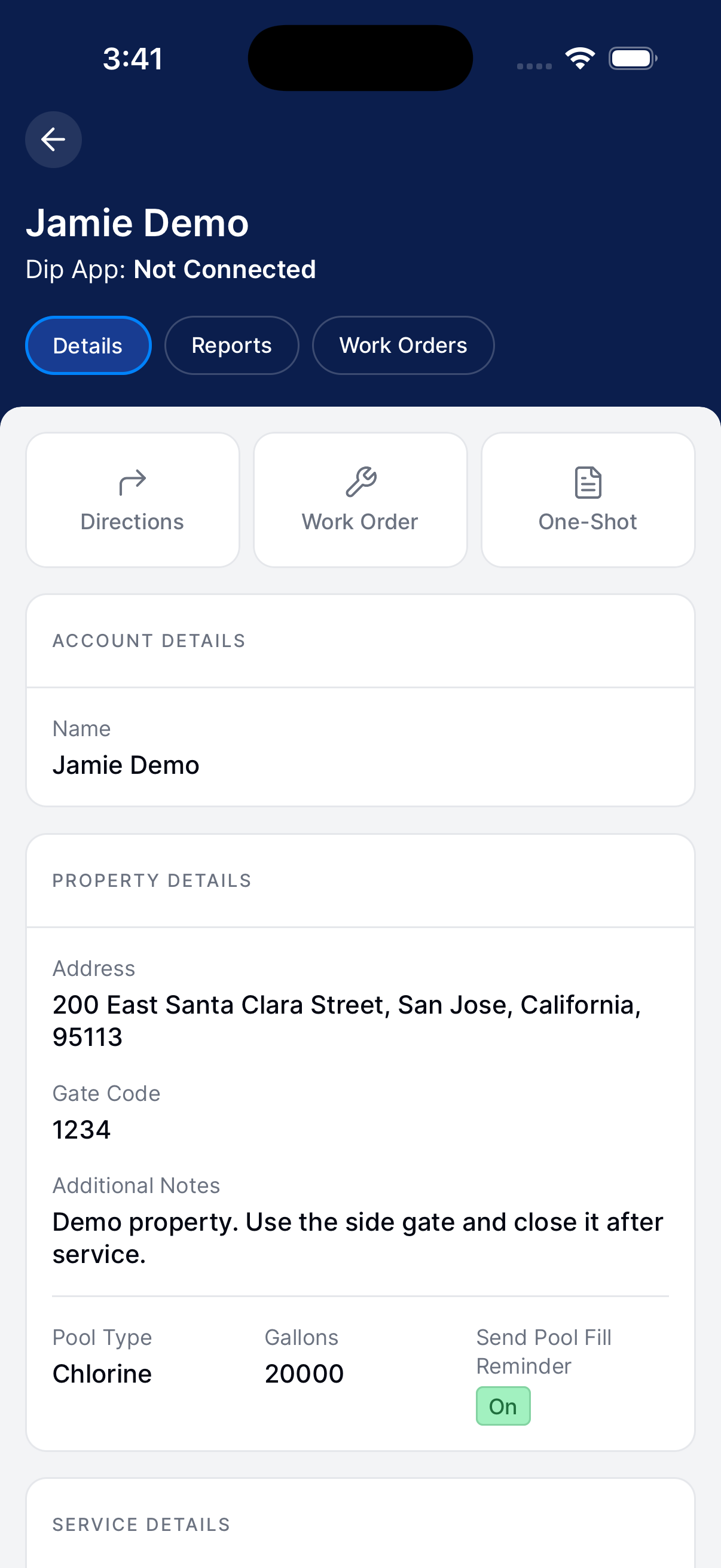
Check the address, status, last-service date, and task reminders. Tap Info for property notes and access details.
To find a customer another way, go to Customers and tap Info.
Review the route before traveling
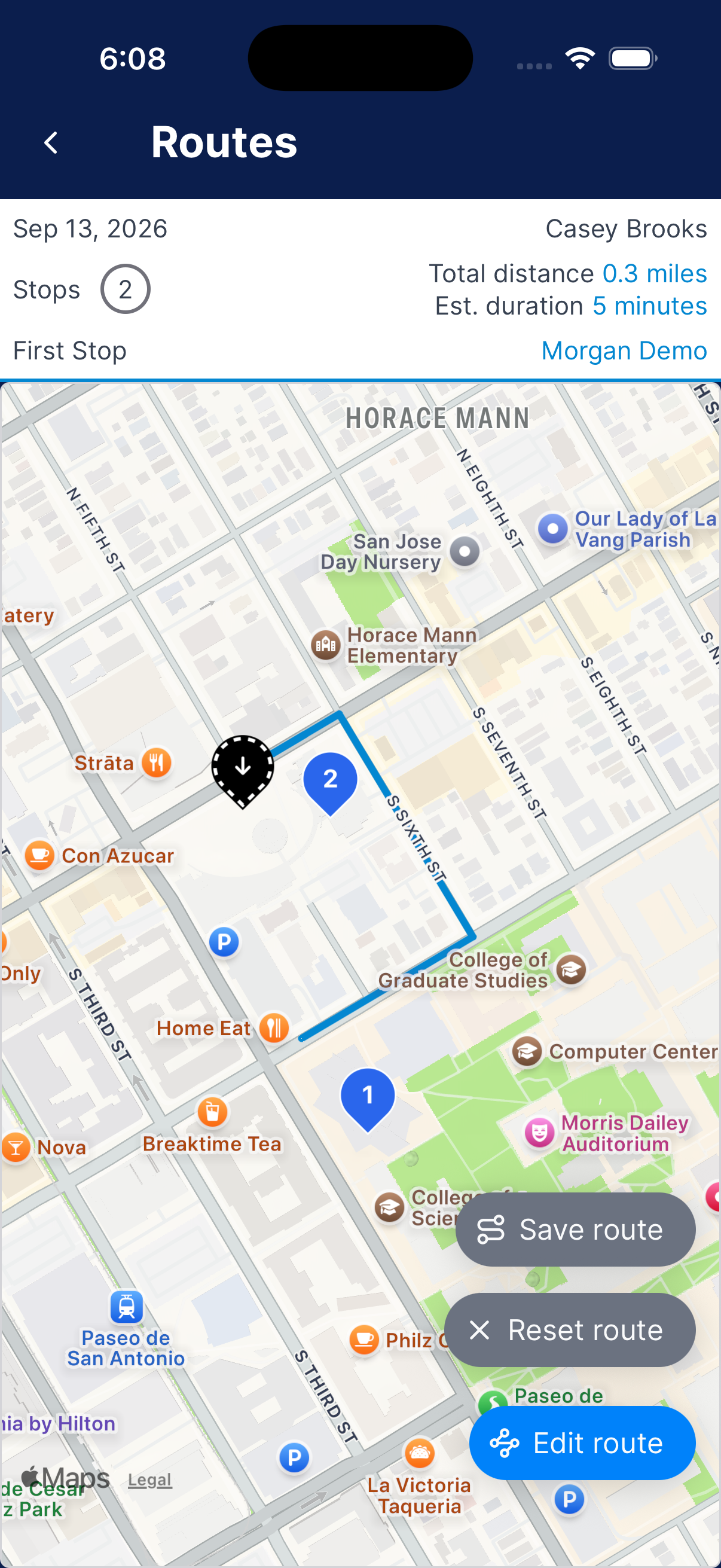
Tap Routes to check the stops. To change the start, end, or order, see Plan a route.
You may need permission to edit it.
Travel and update the customer
Check the customer before sending a message or arrival time.
Open directions or contact details
Tap the directions arrow on the visit, or Directions on the profile, to open your map app. Tap Message to contact the customer.
You may need permission to see contact details.
Tell the customer you are on the way
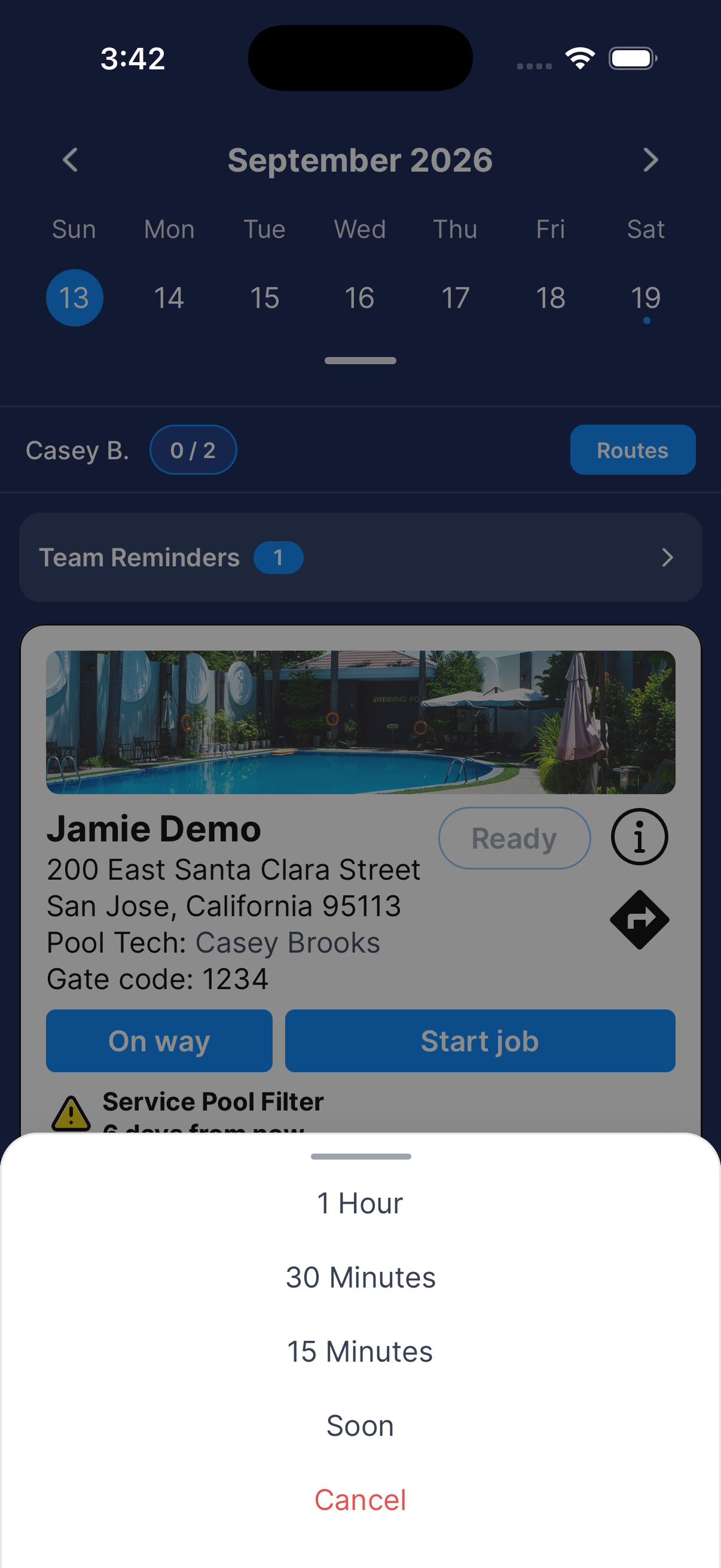
On the visit card, tap On way. Choose 1 Hour, 30 Minutes, 15 Minutes, or Soon.
Your choice sends the update. Tap Cancel to leave without sending.
Need a hand?
What does Continue job mean?
That visit already has an open service report. Tap Continue job to resume it.
Why can’t I see a customer’s contact information?
Contact actions depend on your permission to view customer contact information. Ask your manager to check your access.