
Your account and the business settings control who can edit a route.
Open the route
Set the date and technician before you edit the route.
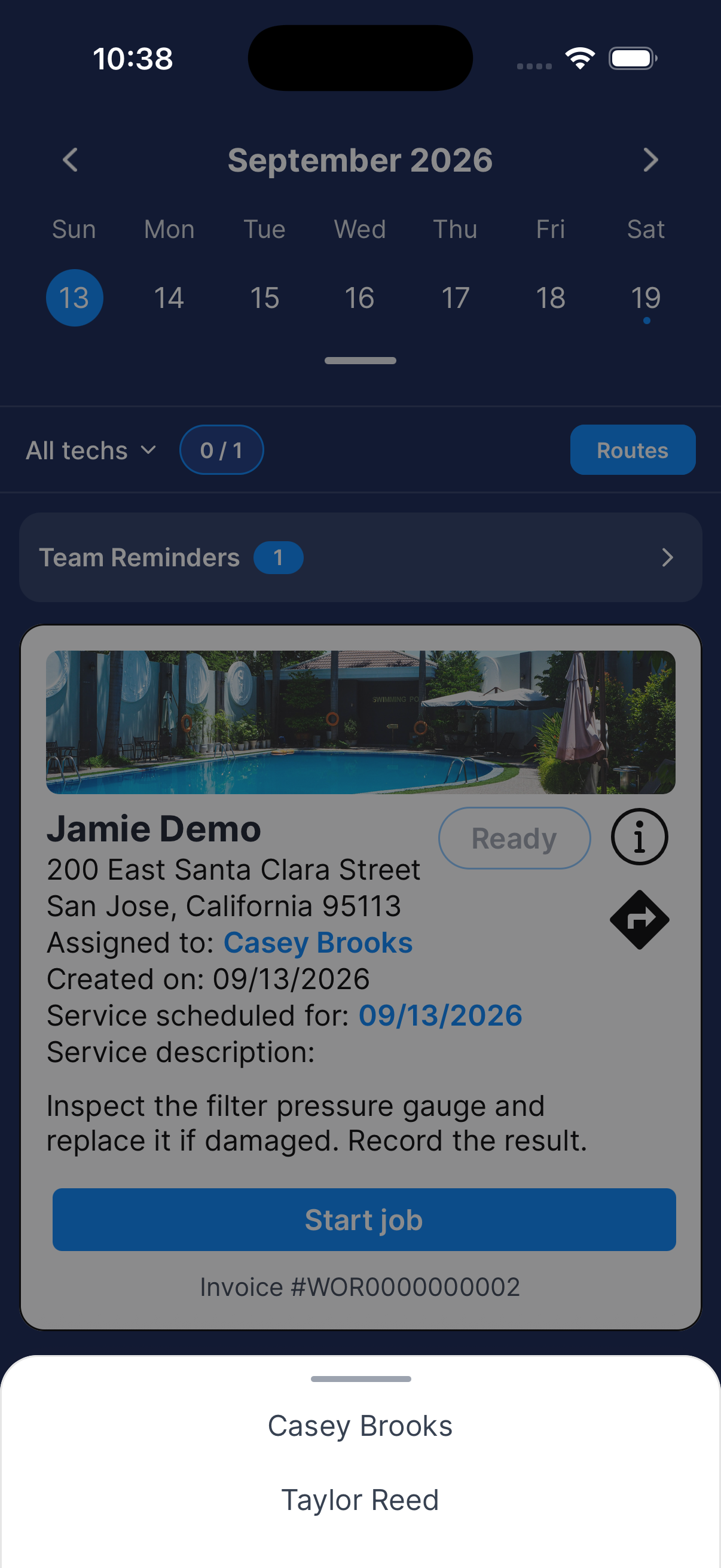
Open Routes
On Schedule, choose the date and tap Routes. If you chose All techs, choose a technician too.
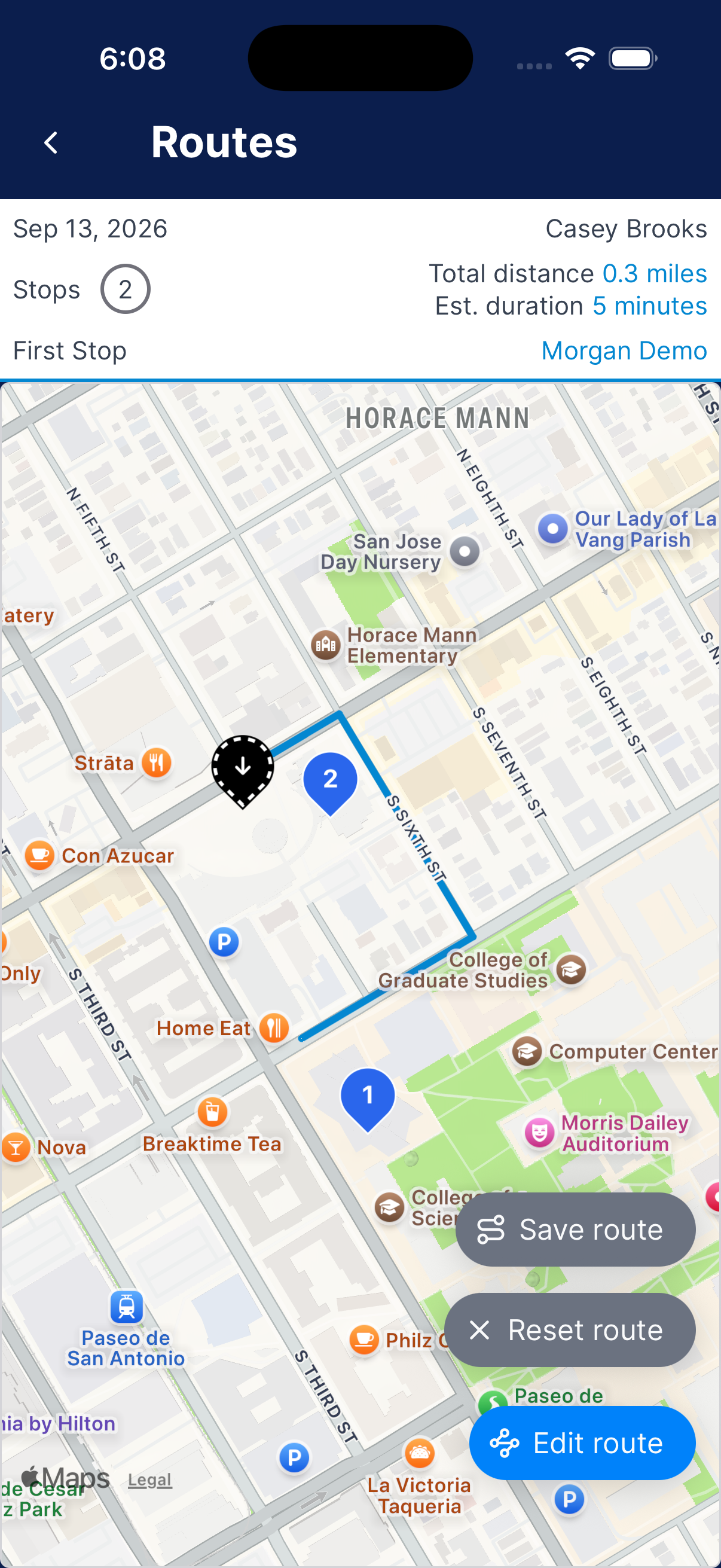
Review the map
Check the technician, date, and stops. Tap a map marker to open its actions.
Set a start and end to show the route line.
Set both the start and end
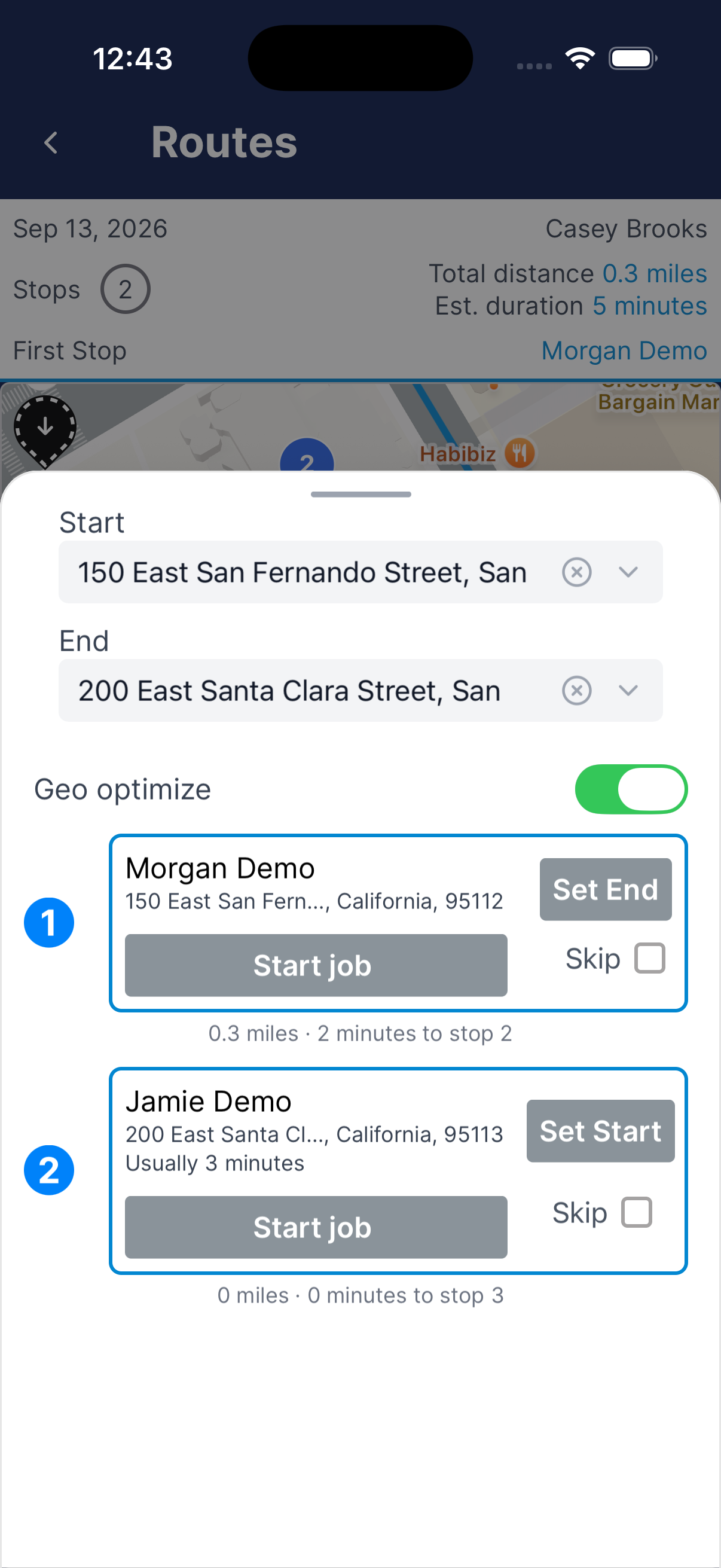
Tap Edit route. Choose an address for Start and End, or use Set Start on the first stop and Set End on the last stop.
Dip needs both before it can draw the route.
Choose the order
Use Geo optimize for a suggested order. When it’s off, use the stop-order controls to adjust the order yourself.
Use Skip for stops you want excluded from this route.
Check the route and save it
Close the editor and wait for the route to finish calculating. Check the road line, stop numbers, distance, and time.
Zoom out if needed. Tap Save route, then Save, if you want to use the arrangement again.
Reset a saved route
Reset route clears the saved stop order and endpoints.
Open the route
From Schedule, choose the date and technician, then tap Routes.
Choose Reset route
Tap Reset route and read the confirmation.
Confirm or cancel
Tap OK to reset, or Cancel to keep the route. Review the new arrangement before using it.
What happens next?
Use the route for travel. Tap Save route if you want to use the same arrangement again.
Need a hand?
Why can’t a technician change the route?
The operator controls Enable technician route management under Business → Settings. Ask them to review that setting if your role needs to organize routes.