
Have a customer’s address and service day ready. If a technician will do the work, have the email they used to register. Already registered? Start with Prepare the first visit.
Create your operator account
Skip this part if you already have an operator login.
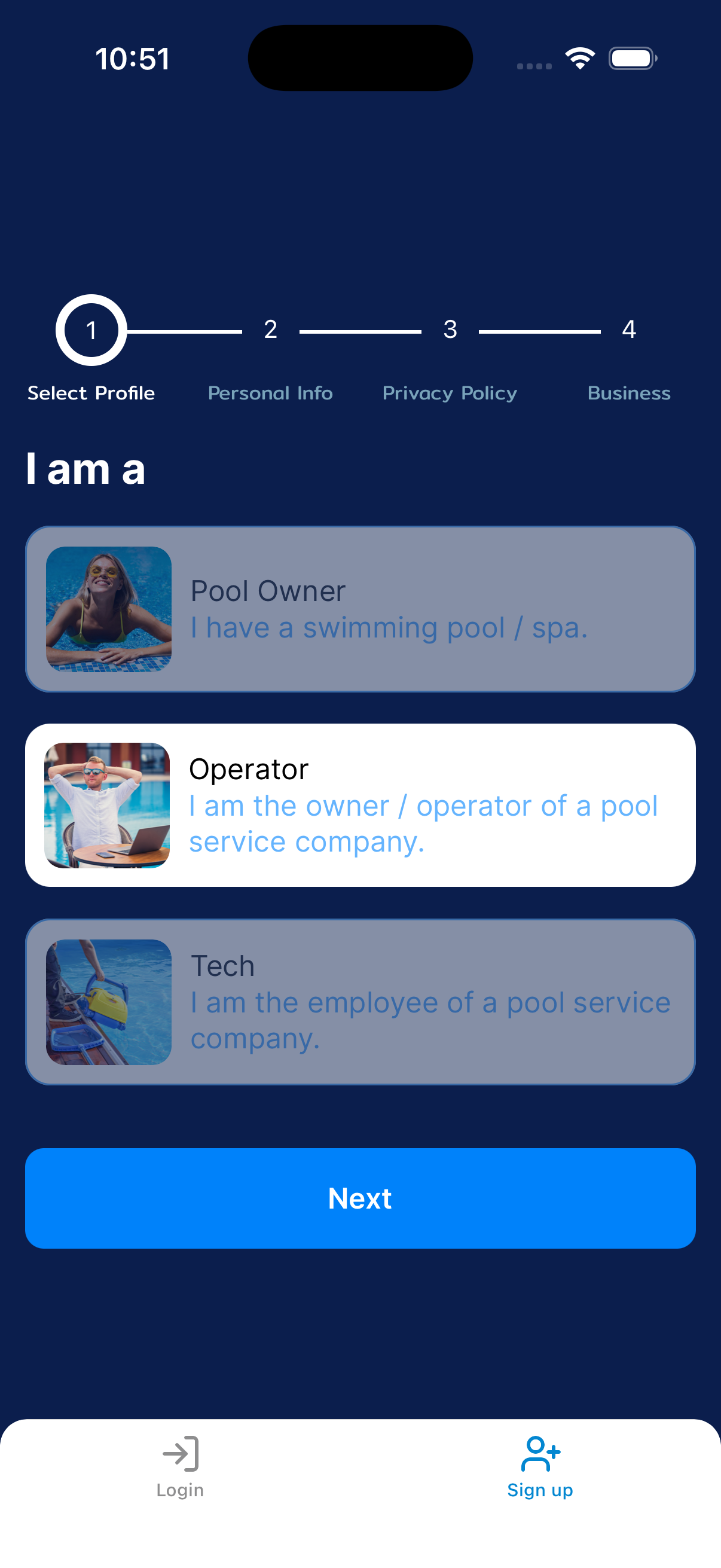
Register and choose Operator
From the login screen, open Sign up. Enter your email and password, confirm the password, and tap Register.
On Select Profile, select Operator and tap Next. This creates the account you’ll use to manage your pool-service company.
Add your name and review the policy
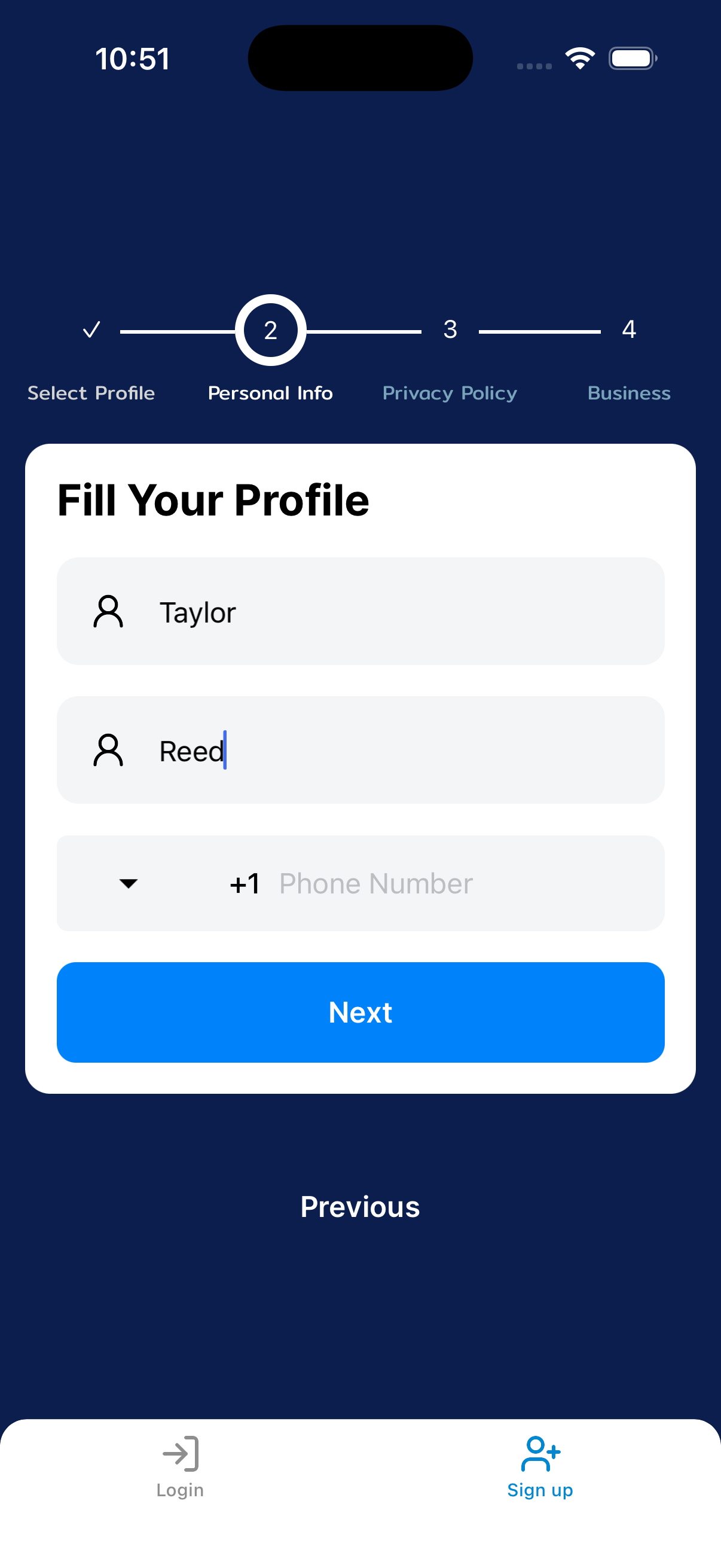
Enter your name under Personal Info and tap Next. Read the Privacy Policy and accept it.
Identify your company
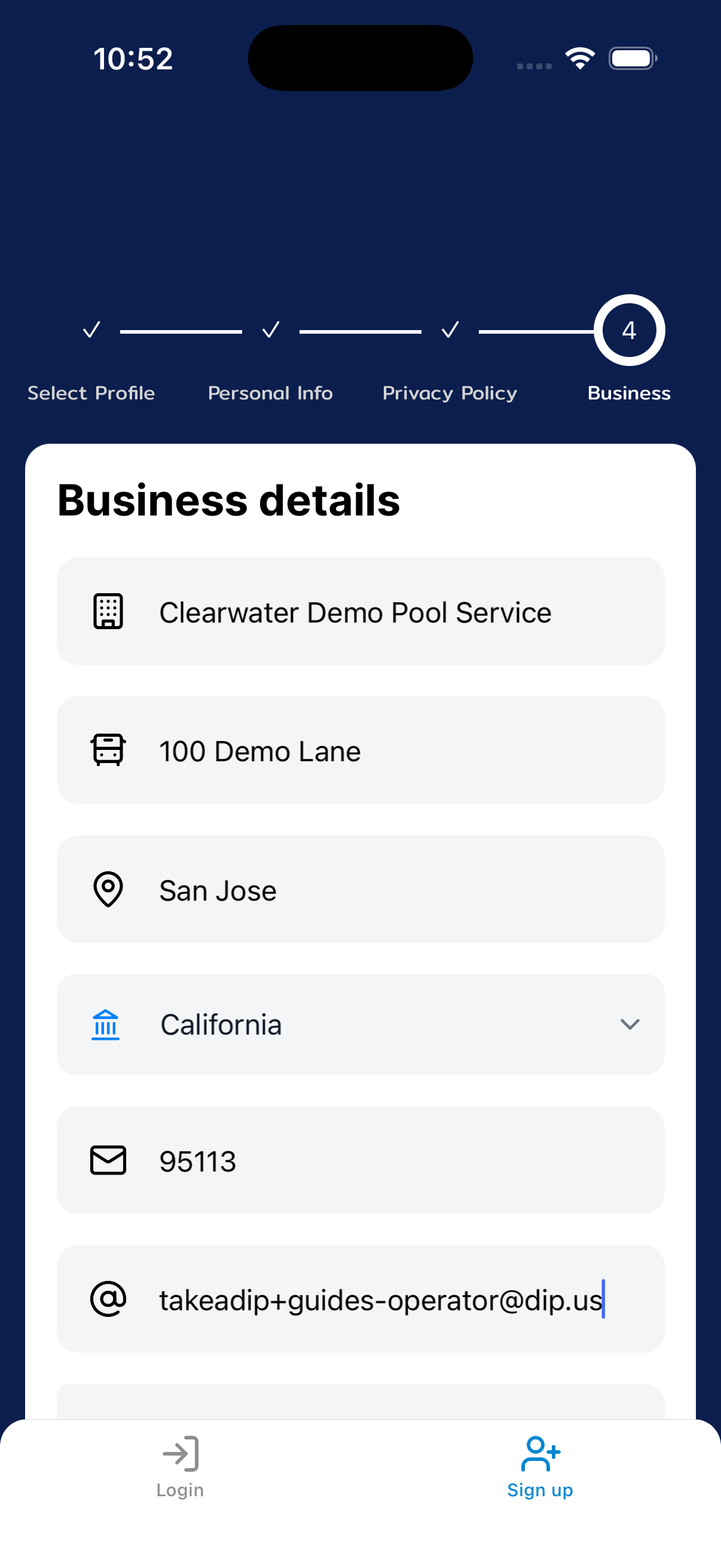
On Business, enter your company name, address, and email. Add the website and logo later if you want.
Choose the billing day and finish
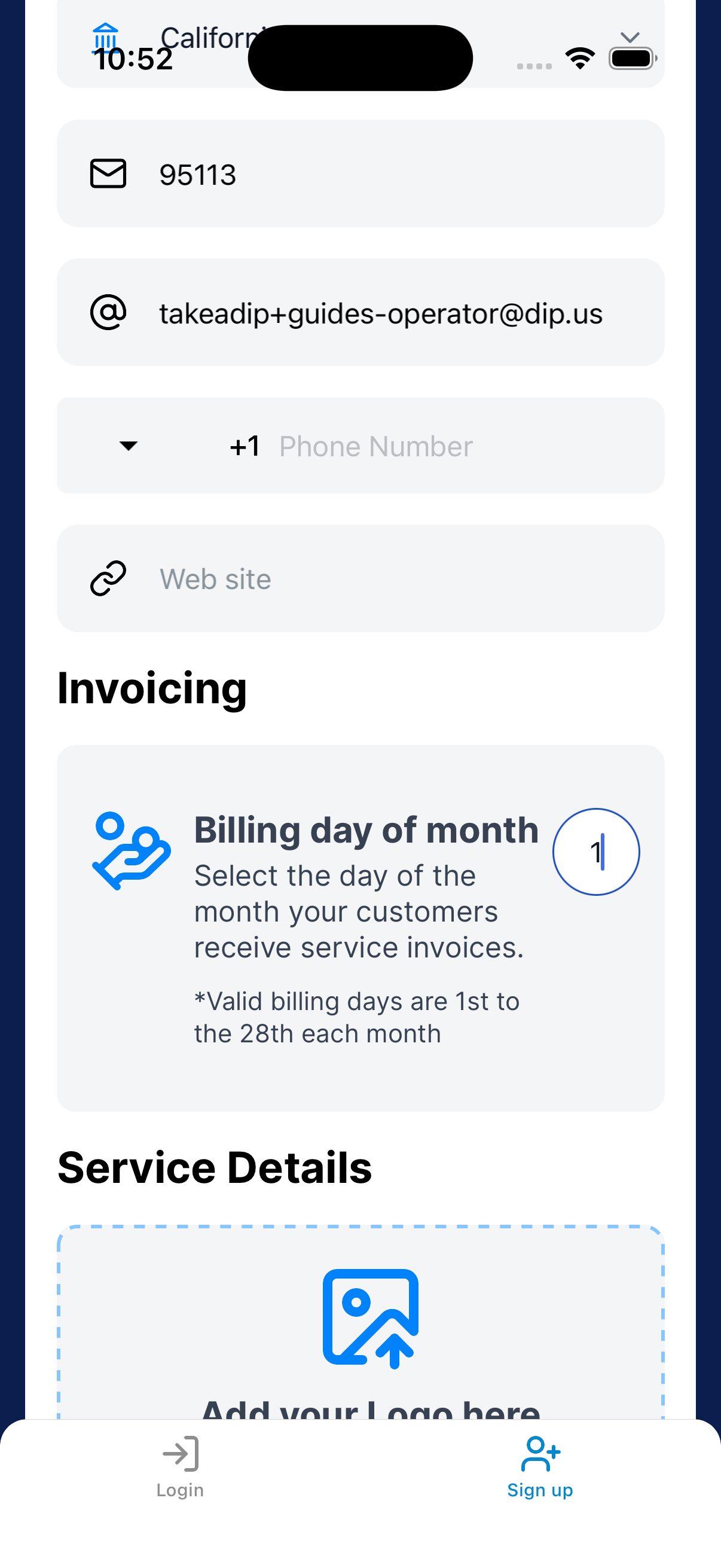
Choose a day from 1–28 for monthly invoices. Tap Save.
Before turning on monthly invoices, read Set up and review monthly billing to check the fees and date.
Prepare the first visit
Start with one customer. Check the assignment and service day before adding more.
Connect a technician if someone else will do the work
If you do the work yourself, go to the next step. If a technician will do it, have them register as Tech.
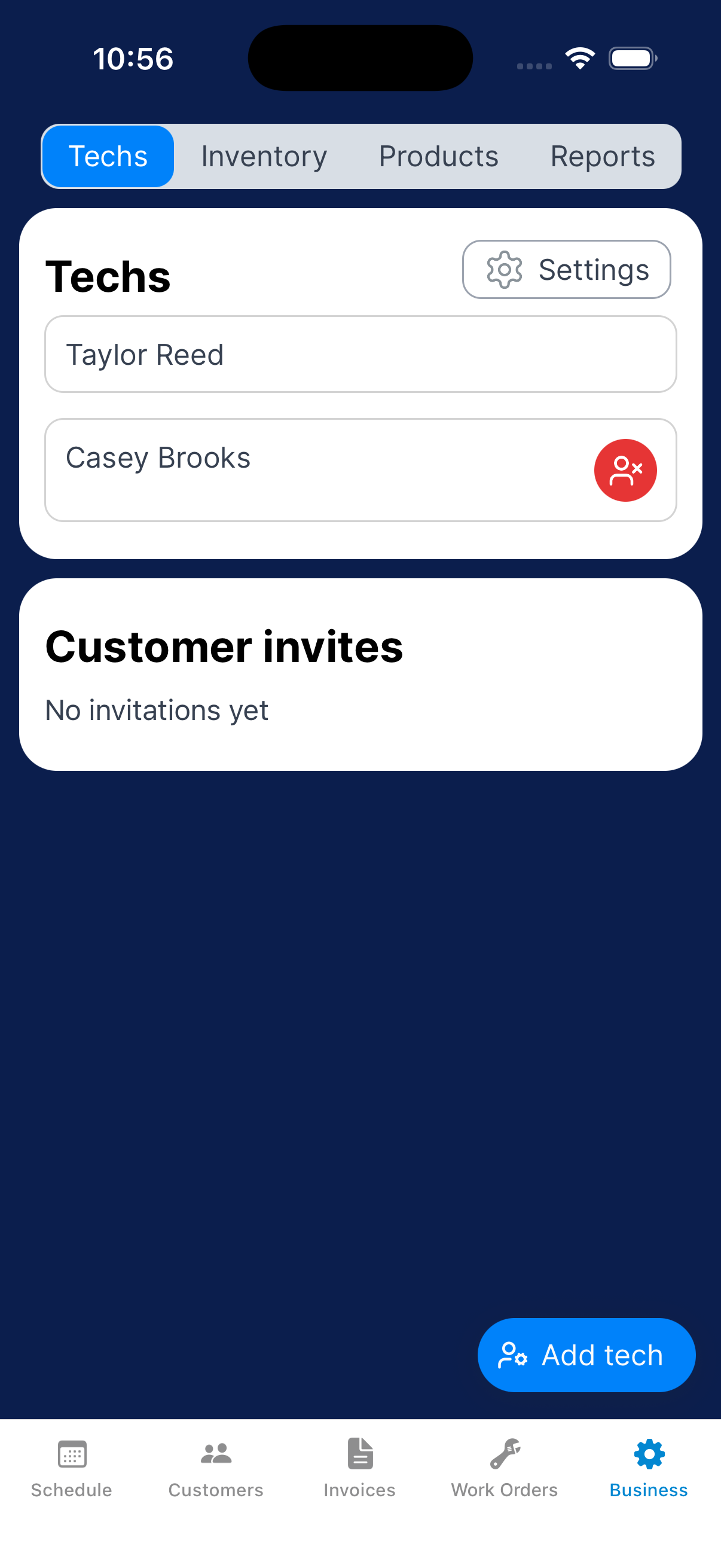
Go to Business → Techs → Add tech. Enter their registered email and tap Save.
Check that their name appears in the team list.
Adding a technician connects their account. You still need to assign the service to them.
Add the customer and assign service
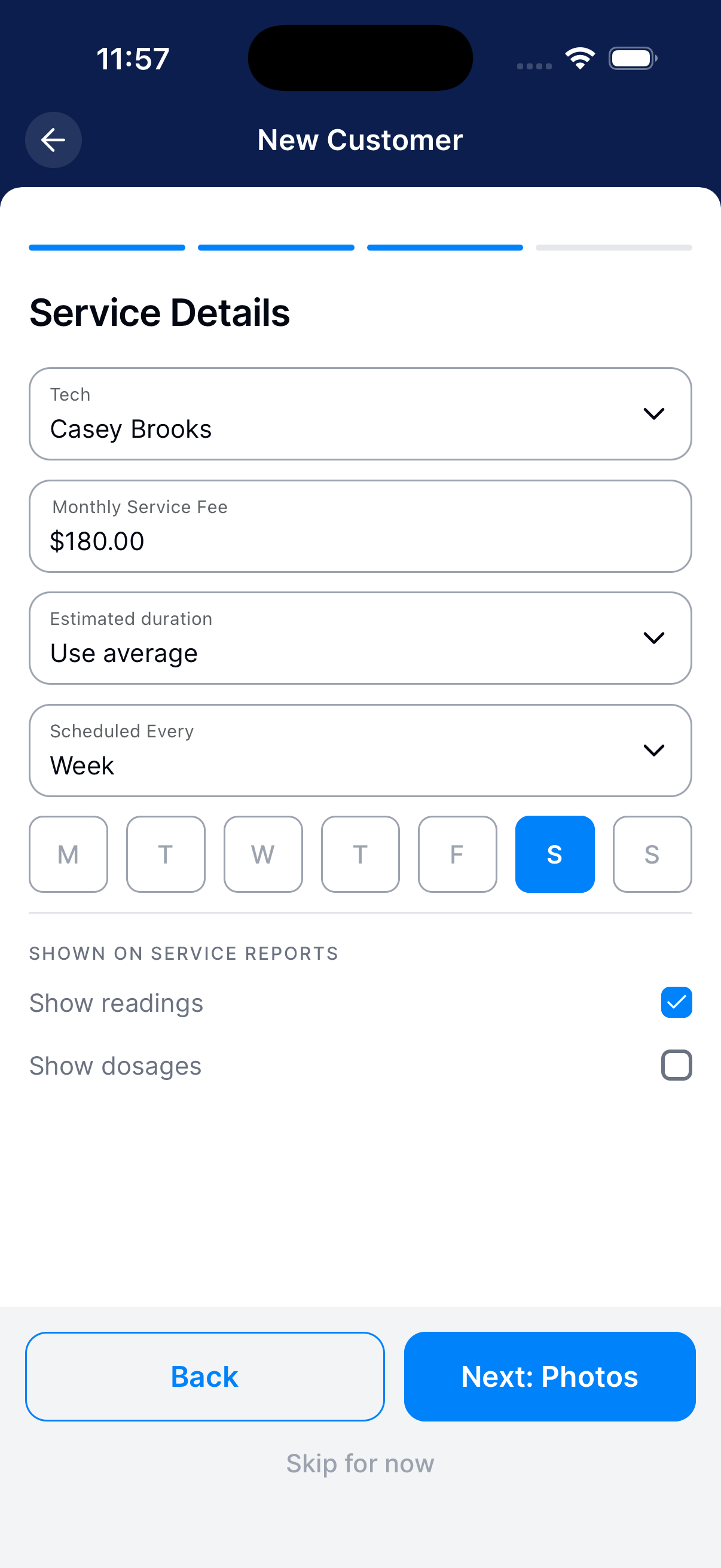
Go to Customers → Add customer. Enter the customer’s contact and property details.
Under Service, choose the technician, frequency, and service day. Finish creating the customer.
See Add a new customer for every field.
Check the scheduled visit
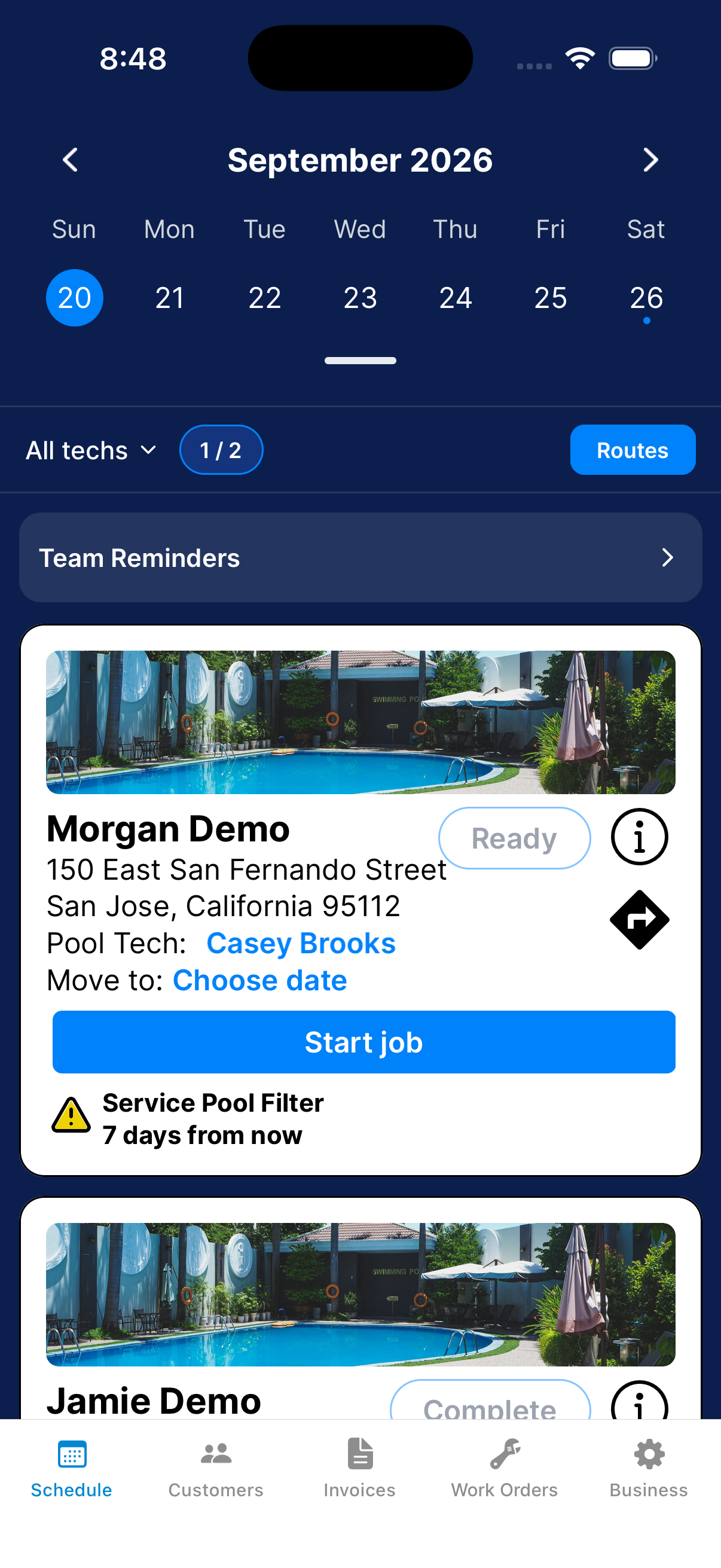
Open Schedule on the service day. Find the customer and check the assigned technician.
If a technician will do the work, have them sign in and check their schedule too.
What happens next?
The first visit is ready when the customer appears on the right day with the right person assigned. Have the technician check their schedule too.
Need a hand?
I work by myself. Do I need to add a technician?
Skip Add tech. Choose your own name when you assign the customer’s service. Check the visit on your schedule.
The customer is saved, but the visit is missing. What should I check?
Check the date in Schedule. Then open the customer’s Service settings. Check the technician, frequency, and service days.