
Reminders save only while you’re online.
Create a reminder
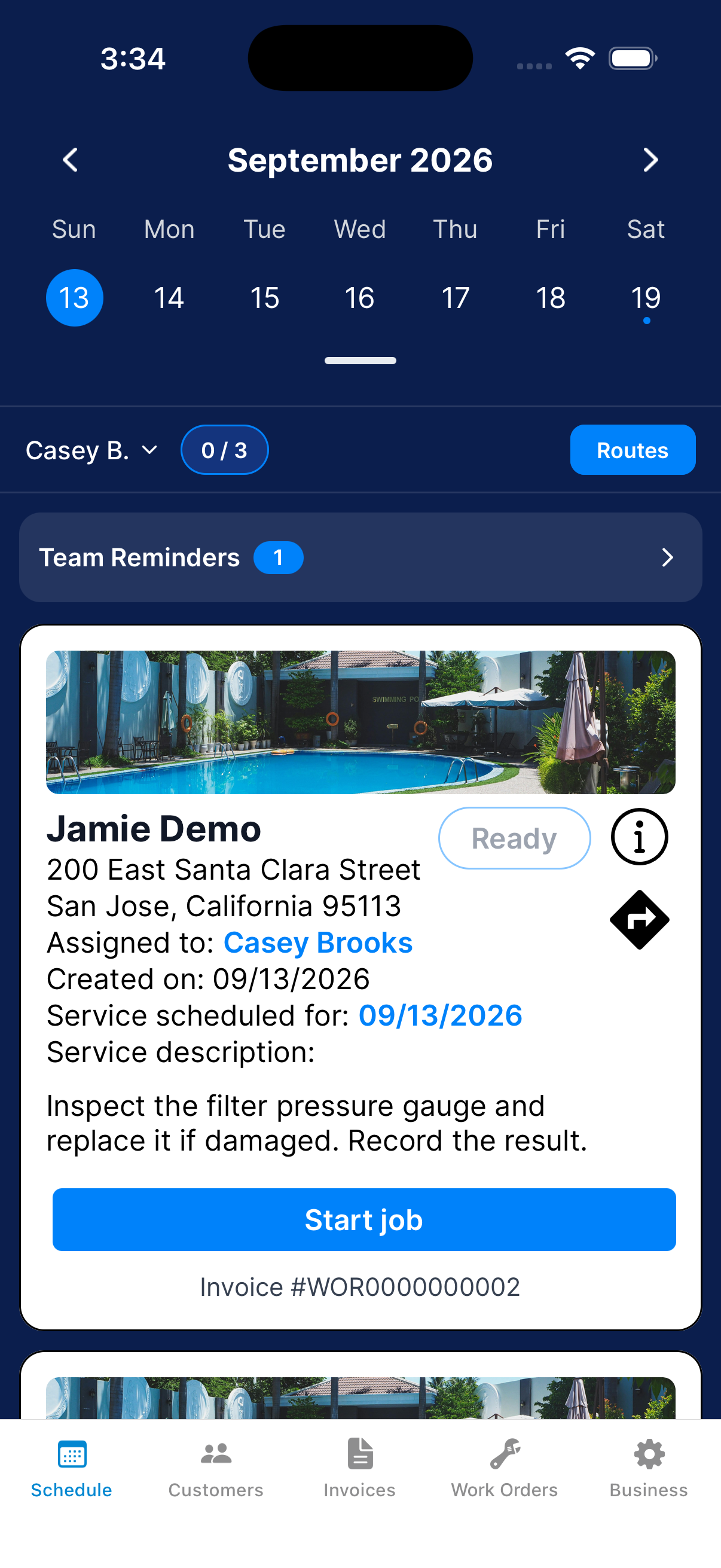
Open Team Reminders
On Schedule, tap Team Reminders.
Start a reminder
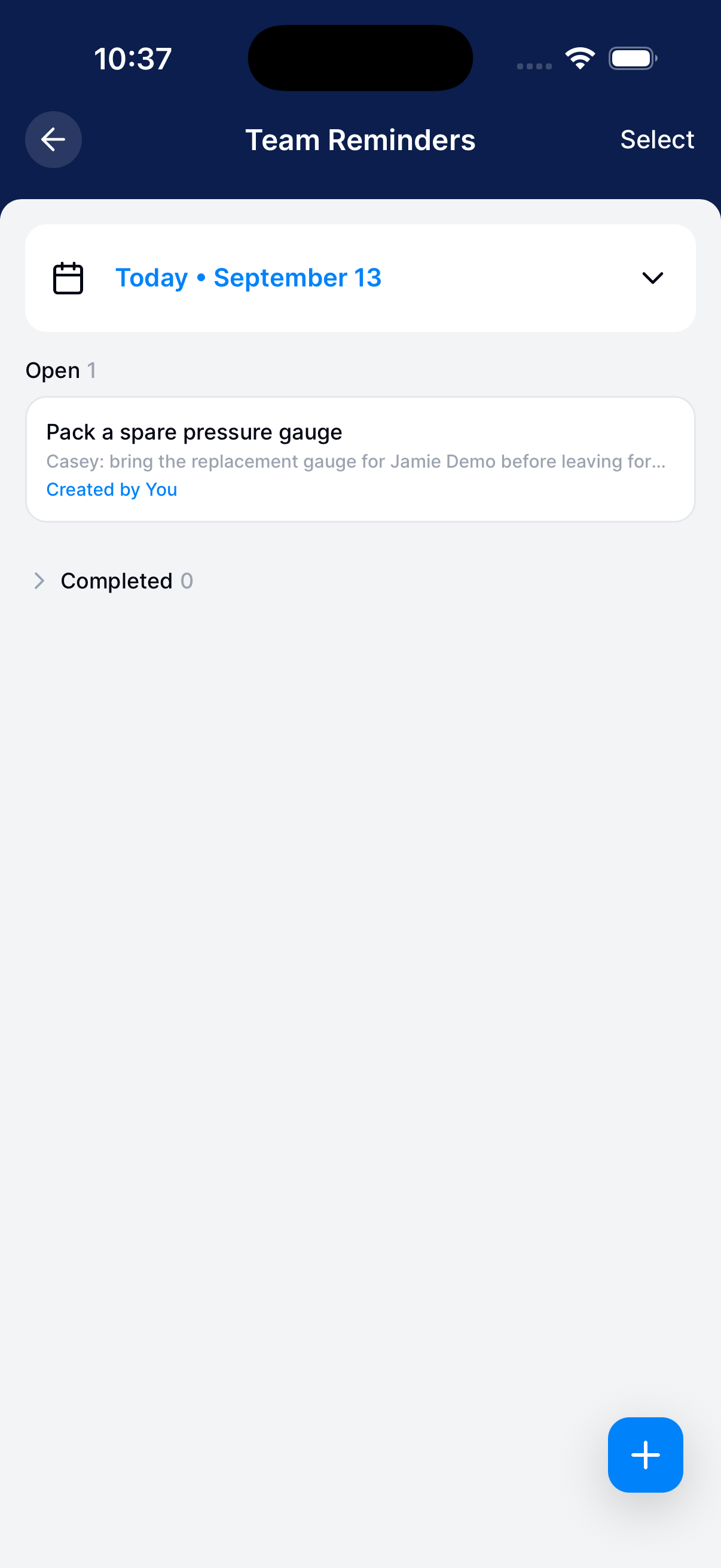
Tap the + button at the bottom right.
Add the details
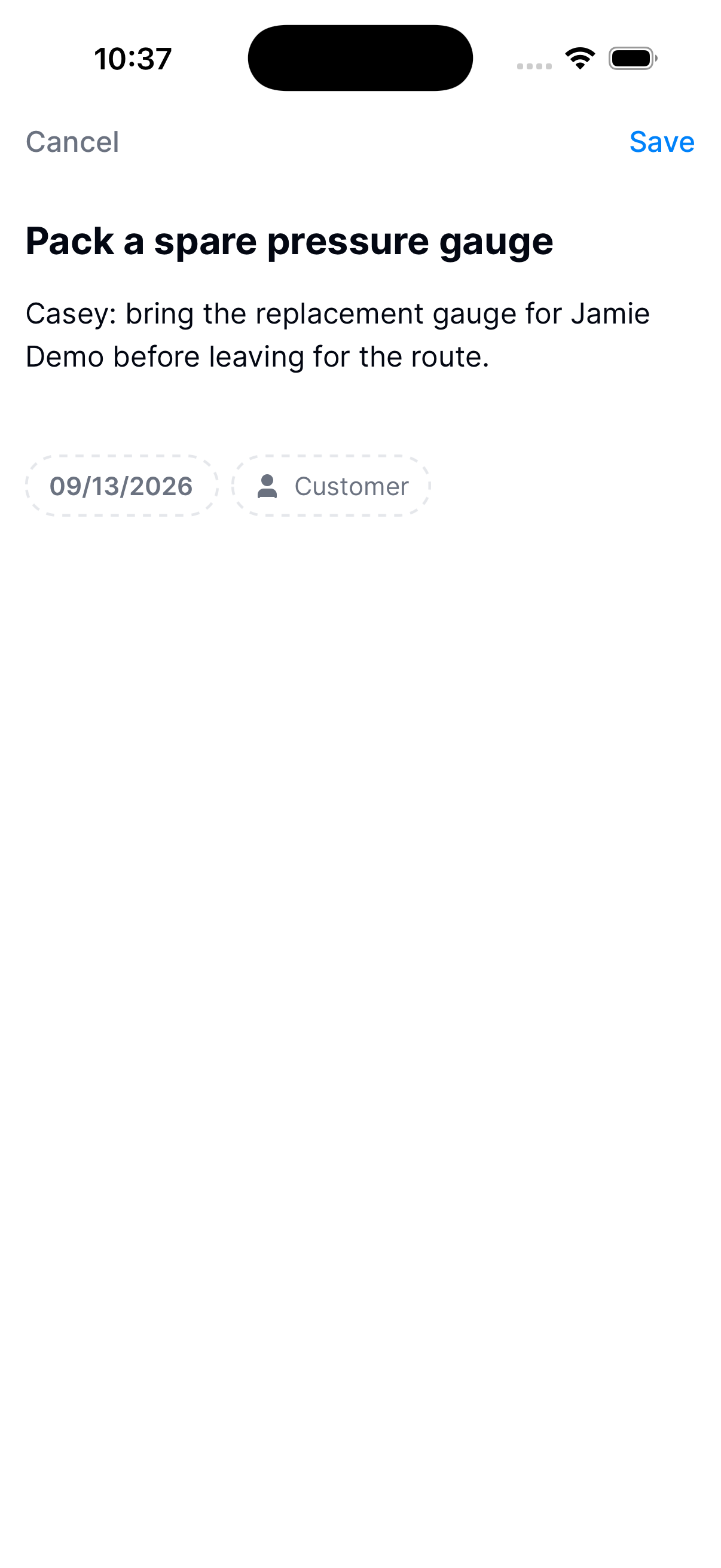
Enter a title and notes, and choose a date. If it’s about one customer, choose them too. Save stays gray until there’s a title.
Save the reminder
Tap Save. The reminder shows under Open on the date you chose.
Manage an existing reminder
Find the reminder
Go to its date. Finished reminders are folded under Completed. Tap it to show them.
Read or edit it
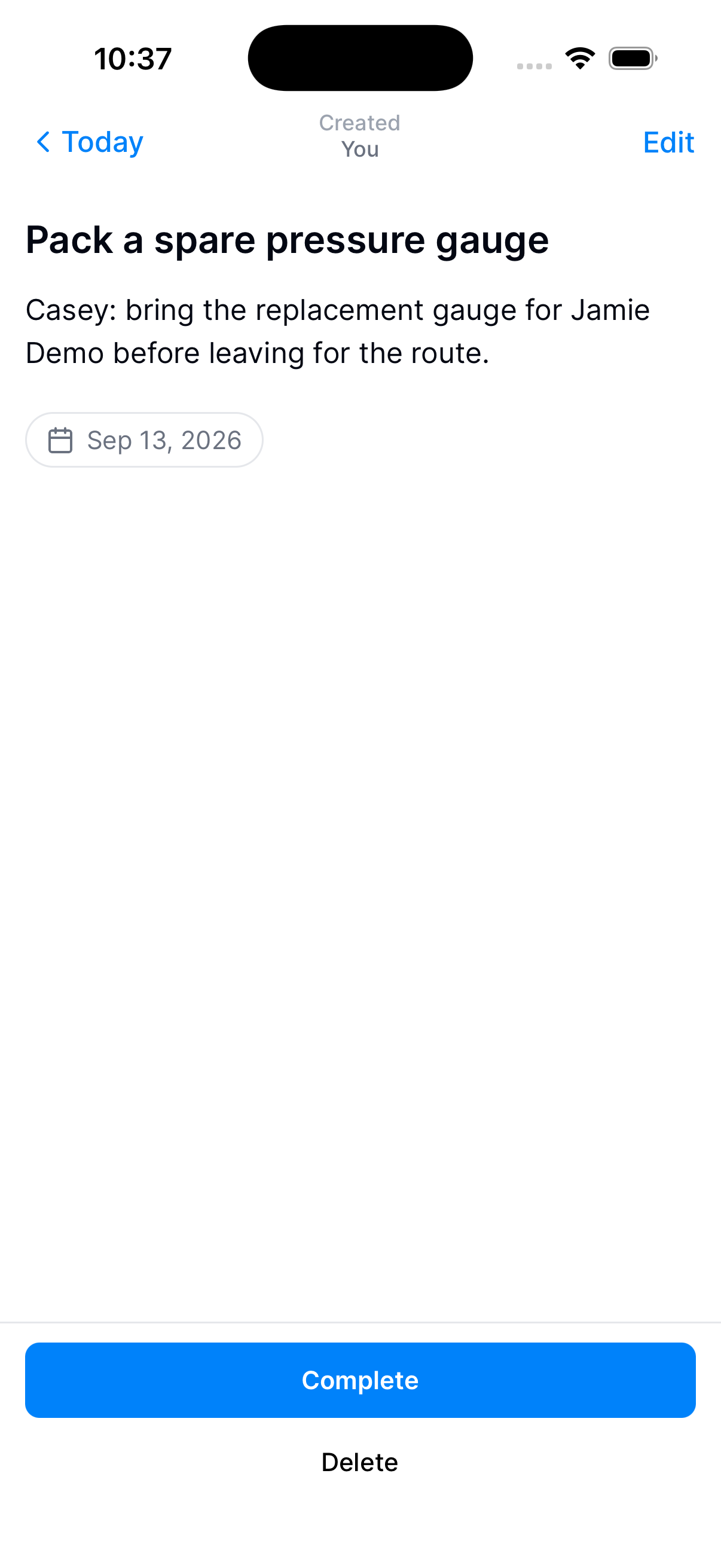
Tap the reminder. To change the title, notes, customer, or date, tap Edit, make your changes, and tap Save.
Complete or reopen it
When the job’s done, tap its checkbox in the list or Complete on the reminder. To bring one back, open it from Completed and tap Reopen.
Update several reminders
Tap Select at the top and tap each reminder you want. The top shows how many you’ve picked. Then choose Complete, Reopen, Move to day, or Delete.
Deleting can’t be undone. Dip asks before it deletes them.
Need a hand?
Where is a reminder I already completed?
Go to its date and tap Completed. Finished reminders are folded under it.